AirData 150 S2 USB User Manual
43
3.1.9 Link Status
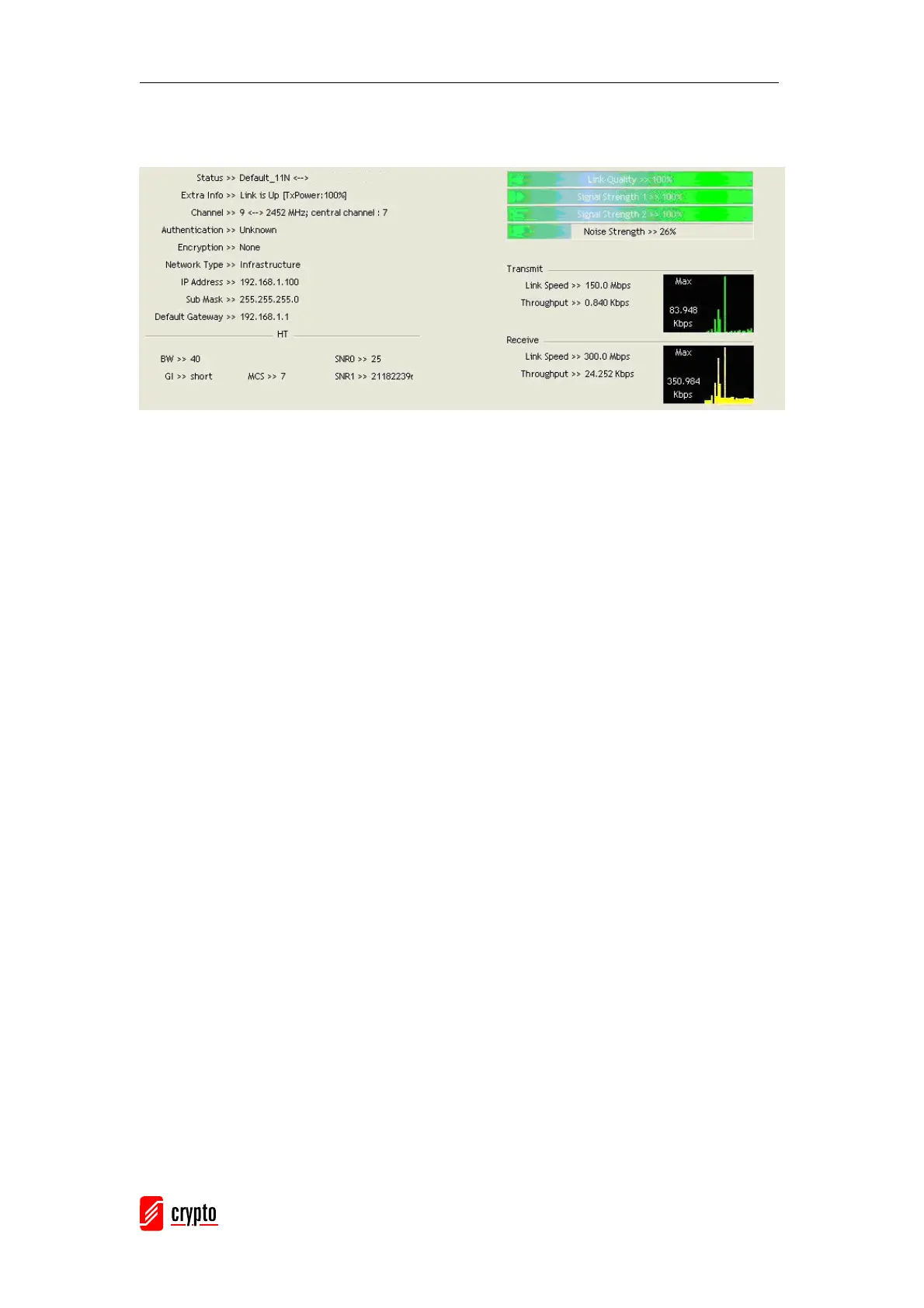
Link Status displays the detailed information for the current connection
Status: Illustrates the current connection status. If there is no connection, it will show
Disconnected. Otherwise, the SSID and BSSID will be shown here.
Extra Info: Displays the link status in use.
Channel: Displays the current channel in use.
Authentication: Authentication mode in use.
Encryption: Encryption type in use.
Network Type: Network type in use.
IP Address: IP address about current connection.
Sub Mask: Sub Mask about current connection.
Default Gateway: Default gateway about current connection.
Link Speed: Show current transmit rate and receive rate.
Throughput: Display transmits and receive throughput in Mbps.
Link Quality: Display Connection quality based on signal strength and Tx/Rx packet error
rate.
Signal Strength 1: Receive signal strength 1, user can choose to display in percentage or
dBm format.
Signal Strength 2: Receive signal strength 2, user can choose to display in percentage or
dBm format.
Signal Strength 3: Receive signal strength 3, user can choose to display in percentage or
dBm format.
Noise Strength: Display noise signal strength.
HT: Display current HT Status in use, containing BW, GI, MCS, SNR0, and SNR1 value.
(Show the information only for 802.11n wireless card)


 To Next Page