17 of 29Fly6 CE603 User Guide |
Looping function
Your Fly6 is designed as a ‘set-and-forget’ cycling accessory. The footage is
set to record on a ‘continuous loop’ so you don’t have to worry about running
out of storage space on your microSD card. When there is no more free
space left, the Fly6 will then start recording over the oldest footage first.
Any locked footage saved by the Fly6 Incident Protection Mode or manual
footage capture, will not be overwritten by this looping function.
The looping function cannot be turned off. This ensures that you do not
forget to record your ride. If you want to keep your ride footage, ensure you
transfer it to another storage device.
The maximum duration of video footage that you can record is dependent on
the selected video setting as well as the storage capacity of your
microSD card.
Locked footage can completely fill your microSD card. We recommend
regularly transferring any locked footage and other videos to another storage
device and then formatting your microSD card with the CycliqPlus app.
Capturing still images
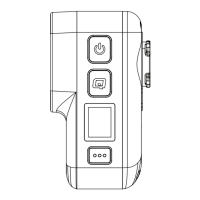
Your Fly6 can take still images while recording video. You can do this by
holding the Q and power button simultaneously for 1 second. This image will
be saved as a JPEG and can be accessed with the rest of your footage (see
page 20). The Fly6 will emit a short beep to confirm image capture.
Incident Protection Mode
The Fly6 has been designed to save footage from major incidents without
being recorded over and without you having to do anything.
Incident Protection Mode is activated when the Fly6 is tilted more than 60°
from the vertical (or 30° from the ground) for more than 5 seconds. If this
happens, your Fly6 will lock the current and immediately preceding video
segments. This prevents the footage from being overwritten by the video
looping function.
Incident Protection Mode can be enabled and disabled via the CycliqPlus app.
The default setting is enabled.
Manual footage capture
If you witness an event that you want to capture and retain while riding,
simply press and hold the Q button for 2 seconds. This will manually trigger
Incident Protection Mode and 3 rapid beeps will sound to confirm that the
current and previous segments of video have been locked.


 To Next Page