14D-Link DAP-1860 User Manual
Section 3 - Conguration
WPS-PBC Conguration
Step 1 - Initiate WPS Mode
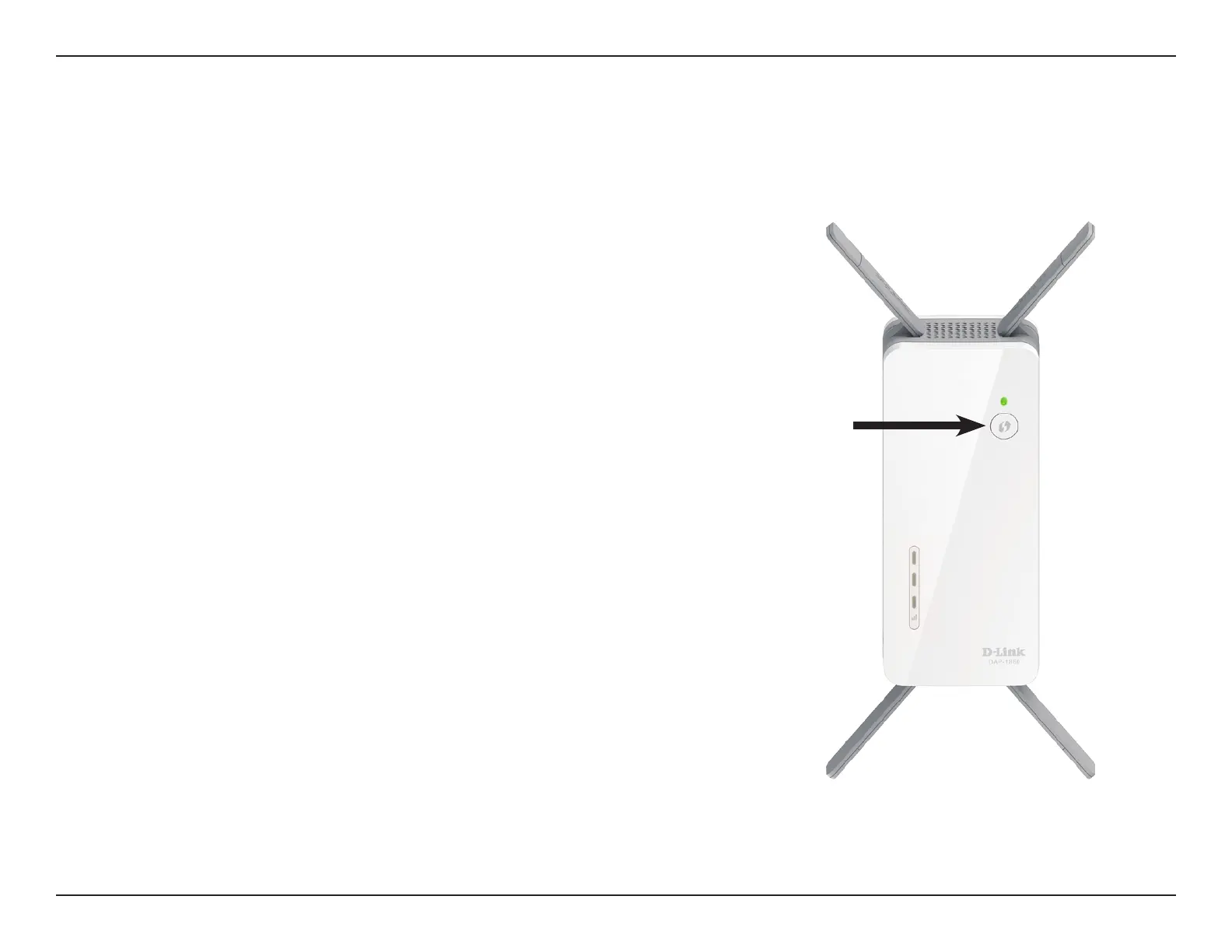
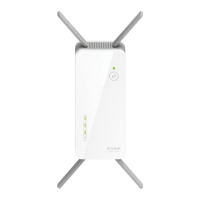
While the Status/WPS LED is blinking amber, push the WPS button on the source
wireless router or AP, and then push the WPS button on the DAP-1860. The
Status/WPS LED will start to ash green. Please allow up to two minutes for the
process to nish. The Status/WPS LED will turn solid green when the DAP-1860
has connected successfully to the source wireless router or access point.
Step 2 - Connecting Devices to the DAP-1860
The DAP-1860 is now ready to share the extended Wi-Fi network with your PCs
and mobile devices. You may use the WPS method to connect devices to the
extended network created by the DAP-1860 using the following network names
(SSID). The password will be the same as the wireless network you are extending.
• (Your router’s SSID)-EXT
The Smart Connect feature will present a single wireless network. When
connecting clients to the extended network, they will be automatically added to
the best band, either 2.4 GHz or 5 GHz. To disable the Smart Connect feature and
individually congure 2.4 GHz and 5 GHz SSIDs, refer to Extender Settings on
page 36.
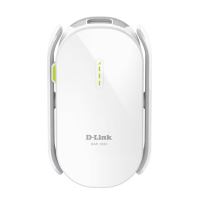
Wireless Protected Setup (WPS) makes connecting your DAP-1860 easy. To use WPS, rst make sure the source router or access point
features a WPS Button or has a virtual WPS Button.



 To Next Page