EasyManua.ls Logo

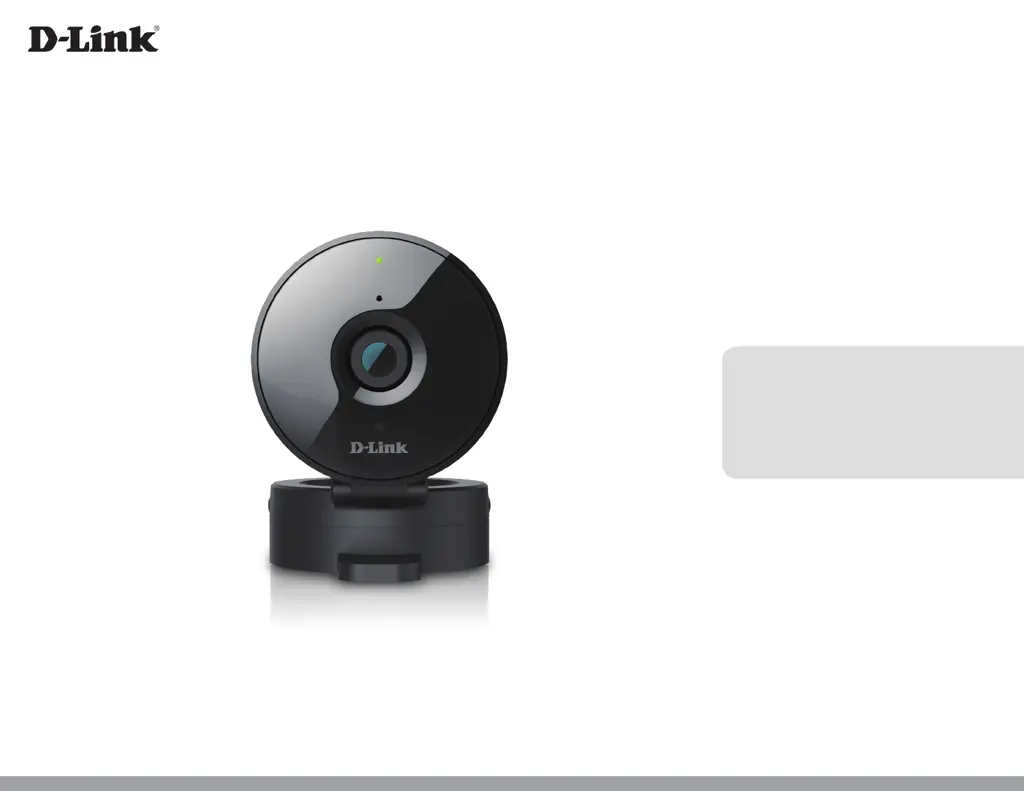
D-Link DCS-936L - User Manual

D-Link DCS-936L
74 pages
Print Icon
To Next Page IconTo Next Page
Loading...
Version 1.02 | 11/17/2017
User Manual
HD Wi-Fi Camera
DCS-936L

Other manuals for D-Link DCS-936L

Questions and Answers

  • B
    Beth AdamsAug 14, 2025
    What to do if I forget my D-Link IP Camera password?
    • M
      margaret36Aug 15, 2025
      If you forget your D-Link IP Camera password, you will need to perform a hard reset. This will revert all settings to factory defaults. To reset, use an unfolded paperclip to press and hold the reset button for at least 10 seconds while the camera is plugged in.
  • D
    Denise BlevinsAug 18, 2025
    What to do if I forget my D-Link Security Camera password?
    • C
      Courtney CoffeyAug 18, 2025
      If you forget your D-Link Security Camera password, you will need to perform a hard reset of your camera. This will change all your settings back to the factory defaults. To reset your camera, use an unfolded paperclip to press and hold the Reset button for at least 10 seconds while your camera is plugged in.
  • R
    robinsonkellyAug 21, 2025
    What to do if my D-Link Security cameras is not working correctly?
    • D
      Duane SmithAug 21, 2025
      First, reset the camera and try setting the camera up again. Also, check your router and make sure it has the latest firmware.
  • A
    Andrea WebbAug 25, 2025
    What to do if my D-Link IP Camera is not working correctly?
    • D
      Dennis CarterAug 25, 2025
      If your D-Link IP Camera isn't working correctly, start by resetting it and attempting the setup process again. Ensure the power LED is solid green, your Internet connection is active, your router's LAN & WAN connections are functioning, your router supports UPNP, the camera and your mobile device are on the same network, and both have working Internet connections. If issues persist, verify that your router has the latest firmware.
  • K
    kenneth08Aug 28, 2025
    Why is my D-Link IP Camera view hazy or bright in night vision mode?
    • L
      Lisa SmithAug 28, 2025
      If your D-Link IP Camera view is hazy or too bright in night vision mode, the IR lights may be reflecting off a nearby surface or window. Try repositioning the camera to avoid these reflections or glare.
  • J
    Joseph ClarkAug 31, 2025
    What to do if my D-Link Security Camera is not working correctly?
    • E
      evansnicoleAug 31, 2025
      If your D-Link Security Camera isn't working correctly, first reset it and try setting it up again. Ensure the power LED is solid green, your Internet connection is working, your router’s LAN & WAN connections are working and supports UPNP. Also, ensure that your camera is on the same network as your mobile device and both have a working Internet connection. If it's still not working, check that your router has the latest firmware.
  • N
    nlewisSep 4, 2025
    Why is my D-Link Security Camera view hazy in night vision mode?
    • F
      fgordonSep 4, 2025
      The hazy or bright view in night vision mode on your D-Link Security Camera may be due to the IR night vision lights reflecting off a nearby surface or window. Try repositioning your camera to avoid reflections or glare.
  • A
    Alejandro GarciaSep 7, 2025
    What to do if I forget my D-Link Security cameras password?
    • T
      Thomas CantrellSep 7, 2025
      If you forget your password, you will need to perform a hard reset of your camera. This process will change all your settings back to the factory defaults. To reset your camera, please use an unfolded paperclip to press and hold the Reset button for at least 10 seconds while your camera is plugged in.
  • S
    Sheila TaylorSep 10, 2025
    Why is the D-Link Security cameras view hazy or bright when using night vision mode?
    • T
      Tyler VelazquezSep 10, 2025
      The IR night vision lights on your camera may be reflecting off of a nearby surface or window. Try repositioning your camera to avoid reflections or glare.

Summary

Product Overview

Installation

Mobile App Setup Guide

Guides users through downloading and using the mydlink Lite app for camera configuration.

Zero Configuration Setup Guide

Explains the step-by-step process for setting up the camera via Zero Configuration.

mydlink Remote Access

Details remote access and features via the mydlink website after registration.

Configuration

Accessing Web Configuration

Details how to log into the camera's web interface to manage its settings.

Internet Connection Setup Wizard

Guides through configuring the camera's internet connection using a step-by-step wizard.

Motion Detection Setup Wizard

Guides through configuring the camera's motion detection feature using a step-by-step wizard.

Network Settings

Covers configuration of IP addresses, subnet masks, gateways, and DNS settings.

Wireless Network Setup

Guides on connecting the camera to a wireless network by configuring SSID, security, and key.

Motion Detection Setup

Enables and configures the camera's ability to detect and react to motion.

Administrator Account Management

Manages administrator passwords, user accounts, and device settings like camera name.

Firmware Upgrade

Provides instructions for updating the camera's firmware to the latest version.

Troubleshooting

D-Link DCS-936L Specifications

General IconGeneral
Total megapixels1 MP
Maximum resolution1280 x 720 pixels
Time stamp overlayYes
Supported video modes720p
Image quality adjustmentBrightness, Colour depth, Contrast, Saturation, Sharpness
Video compression formatsH.264, M-JPEG
Supported graphics resolutions320 x 176, 640 x 352, 1280 x 720 (HD 720)
Sensor typeCMOS
Optical sensor size1/4 \
InterfaceWi-Fi
Form factorCube
Mounting typeCeiling/wall
Product colorBlack
LED indicatorsPower, WLAN
TypeIP security camera
CertificationCE, CE LVD, FCC B, ICES, C-Tick
Placement supportedIndoor
Connectivity technologyWired
Ethernet LANNo
Streaming methodMulticast
Supported network protocolsIPv4, ARP, TCP, UDP, ICMP, DHCP, NTP, DNS, DDNS, SMTP, FTP, HTTP, PPPoE, UPnP, RTP, RTSP, RTCP, HTTP, Bonjour
LED typeIR
Night vision distance4.8 m
Minimum illumination0 lx
Audio formats supportedADPCM, PCM
Digital zoom4 x
Fixed focal length2.45 mm
Maximum aperture number2.4
Compatible memory cardsMicroSD (TransFlash)
Password protection typeUser
Mobile operating systems supportedAndroid, iOS
DC output current1.2 A
DC output voltage5
Power source typeDC
AC input frequency50 - 60 Hz
Storage temperature (T-T)-20 - 70 °C
Operating temperature (T-T)0 - 40 °C
Operating relative humidity (H-H)20 - 85 %
Number of cameras1
Pallet width1100 mm
Pallet length1200 mm
Pallet height (air)1994 mm
Pallet gross weight (air)369950 g
Quantity per pallet (air)825 pc(s)
Shipping (inner) case width218 mm
Shipping (inner) case height169 mm
Shipping (inner) case length338 mm
Shipping (inner) case weight2130 g
Shipping (inner) case net weight1070 g
Number of cartons per pallet (air)165 pc(s)
Harmonized System (HS) code85258900
Quantity per shipping (inner) case5 pc(s)
Weight and Dimensions IconWeight and Dimensions
Depth65.9 mm
Width92.1 mm
Height90.7 mm
Weight140 g
Package depth135 mm
Package width63 mm
Package height200 mm
Package weight392.6 g

Related product manuals