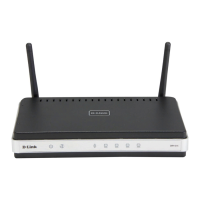
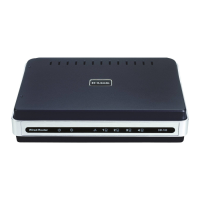
DIR-100 Triple Play Router
Power On Router
To power on the Router:
1. Insert the AC Power Adapter
cord into the power
receptacle located on the rear
panel of the Router and plug
the adapter into a suitable nearby power source. See the back panel illustration above to view the power
receptacle.
2. The Power LED indicator will immediately light green and remain lit. The Status LED should light
steady green initially and begin to blink after a few seconds.
3. If you have the Router connected to your network you can look at the Ethernet Link/Act LED indicators
to make sure they have valid connections. The Router will attempt to establish the WAN connection, if
the WAN line is connected and the connection is properly configured this should light up after several
seconds.
Reset
To reset the system settings to factory defaults, please follow these steps:
1. Leave the device powered on, do not disconnect the power.
2. Press the reset button and hold (use a paper-clip). See the back panel illustration above to view the
location of the reset button.
3. Keep the button pressed about 4 seconds.
4. Release the button.
The DIR-100 will then automatically reboot itself. Upon restarting the Router will load the factory default
configuration settings including the default IP address 192.168.0.1 a subnet mask 255.255.255.0 and the
DHCP server active.




 To Next Page