EasyManua.ls Logo

Danish Interpretation Systems DCS 6000 - User Manual

Danish Interpretation Systems DCS 6000
64 pages
Print Icon
To Next Page IconTo Next Page
Loading...
DCS 6000
User Manual
DIS
Digital Conference System
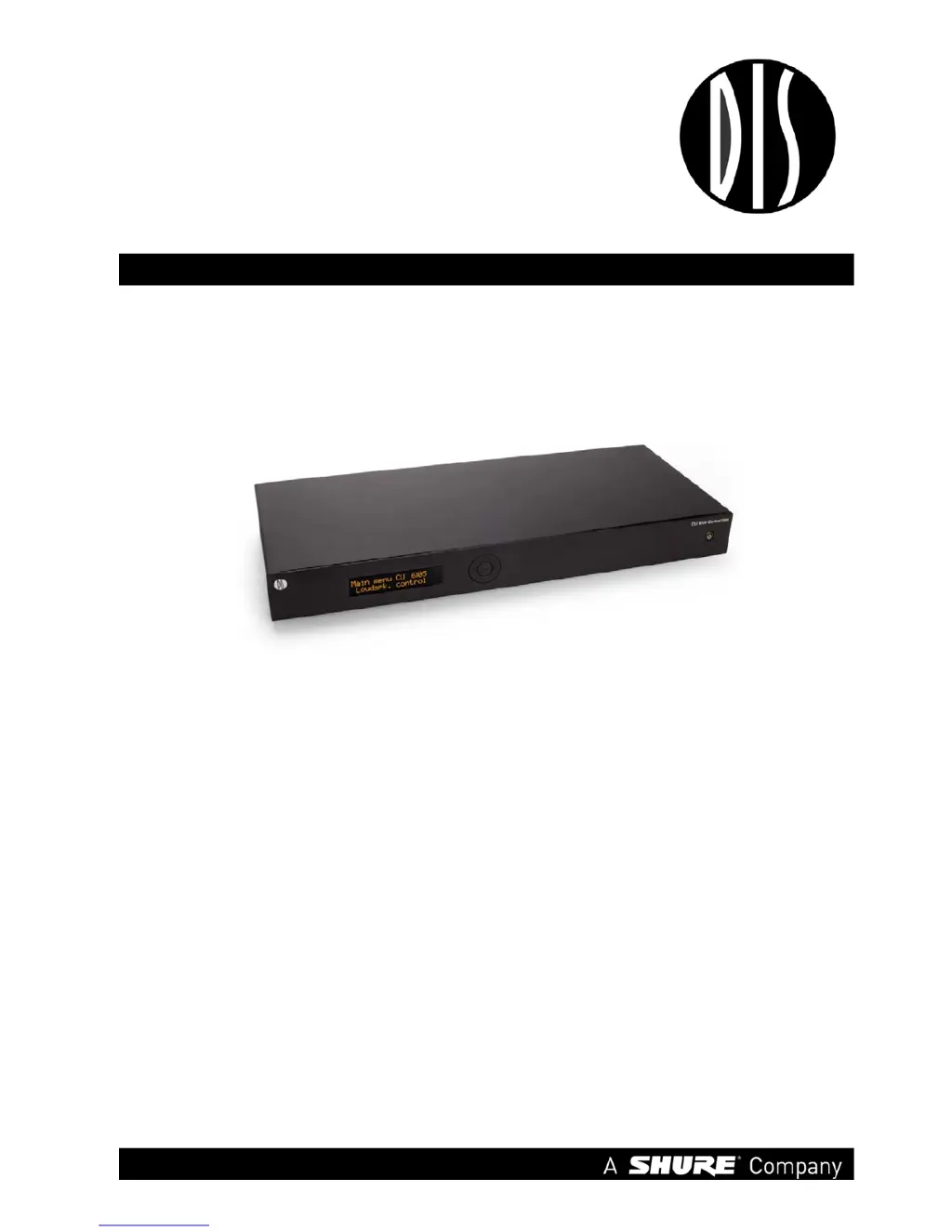
CU 6105 Central Unit
Central Unit for series DCS 6000 Conference Units,
Voting Units, Interpreter Units, Ambient
Microphone Units, Channels Selectors and Audio
Output Units

Table of Contents

Questions and Answers

  • G
    Gloria MillerSep 10, 2025
    Why are the light rings constantly flashing on Danish Interpretation Systems DCS 6000 Conference System microphones?
    • A
      alexrossSep 10, 2025
      If the light rings in the microphone units are constantly flashing, check the cables to ensure digital communication from the central unit to the Conference units is established. Also, verify that all connectors on all cables are firmly inserted in the DCS-LAN sockets on the units and that the feeding cables from the Conference units are inserted in the ‘DCS-LAN’ chain connectors on the CU 6105.
  • L
    Leonard FranklinSep 9, 2025
    What to do if 'Del. Off' button doesn't switch off delegate units in Danish Interpretation Systems Conference System?
    • R
      rebeccakleinSep 9, 2025
      If the ‘Del. Off’ button in the chairman unit does not switch off delegate units, verify if the unit is configured as a chairman unit. Also, check if the units that are not switching off are configured as chairman units, as they are not switched off by the ‘Del. Off’ button.
  • M
    mary67Sep 8, 2025
    Why a microphone cannot be turned on in Danish Interpretation Systems DCS 6000 Conference System?
    • D
      devinjohnsonSep 8, 2025
      To resolve the issue of a microphone not turning ‘On’, verify the settings for ‘Max Delegate Speaker’ and ‘Max Total Speakers’. Also, check the ‘Operation Mode’ configuration.
  • M
    michaelortizAug 22, 2025
    What to do if the infra red receiver fails to function properly with my Danish Interpretation Systems DCS 6000?
    • T
      Travis JohnsonAug 23, 2025
      If your Danish Interpretation Systems Conference System infrared receiver isn't working, try these steps: * If using disposable batteries, ensure they have enough power and are correctly inserted. * If using a battery pack, make sure it's fully charged. * Verify the headphone is properly connected. * Turn on the receiver and check if the display shows a channel. * Ensure the receiver has a sufficient IR signal; the antenna symbol should be visible. * Enable the mini radiator (menu 4L) and test the receiver by holding it close to the transmitter's mini radiator. * Increase the volume. * Put the transmitter in test mode to check if the test tone is audible. If not, test with other receivers. If no receivers work at the same spot, check the system's coverage.
  • T
    Tara MillerSep 5, 2025
    What to do if CU 6105 browser application doesn't open on Danish Interpretation Systems DCS 6000 Conference System iPad?
    • R
      Richard AlexanderSep 6, 2025
      If the CU 6105 browser application isn't opening on your iPad, first, check the IP address using the interactive menu on the CU: ‘LAN setup * IP address setup * IP address’. Use this IP address in the browser. Second, ensure that the iPad is connected to the correct wireless access point. Finally, check that the CU 6105 is connected to the same network as the wireless access point.
  • A
    Andrea MarquezSep 4, 2025
    How to resolve CU 6105 browser application not opening issue in Danish Interpretation Systems DCS 6000 Conference System?
    • C
      Christopher MurilloSep 4, 2025
      If the CU 6105 browser application isn't opening on your PC or iPad, first, check the IP address using the interactive menu on the CU: ‘LAN setup/IP address setup/IP address’. Use this IP address in the browser. Second, ensure that the CU 6105 is connected to the same network as the PC. Lastly, inspect the LAN cables.
  • J
    julia20Sep 3, 2025
    How to troubleshoot no audio in Danish Interpretation Systems DCS 6000 Conference System loudspeakers?
    • J
      Jimmy SpenceSep 3, 2025
      If there's no audio in the built-in loudspeakers, start by checking the ‘Loudspeaker Volume’ setting via the interactive menu on the CU or the browser control. Also, use the browser control to ensure that the setting ‘CU 6105 Setup * Audio * Loudspeaker Control * Microphone -> Loudspeaker’ is set to ‘On’. Finally, confirm in ‘CU 6105 * Audio * Audio Output * Group Setup‘ that the seats are selected in ‘Group A’, as this group is always the source for the built-in loudspeakers.
  • J
    Jonathan AdamsSep 2, 2025
    How to fix no audio from specific units in Danish Interpretation Systems Conference System loudspeakers?
    • K
      Kimberly WintersSep 2, 2025
      To address the issue of no audio from delegate or chairman units in the built-in loudspeakers, use the browser control to verify that the specific seat is selected in ‘Group A’ under ‘CU 6105 * Audio * Audio Output * Group Setup‘. Note that ‘Group A’ is the designated source for the built-in loudspeakers, and if a unit isn't in this group, its audio won't be heard.
  • B
    Brenda LambertSep 1, 2025
    How to troubleshoot a Danish Interpretation Systems DCS 6000 transmitter display that does not light up?
    • L
      Lisa WalkerSep 1, 2025
      If the transmitter display of your Danish Interpretation Systems Conference System does not light up, check that the mains supply to the transmitter is connected and that the transmitter is switched on.
  • F
    fmurphyAug 31, 2025
    What does it mean when both red and amber LEDs are on for the IRED panels of a Danish Interpretation Systems Conference System radiator?
    • K
      Kimberly PerezAug 31, 2025
      If both the red and amber LEDs are on for one or both IRED panels of a radiator in your Danish Interpretation Systems Conference System, the IRED panel is malfunctioning and the radiator should be replaced.

Summary

Important Safeguards

Power Connection Notes

Notes regarding safe and correct power connections for the apparatus.

Safety Precautions

Covers power disconnect, compliancy, cleaning, and repacking safety guidelines.

DCS 6000 System Overview

System Description with CU 6105

Describes the DCS 6000 system's capabilities and main features when used with the CU 6105.

System Components

Lists the various central, interpreter, conference, and accessory components of the DCS 6000 system.

Getting Started

Initial System Setup

Step-by-step guide for setting up the system for the first time.

Connecting a PC

Instructions for connecting a PC to the CU 6105 for system configuration and control.

General Guidelines

Installation Guidelines

Guidance on installing the CU 6105 for table-top or rack-mount use.

Cabling Guidelines

Best practices and requirements for connecting conference units using Cat5e cables.

Unit Connection Limits

Single DCS-LAN Chain Connections

Details maximum units connectable per DCS-LAN chain output.

CU 6105 Central Unit Overview

Feature License Management

Explains standard and expandable features via feature licenses.

User Controls and Connectors

Description of the physical controls and connectors on the CU 6105 front and back panels.

Connecting System Units

Connecting Conference Units

Basic connection of conference units to the CU 6105 using DCS-LAN.

Connecting a PC

How to connect a PC to the CU 6105 for system configuration and control.

Interactive Menu Navigation

Interactive Menu Overview

Overview of the CU 6105's interactive menu structure and options.

Navigating the Menu

Explains how to navigate through the CU 6105's interactive menu using the keypad.

Web Browser Setup and Control

CU 6105 Setup via Browser

Guide to configuring the CU 6105 system using a web browser on a PC, tablet, or iPad.

CU 6105 Microphone Control (Browser)

Interface for controlling microphones, speaker lists, and request queues via web browser.

Operation Modes

Operation Mode Details

Defines behaviors for Auto, Manual, FIFO, and VOX microphone operation.

Delegate Interrupt Mode

Settings for controlling how delegates can interrupt each other.

Firmware Update Procedure

Uploading Firmware Files

Instructions for updating the CU 6105 firmware using the browser interface.

Technical Specifications

System Specification

Details overall system characteristics and audio performance specifications.

CU 6105 Specifications

Lists the technical specifications for the CU 6105 Central Unit.

External Control Protocol

General Protocol Behavior

Overview of the TCP/IP protocol for controlling and monitoring the DCS 6000 system.

Microphone Control Commands

Commands for controlling microphone activation, request lists, and speaker limits.

Audio Control Commands

Commands for managing loudspeaker volume, input/output levels, and audio paths.

Danish Interpretation Systems DCS 6000 Specifications

Digital Section IconDigital Section
microphone sensitivity-22 dBV/Pa
max SPL125 dB (3% THD)
equivalent noise20 dB SPL
loudspeaker frequency range150 Hz – 15 kHz
loudspeaker max power3W RMS
Sound Quality IconSound Quality
sound quality20 bit audio @ 32 kHz sampling frequency
frequency response65 Hz-16 kHz
signal to noise ratio>85 dBA
total harmonic distortion< 0.1%
Power IconPower
power requirement24-48 V DC
power consumption1W to 3W
power supplied from CU60xx / EX 6010 / PS 6000
Operating Environment IconOperating Environment
operating temperature5 Deg C. to 40 Deg C. (35 to 80% humidity)
storage temperature-20 Deg C. to 60 Deg C. (10 to 80% humidity)
LCD display life time>10, 000 hours