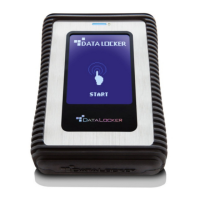
DL4 FE Encrypted External Hard Drive - v1.49/6.5.0 - User Guide
macOS Users
1. a. Click the Eject button that corresponds with the DataLocker DL4
OR
1. b. Drag the drive to the trashcan in the macOS dock. Note: The trash can will transition to
an eject button while dragging the drive.
2. Once the drive has been ejected from macOS, press Lock and Disconnect on the DL4 drive.
3. Tap Power Off on your DL4 and unplug from the computer. Tap Unlock to start a new session.
Additional Windows Configuration Changes
By default, Windows 10 attempts to shut off USB devices after a set period of inactivity. If the DL4 is
put into this low power state, the drive will automatically lock the drive and require reauthentica-
tion.
It is recommended that you perform the steps below to ensure the best DL4 user experience on
Windows.
Disabling Windows 10 Power Save
NOTE: You will need to complete the following steps once for each drive plugged into your com-
puter.
1. Log in as a local administrator on your computer.
NOTE: If you are not an administrator you will receive a warning indicating you won’t be able to
make changes when you open Device Manager. Please contact your administrator for further
assistance.
2. Unlock your DL4 device. If your device is being managed by SafeConsole, launch the client
on your computer. See Initializing and connecting your DL4 for more information.
3. Right click the Start button, and select “Device Manager”.
4. Click on the arrow next to “Universal Serial Bus controllers”.
5. Right click on “USB Mass Storage Device”.
6. Click “Properties”.
7. Click the “Power Management” tab.
8. Uncheck “Allow the computer to turn off this device to save power”.
9. Click OK and close the “Device Manager” window.
© 2021 DataLocker Inc. All rights reserved. 10


 To Next Page