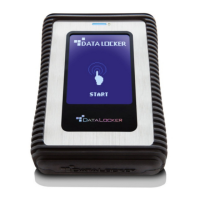
DL4 FE Encrypted External Hard Drive - v1.49/6.5.0 - User Guide
2. Click Zone Builder on the left sidebar.
3. Click Trust This Account.
4. Enter the password for the device and click OK. Your account will now show up in the Trusted
Accounts box.
Your account is now in the Trusted Zone of computers. Depending on the policy set by your
SafeConsole administrator, you may have restricted device access outside of the Trusted Zone or
when offline.
To remove a trusted account, simply highlight the account you wish to remove and click Remove.
Reformat Using DataLocker Control Panel
Important: Before you reformat the device, back up your files to a separate location.
To reformat a device:
1. Unlock your device and click Settings on the menu bar of the DataLocker Control Panel.
2. Click Tools on the left sidebar.
3. Under Device Health, select the file system then click the Reformat Secure Volume button.
Warning: Reformatting your DL4 drive will erase all your files but will not erase your device password
and settings. This should not be used as a method of securely erasing files. To securely erase your
files, contact your SafeConsole administrator or use Sanitize.
Sanitize
Sanitize allows for the contents of the encrypted drive to be securely erased. This is accomplished
by erasing the encryption key that the drive uses to access files on the Secure Volume while still
retaining the connection to SafeConsole. This action prevents the need of registering the device
back to SafeConsole like after a full device reset.
Warning: Performing this action will completely erase all data on the Secure Volume. This action is
permanent.
The ability to sanitize a drive depends on the settings configured by your SafeConsole administra-
tor. If allowed your drive can be sanitized by the following steps:
1. Unlock your DL4 and open the device Control Panel by launching Unlocker.exe.
2. Right click the system tray icon for the Control Panel and select Sanitize Device.
3. Enter the numbers prompted in the dialog box to confirm that all data can be wiped from
the drive.
4. The device will reset. Unplug and plug your DL4 back into your workstation.
5. You will need to initialize you DL4, see Initializing and connecting your DL4 for more informa-
tion.
6. Log into your DL4 and launch Unlocker.exe. You will be prompted to format the Secure
Volume, see Reformat Using DataLocker Control Panel for more information.
© 2021 DataLocker Inc. All rights reserved. 38


 To Next Page