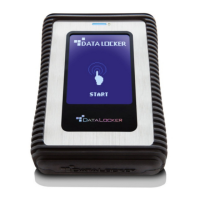
DL4 FE Encrypted External Hard Drive - v1.49/6.5.0 - User Guide
Device Information
Before Unlocking
To see information about the device without logging into it, plug your DL4 into your PC. Before
entering the password, tap the Ë-button.
Device information shown:
• QR Code Serial Number
• Alpha-numeric Serial Number
• Firmware Version
• Capacity
• Certification Logos
• Patent Information
After Unlocking
More information can be obtained after logging into the device and launching the unlocker.exe
application.
Use the Capacity Meter, located at the bottom right of the DataLocker Control Panel, to see how
much storage space is still available on your device. The green bar graph represents how full the
device is. For example, the meter will be completely green when the device is full. The white text
on the Capacity Meter displays how much free space remains.
For general information about your device, see the “Device Info” page.
To view device information:
1. Unlock your device and click Settings on the menu bar of the DataLocker Control Panel.
2. Click Device Info in the left sidebar.
The About This Device section includes the following details about your device:
• Model Number
• Hardware ID
• Serial Number
• Software Version
• Firmware Version
• Release Date
• Secure Files Drive Letter
• Unlocker Drive Letter
• Operating System and System administrative Privileges
• Management Console
NOTE: You can click one of the information buttons on the Device Info page to visit the DataLocker
website or access more information about legal notices or certifications for DataLocker products.
Hint: Click Copy to copy the device information to the clipboard so that you can paste it in an
email or support request.
© 2021 DataLocker Inc. All rights reserved. 39


 To Next Page