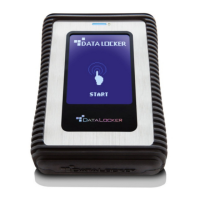
DL4 FE Encrypted External Hard Drive - v1.49/6.5.0 - User Guide
Disabling Windows 10 Selective Suspend
1. In the search box on the taskbar, type control panel.
2. Click and Open Control Panel.
3. Click on Hardware and Sound.
4. Click on Power Options.
5. Click the Change plan settings link for the plan you’re currently using.
6. Click the Change advanced power settings link.
7. Click (+) next to “USB settings”.
8. Click (+) next to “USB selective suspend setting”.
9. Select “Disabled” from the drop-down menu.
NOTE: If you are using a device with a battery (ie. Laptop or Tablet), you will need to set this for On
Battery and Plugged in.
10. Click OK.
Formatting Your DL4
Selecting the Correct File System
Your device is formatted as exFAT from the factory.
The DL4 can be reformatted to any file system of your choosing to accommodate a different
operating system or to remove file size restrictions.
Recommended file systems:
exFAT
- Pros: No file size limitations.
- Cons: Not supported by legacy operating systems.
NTFS
- Pros: No file size limitations.
- Cons: Limited cross-platform compatibility - Windows, macOS (read-only), and Linux (read-only).
Note: Reformatting your DL4 drive will erase all your files but will not erase your device password
and settings. As such, formatting should not be used as a method of securely erasing files. To
securely erase your files, perform a Zeroize function. For more information, see the Zeroize Drive
section.
Important: Before you reformat the device, back up your drive to a separate location, for example,
to cloud storage or your computer.
© 2021 DataLocker Inc. All rights reserved. 11


 To Next Page