DL4 FE Encrypted External Hard Drive - v1.49/6.5.0 - User Guide
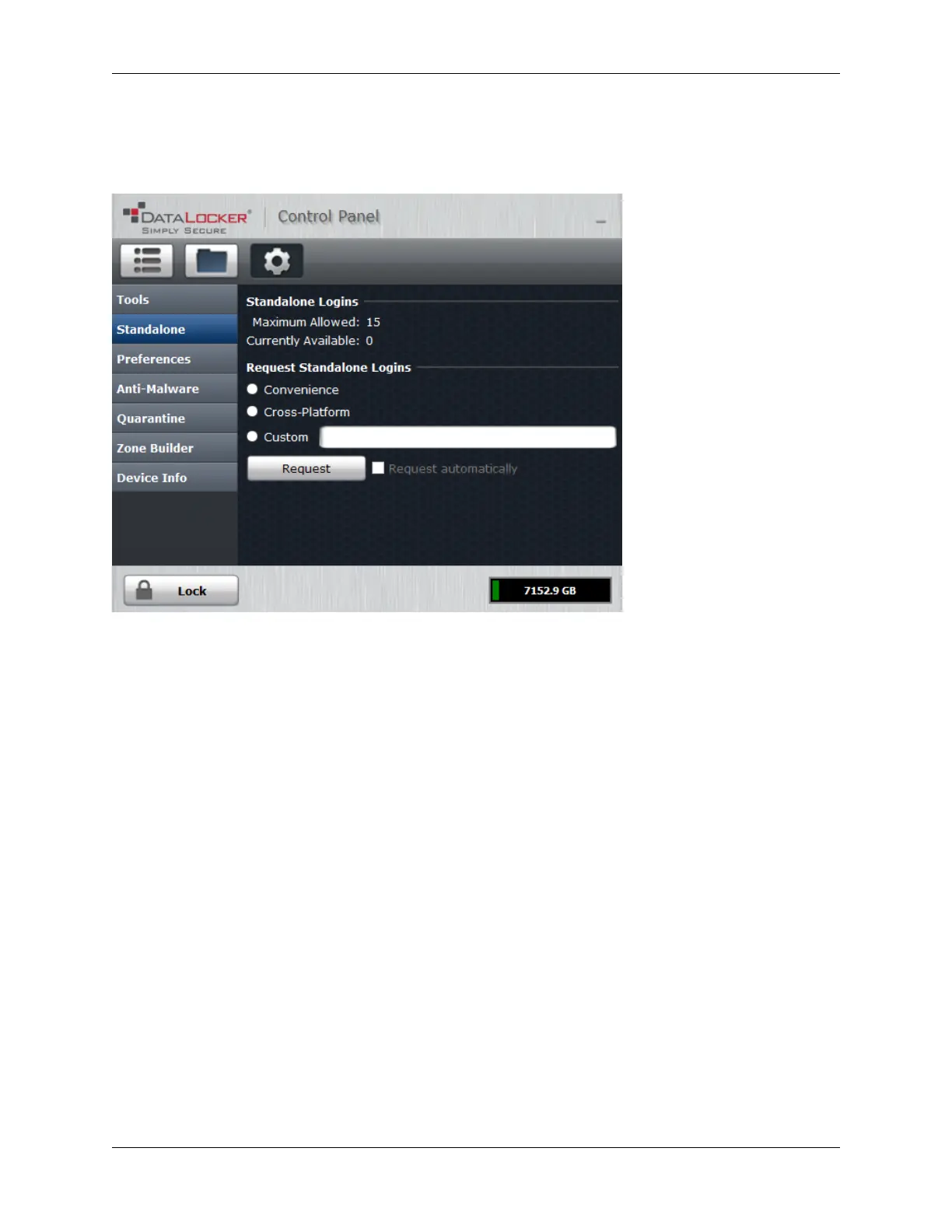
Note: The Request automatically checkbox can optionally be enabled by your SafeConsole ad-
ministrator. When checked, the Control Panel will automatically request the maximum allowed
Standalone logins after unlocking on a Windows workstation with a valid connection to SafeCon-
sole.
Using Standalone Logins
On the next unlock of your DL4, you can select Standalone after you input your password to unlock
in Standalone mode. When in Standalone mode, the Unlocker partition will not be mounted to
the host computer and the DataLocker Control Panel will not need to be executed.
1. Connect you DL4 and log in.
2. Tap Standalone at the “Login Mode” prompt.
3. Tap OK when you are prompted with the number of remaining Standalone logins.
4. Tap Connect or wait 10 seconds to utilize the secure partition.
NOTE: This will decrease the Currently Available count of Standalone logins by one.
To continue to use your DL4 in the normal SafeConsole mode, tap SafeConsole in step 2.
Note: The Currently Available number of Standalone logins will be reset to zero if a SafeConsole
administrator remotely disables or factory resets your DL4. Currently available will also be set back
to zero after a password reset or when the device is blocked by GeoFence.
© 2021 DataLocker Inc. All rights reserved. 34


 To Next Page