EasyManua.ls Logo

Datamax Allegro 2 - User Manual

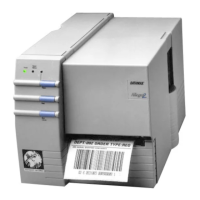
Datamax Allegro 2
115 pages
Print Icon
To Next Page IconTo Next Page
Loading...
Allegro
2
Operator’s Manual

Questions and Answers

  • R
    Richard RiveraJul 29, 2025
    How to fix unacceptable print quality on Datamax Label Maker?
    • B
      Brian AllenJul 29, 2025
      To address unacceptable print quality on your Datamax Label Maker, start by cleaning the printhead. If the issue persists, the printhead temperature might be too high; adjust the burn time or heat setting using the software control. Also, ensure you are using the correct ribbon type for your labels.
  • R
    Robert CherryAug 3, 2025
    What to do if Datamax Allegro 2 does not print or prints multiple labels?
    • J
      Julie ParkerAug 3, 2025
      If your Datamax Label Maker isn't printing or prints multiple labels at once, the labels might be loaded incorrectly. Refer to the loading instructions. The media sensor might be out of adjustment or defective, in that case you should call for service.
  • J
    John RobinsonAug 8, 2025
    Why does the ribbon not advance on my Datamax Label Maker?
    • R
      Rebecca KramerAug 8, 2025
      If the ribbon isn't advancing on your Datamax Label Maker, first ensure the ribbon is installed correctly, with the dull (inked) side facing the paper. Also, check that you're using the correct ribbon/paper combination to ensure sufficient friction between the paper and ribbon.
  • A
    Amber EscobarAug 13, 2025
    What to do if Datamax Allegro 2 Label Maker prints strange characters?
    • B
      Blake CaseyAug 13, 2025
      If your Datamax Label Maker is printing strange characters, it might be in test mode. Reset the printer via software, by pressing the Cancel and Pause buttons simultaneously, or by turning it off and on again. Also, verify the data bits setting from the Operators Panel to ensure it matches the transmitting device's setting.
  • B
    Barbara AlexanderAug 18, 2025
    Why does my Datamax Allegro 2 skip every other label?
    • B
      brandonmooneyAug 18, 2025
      If your Datamax Label Maker skips every other label, ensure the label format includes white space equal to 8-dot rows (approximately .02" or .5mm) at the top. Also, verify that characters are formatted within the label's dimensions, ensuring row/column values provide enough room for the height of the characters or barcode.
  • J
    Julie PatelAug 23, 2025
    Why Datamax Label Maker fails to turn on?
    • R
      Robert StoneAug 23, 2025
      If your Datamax Label Maker fails to turn on, it may be due to a blown fuse, a faulty AC cord, a bad printer power switch, or a faulty AC wall outlet. Call for service in case of a blown fuse or a bad printer power switch.

Summary

Agency Compliance and Approvals

UL

UL 1950 Information Technology Equipment compliance.

CSA

CSA C22.2 No. 950-M93 compliance.

TUV

TUV EN60950, IEC950 compliance.

VDE

VDE Class B Vfg. 243/1991 compliance.

FCC

FCC Part 15 compliance.

Important Safety Instructions

Getting Started

1.4.1 Label Loading Instructions

Detailed steps for loading labels into the printer.

1.4.2 Ribbon Loading Instructions

Detailed steps for loading ribbon into the printer.

Setting up the Printer

2.2 Interfacing to the Printer

Connecting the printer to host systems.

2.4 Switch Settings

Configuring printer operation via DIP switches.

Setting the Baud Rate

Configuring serial communication speed.

Other Switches

Explanation of additional DIP switch functions.

2.5 Programming Commands

Overview of printer command structure.

System-Level Commands

Commands for printer control and data handling.

Label-Formatting Commands

Commands for creating and formatting labels.

Creating Labels Using Internal Batch Software

3.2 Formatting and Printing Labels

Step-by-step guide for label creation and printing.

ALT-P Screen

Accessing and using print adjustment parameters.

3.3 Create;Modify Label Screen

Interface for designing custom label formats.

3.4 Print Label Screen

Interface for printing created labels.

Create;Modify Label Commands

Valid inputs for label design commands.

Print Parameters (ALT-P)

Default and range values for print settings.

Troubleshooting

4.1 Controlling Print Quality

Methods to improve or maintain print quality.

4.2 Aligning the Printhead

Adjusting the printhead for optimal output.

4.2.1 Printhead Alignment Procedure

Step-by-step guide for printhead alignment.

4.2.2 Adjusting Printhead Pressure and Support

Adjusting pressure for narrow media.

4.3 Troubleshooting

Solutions for common printer problems.

Maintenance

5.2 Cleaning the Printhead

Detailed procedure for cleaning the printhead.

Appendix B Switch Settings and Cable Interfacing

Appendix D Error Codes

Error Codes

Explanation of printer error code meanings.

Datamax Allegro 2 Specifications

General IconGeneral
Print Resolution203 dpi
Print Speed6 inches per second
ConnectivityUSB, Serial, Ethernet
Supported Media TypesLabels, Tags
Media Width Range1 inch to 4.25 inches
Power Requirements100-240 VAC, 50-60 Hz

Related product manuals