46
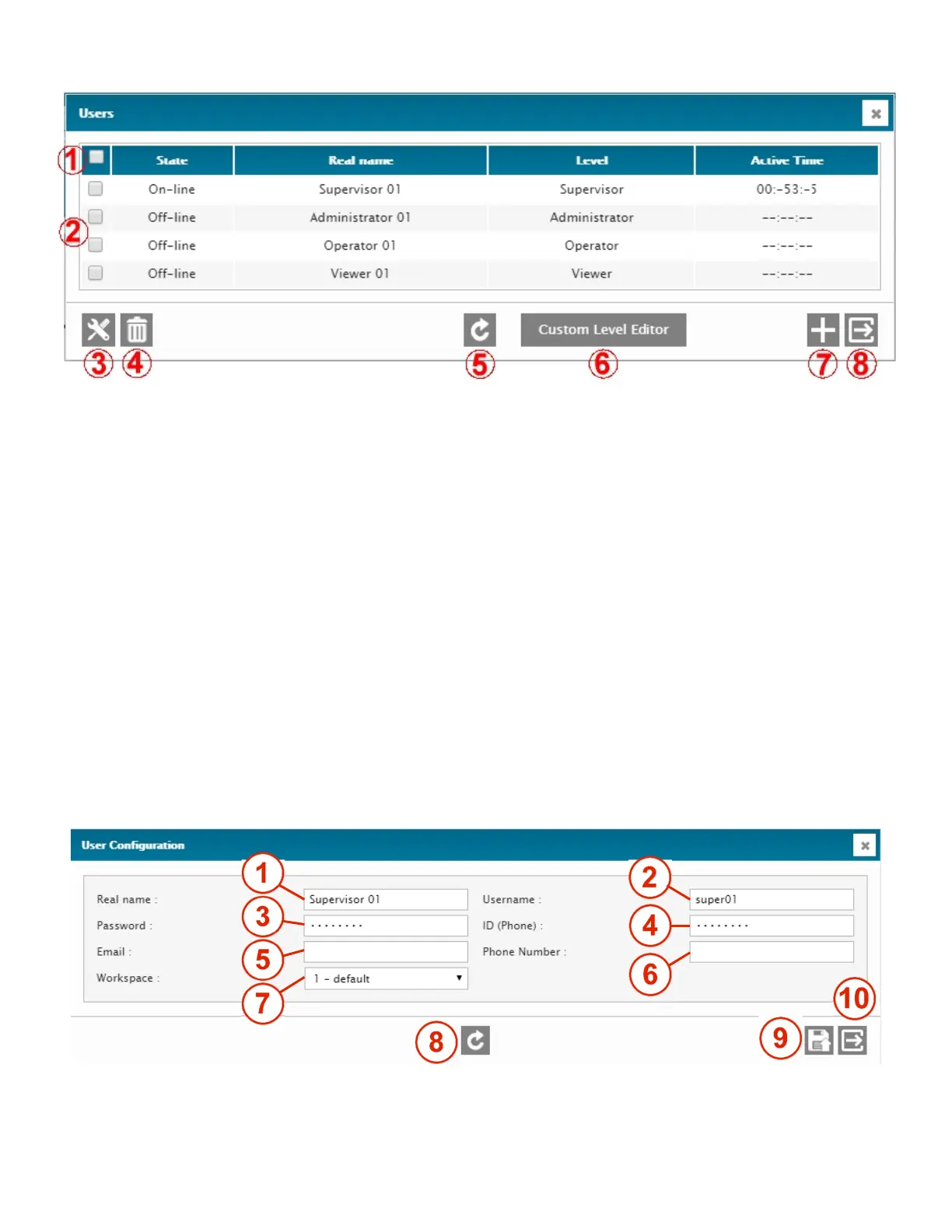
The screen below shows the Users management window.
1 – SELECT ALL
Select all users.
2 – INDIVIDUAL SELECTION
Select one or many users.
3 – SETUP
Requests the User configuration menu for the selected users (bulk edition is allowed).
4 – DELETE
Deletes the selected users.
5 – REFRESH / READ
Refresh / read the screen content.
6 – CUSTOM LEVEL EDITOR
Access the custom level editor menu to create, edit or delete custom access levels.
7 – ADD
Add a new user.
8 – EXIT
Exit menu.
Once you have selected a user, or decided to add one with the “+”, you access the User Configuration menu
The User Configuration menu allows setting the information for each user.
1 – REAL NAME
Usual name of the user. For system documentation only, this is NOT the User name.



 To Next Page