12
7.2.2 Once connected successfully, you will be taken directly to the real-time preview
interface(Real-time/Playback) of the DDPAI App for the Dash Cam.
When connecting the Dash Cam for the first time, the following prompts will appear:
● Prompt to modify Wi-Fi password: Please modify the password according to the actual situation, and keep the
password safe after modification.
Note: If you forget the password, press and hold the rightmost button on the Dash Cam for 6-8 seconds to restore
the default password and reset the Dash Cam to factory settings.
● Prompt to switch to other networks: Choose "Keep connection".
Note: Choosing "Switch WLAN" will disconnect the wireless connection with the Dash Cam.
● Prompt to enable high compression video encoding: It is recommended to choose "Enable". After enabling it, the
video quality of the recorded footage will be improved and clearer than the default configuration.
7.3 How to Use the DDPAI App
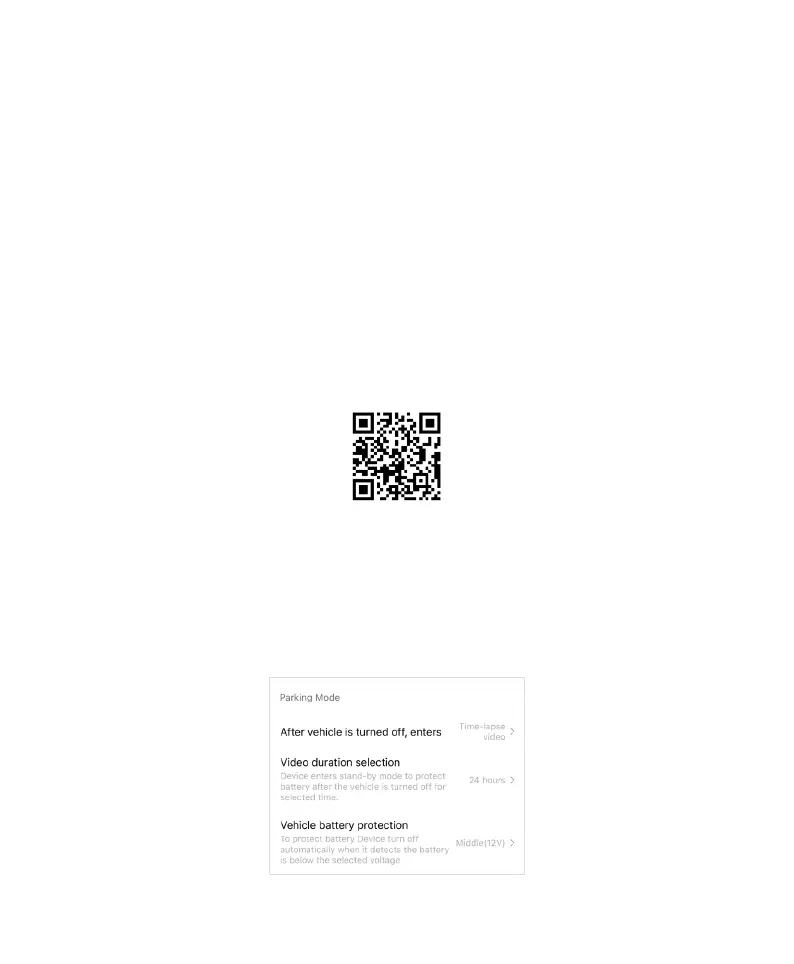
After installing the DDPAI App, please scan the QR code below to obtain instructions on how to use the App.
Note: As the App version will be regularly optimized and updated, the operation methods shown in the example
may be slightly different from the actual ones. If you have any problems, please send us feedback anytime, and
we will update the online documentation promptly.
8. 24H Parking Monitoring Mode
This function is Only offered to users who have purchased the hardwire kit. If you have not purchased it, this
function is not supported.
After installing the DDPAI intelligent hardwire kit to the fuse box, the Parking Mode setting will appear in the DDPAI
App's camera settings as shown in the figure below:



 To Next Page