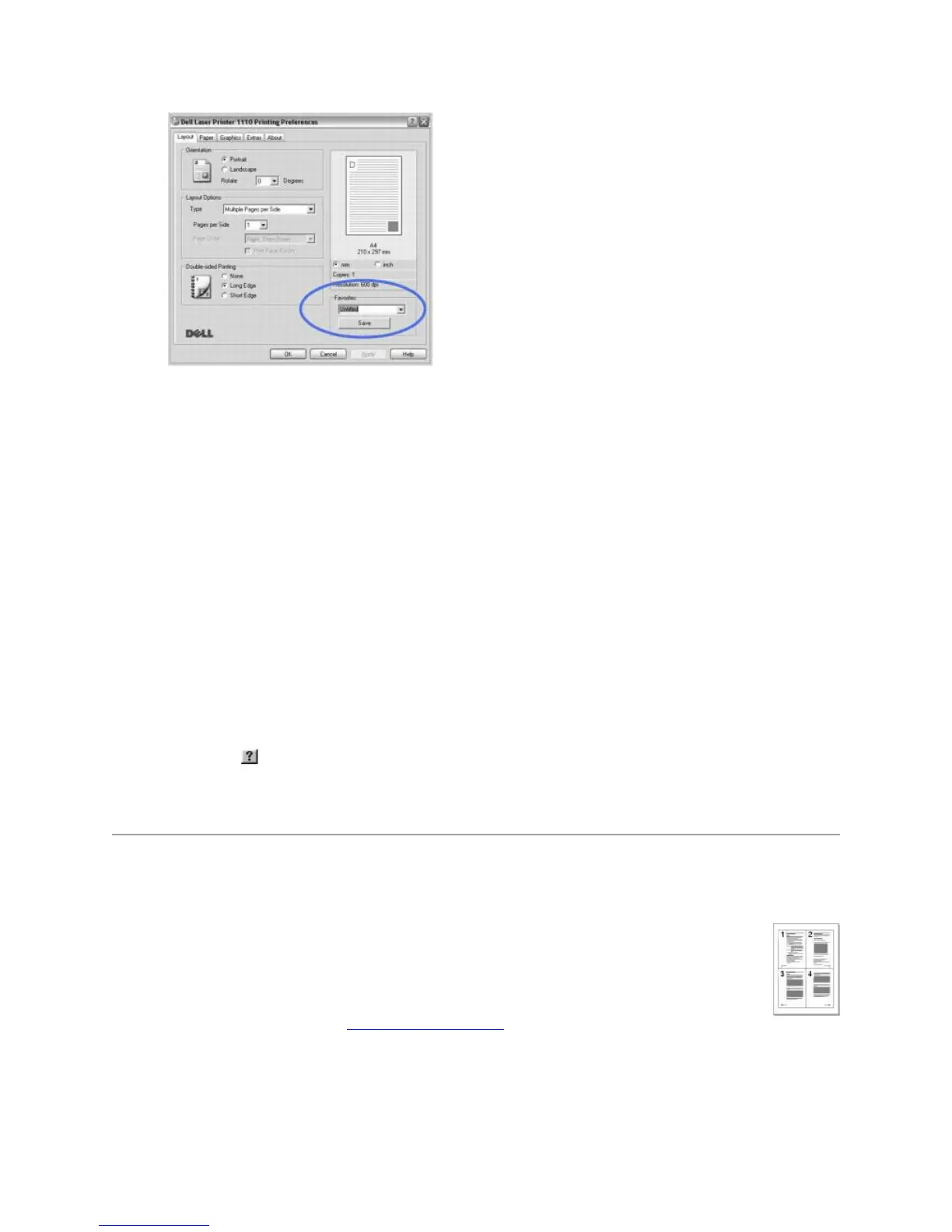
3. Click Save.
To use a saved setting, select it from the Favorites drop-down list.
To delete a favorite setting item, select it from the list and click Delete.
You can also restore the printer driver's default settings by selecting Printer Default from the list.
Using Help
Your printer has a help screen that can be activated by the Help button in the printer's properties
window. These help screens give detailed information about the printer features provided by the
printer driver.
You can also click from the upper right hand corner, and then click on any setting.
Printing Multiple Pages on One Sheet of Paper
You can select the number of pages to be printed on a single sheet of paper. To print
more than one page per sheet, the pages will be decreased in size and arranged on the
sheet. You can print up to 16 pages on one sheet.
1. To change the print settings from your software application, access printer
properties. See step 3 in "Printing a Document".
2. From the Layout tab, choose Multiple Pages per Side from the Type drop-
down list.












 To Next Page