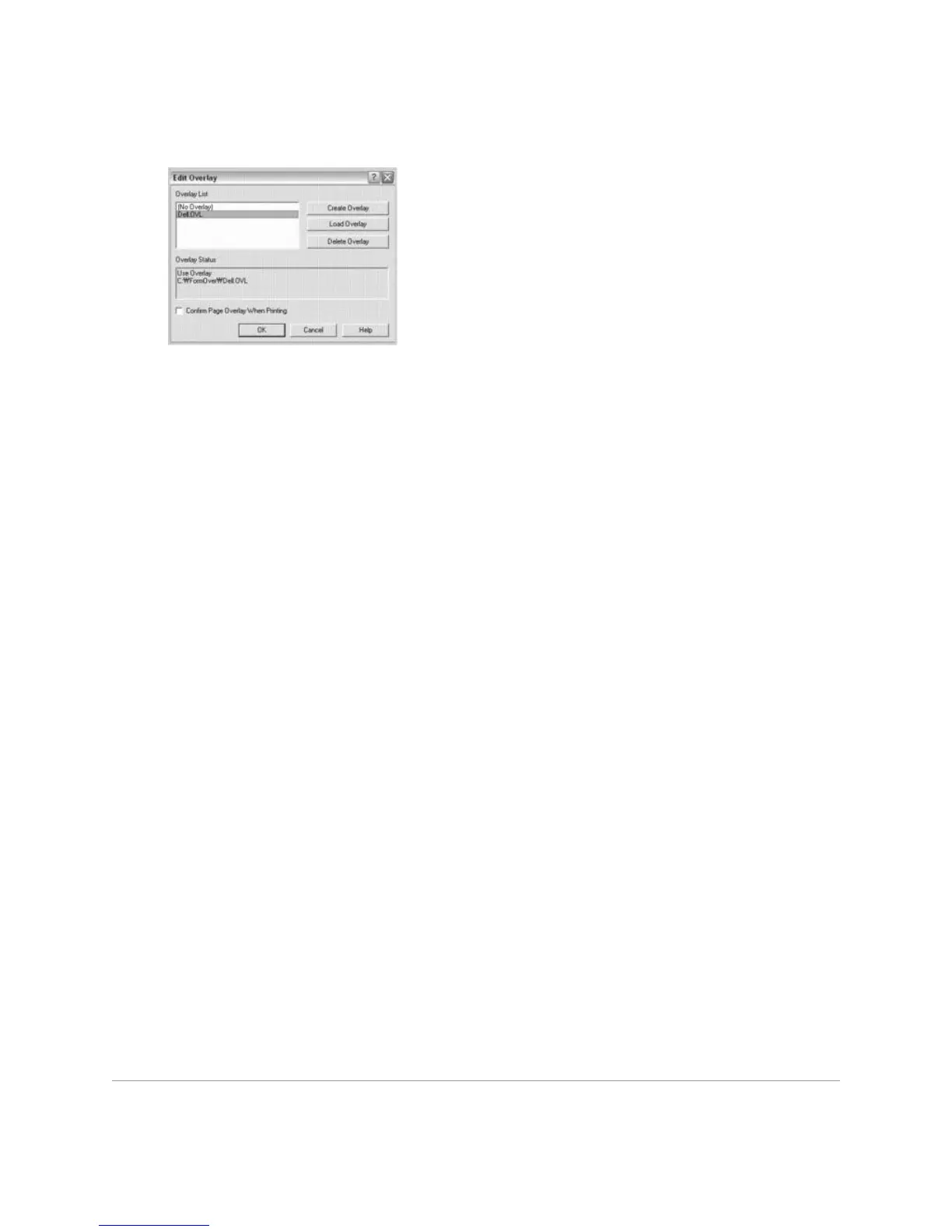
After you select the file, click Open. The file is now shown in the Overlay List box and is
available for printing. Select the overlay from the Overlay List box.
6. If necessary, select Confirm Page Overlay When Printing checkbox. When this box is
checked, a message window appears each time you submit a document for printing, asking
you to confirm that you want to print an overlay on your document.
Answering Yes to the window means that the selected overlay will be printed with your
document. Answering No to the window cancels the use of the overlay page.
If this box is empty and an overlay has been selected, the overlay will be printed automatically
with your document.
7. Click OK or Yes until printing starts.
The overlay is downloaded with your print job and printed on your document.
Deleting a Page Overlay
You can delete page overlays that are no longer used.
1. In the printer properties window, click the Extras tab.
2. Click Edit in the Overlay section.
3. Select the overlay you want to delete from the Overlay List box.
4. Click Delete Overlay.
5. When a confirmation message window appears, click Yes.
6. Click OK until you exit the Print window.












 To Next Page