Copying
Copying Documents
Collating Copies
Copying Photos
Copying a Two-sided Document
Making a Duplex Copy
Changing Copy Settings
Copying Documents
Using the Operator Panel
1. Turn on the printer.
2. Load the paper. For more information, see Loading Paper
.
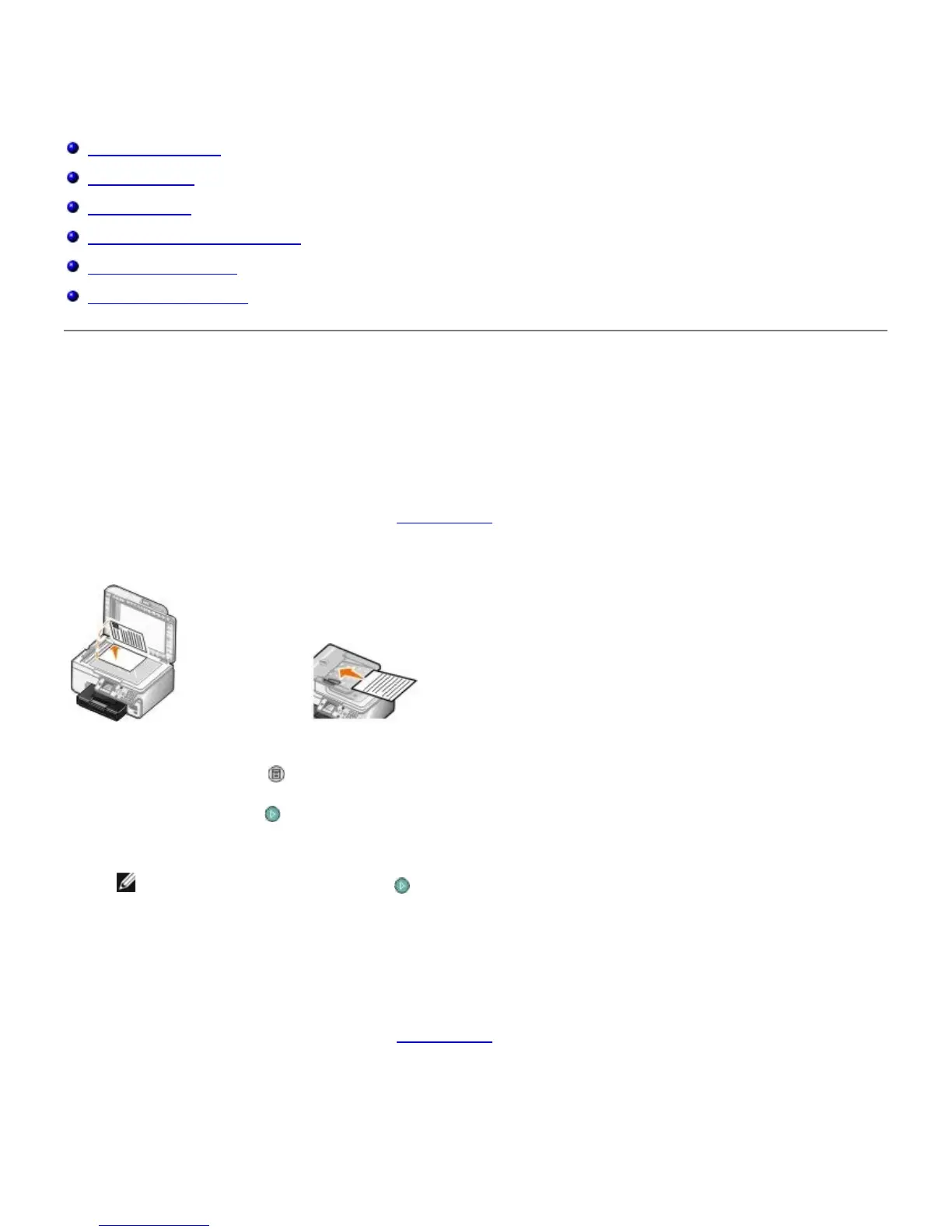
3. Load your original document.
4. Press the Menu button
to change copy settings.
5. Press the Start button
.
The copy is made in the currently specified copy selection (Color or Black).
NOTE: If you press the Start button without specifying a copy selection, the copy is printed in color by
default.
Using the Computer
1. Turn on your computer and printer, and make sure they are connected.
2. Load the paper. For more information, see Loading Paper
.
3. Load your original document.


 To Next Page