The scanned text opens in the program you selected.
Editing Scanned Images
1. Turn on your computer and printer, and make sure they are connected.
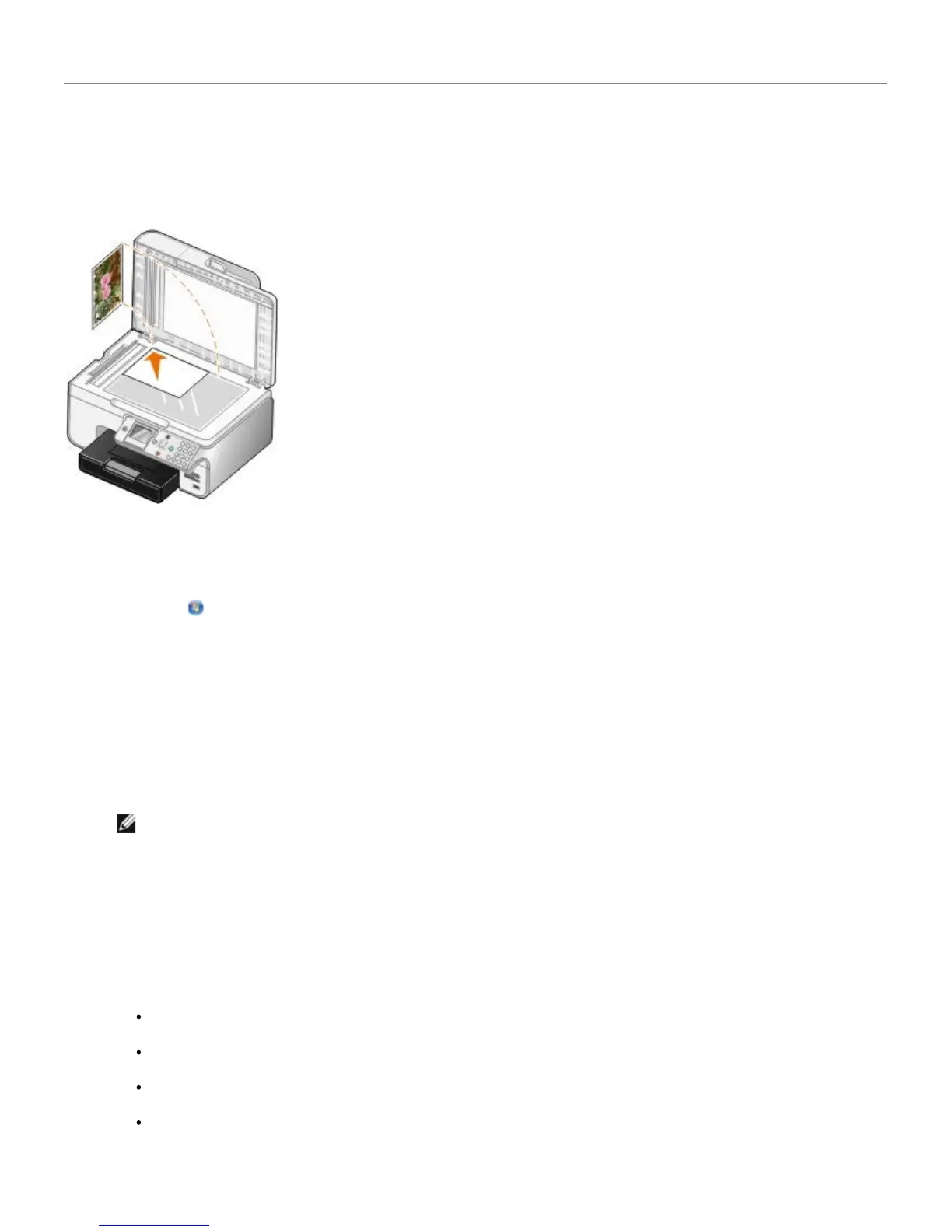
2. Load your original document.
3. Click Start® Programs or All Programs® Dell Printers® Dell Photo AIO Printer 966.
For Windows Vista:
a. Click
® Programs.
b. Click Dell Printers.
c. Click Dell Photo AIO Printer 966.
4. Select Dell All-In-One Center.
The Dell All-In-One Center opens.
5. From the Send scanned image to: drop-down menu, select the program you want to use.
NOTE: If the program you want to use is not listed, select Search for more... in the drop-down menu. On
the next screen, click Add to locate and add your program to the list.
6. Click See More Scan Settings to customize your scan.
7. When you finish customizing your settings, click Scan Now.
When the image has finished processing, it opens in the program you selected.
8. Edit the image using the tools available in your program. You may be able to:
Remove red eye
Crop your image
Add text to your image
Adjust the brightness and contrast of your image
For more information, refer to the documentation that came with your graphics program.


 To Next Page