11. When you are finished customizing your settings, click Copy Now.
Copying Photos
Using the Operator Panel
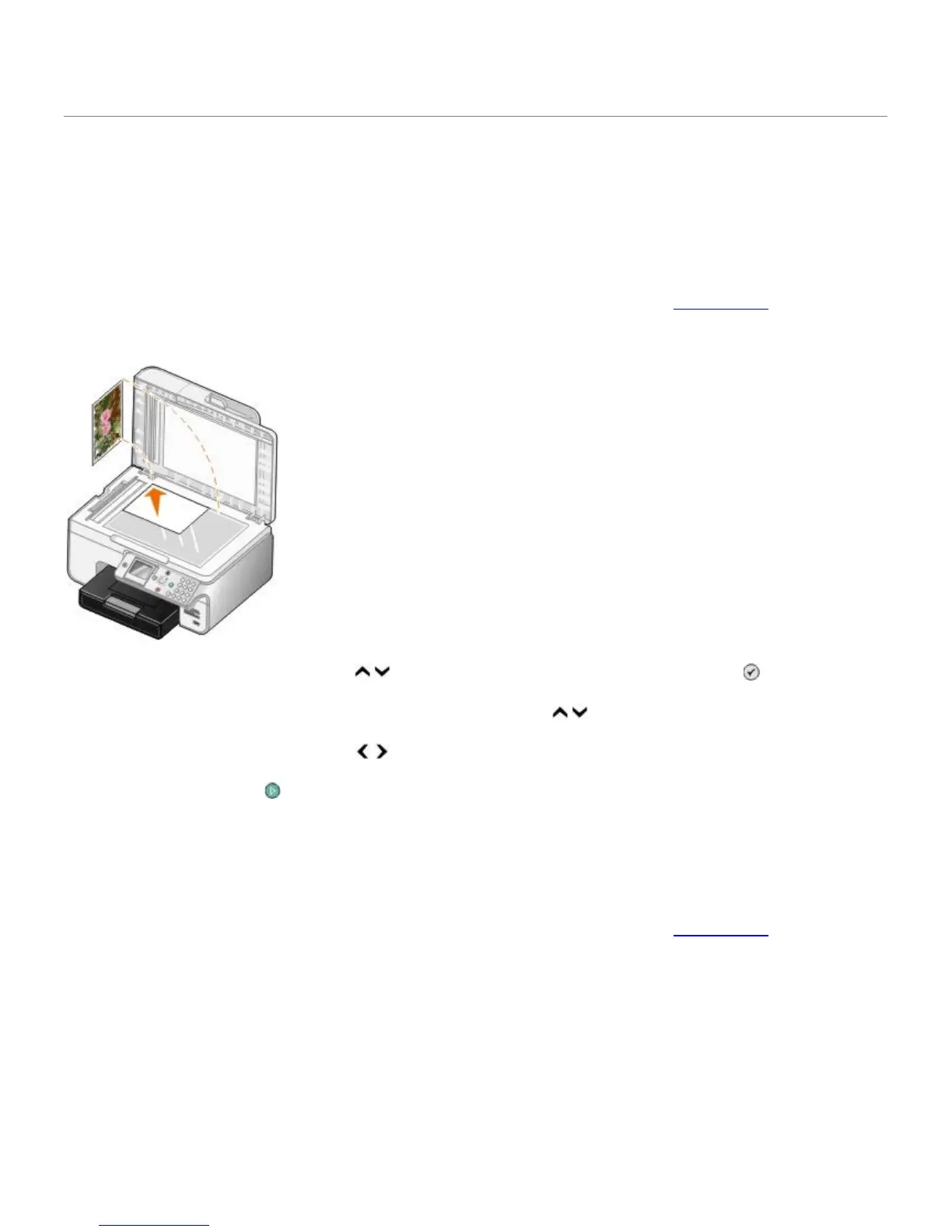
1. Turn on the printer.
2. Load photo/glossy paper with the print side facing down. For more information, see Loading Paper
.
3. Load your original photo.
4. Press the up or down Arrow button
to scroll to Copy, and then press the Select button .
5. From the Copy Mode menu, press the up or down Arrow button
to scroll to Content Type.
6. Press the left or right Arrow button to scroll to Photo.
7. Press the Start button .
Using the Computer
1. Turn on your computer and printer, and make sure they are connected.
2. Load photo/glossy paper with the print side facing down. For more information, see Loading Paper
.
3. Load your original photo.


 To Next Page