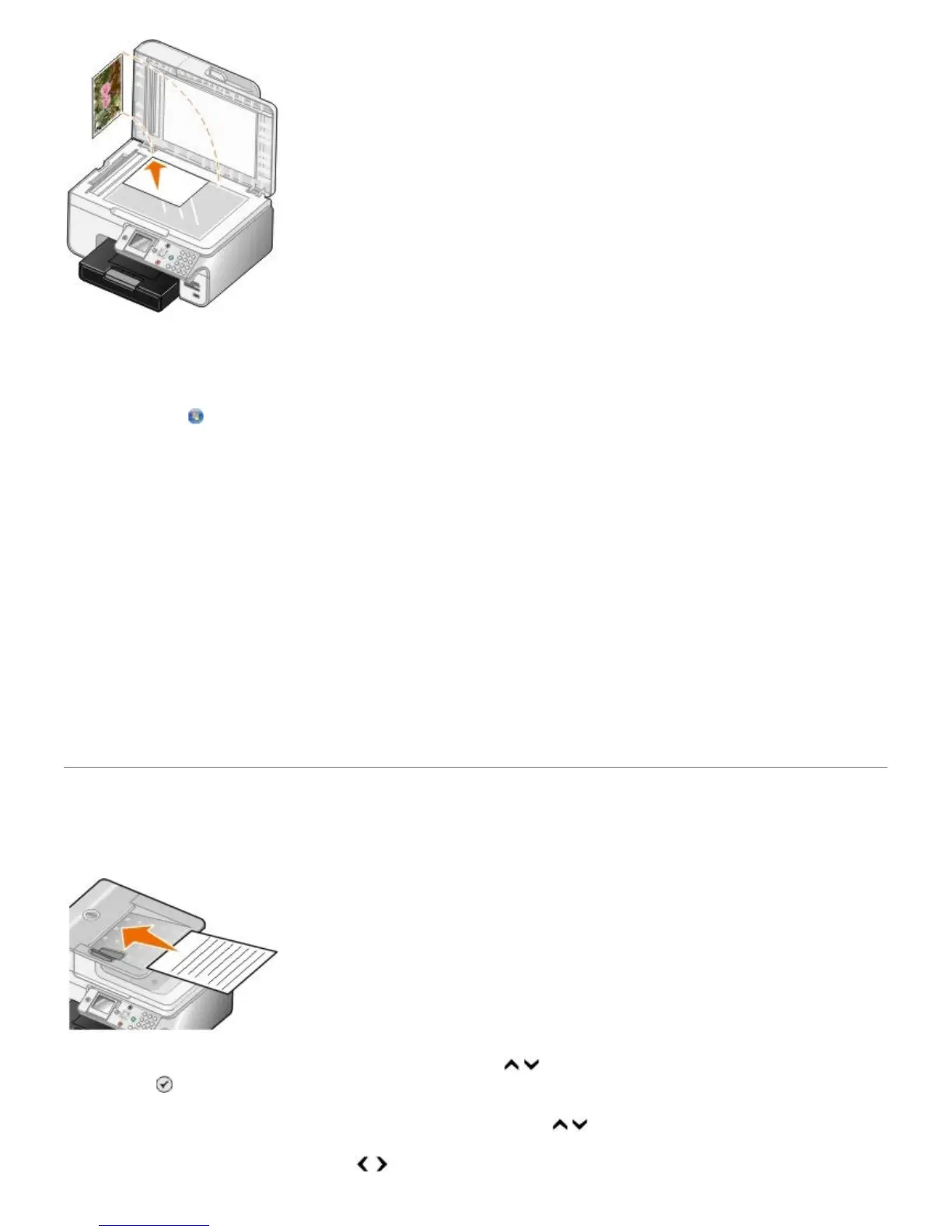
4. Click Start® Programs or All Programs® Dell Printers® Dell Photo AIO Printer 966.
For Windows Vista:
a. Click ® Programs.
b. Click Dell Printers.
c. Click Dell Photo AIO Printer 966.
5. Select Dell All-In-One Center.
The Dell All-In-One Center opens.
6. Click Preview Now.
7. Adjust the dotted lines to fit around the portion of the image you want to print.
8. Select the number of copies (1–99), and then specify the color settings from the Copy drop-down menu.
9. Click See More Copy Settings to customize your copy.
10. When you finish customizing your settings, click Copy Now.
Copying a Two-sided Document
1. Load the original document into the ADF.
2. From the main menu, press the up or down Arrow button
to scroll to Copy, and then press the Select
button .
3. From the Copy Mode menu, press the up or down Arrow button
to scroll to 2-Sided Copies.
4. Press the left or right Arrow button to scroll to 2-Sided Original, 1 Sided Copy (if you do not have the


 To Next Page