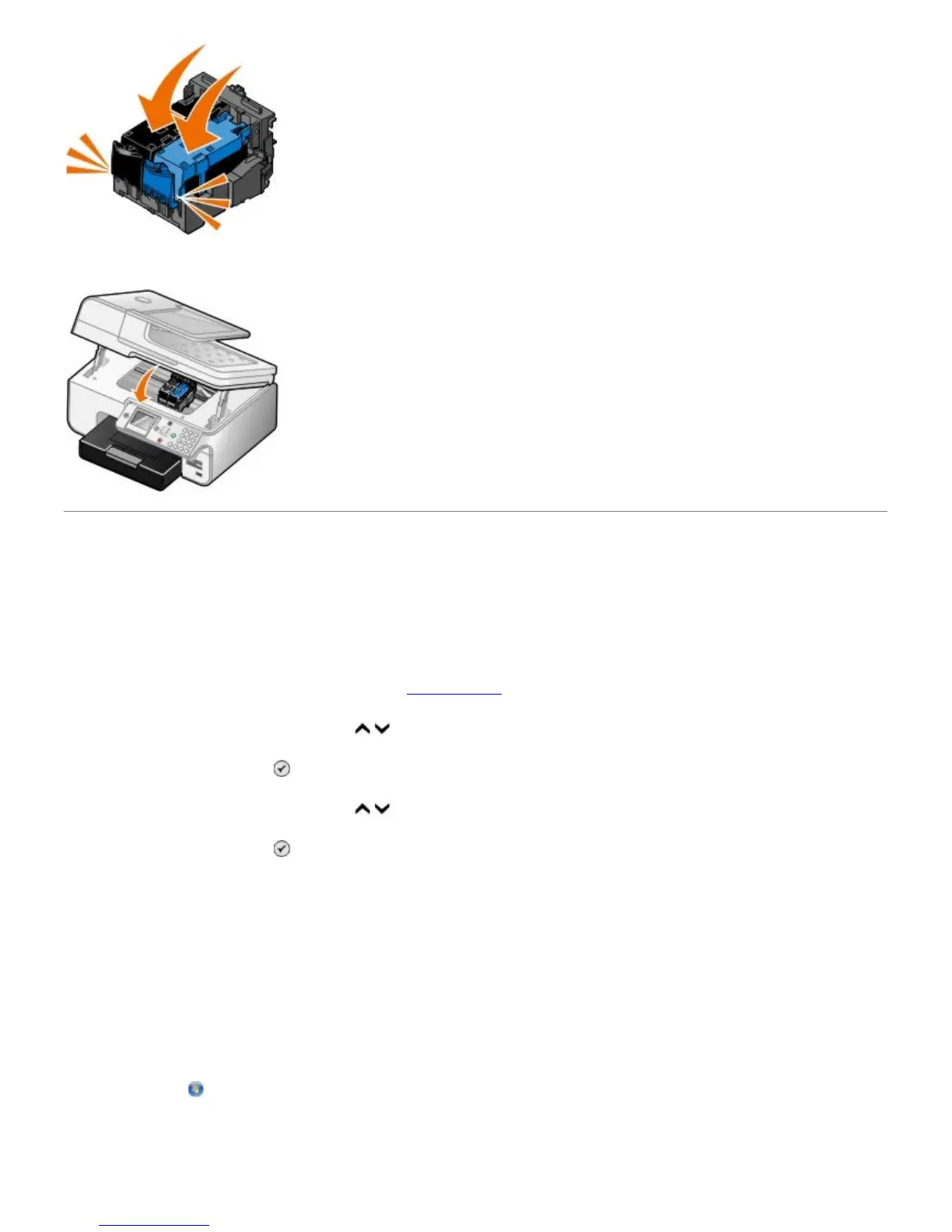
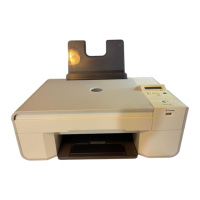
9. Lower the printer unit until it is completely closed.
Aligning Ink Cartridges
Your printer automatically prompts you to align the ink cartridges when they are installed or replaced. You may also need
to align ink cartridges when characters are not properly formed or are not aligned at the left margin, or when vertical or
straight lines appear wavy.
To align the ink cartridges from the operator panel:
1. Load plain paper. For more information, see Loading Paper
.
2. Press the up or down Arrow button
to scroll to Maintenance.
3. Press the Select button .
4. Press the up or down Arrow button
to scroll to Align Cartridges.
5. Press the Select button .
The alignment page begins printing. The ink cartridges align when the page prints.
To align the ink cartridges from the printer software:
1. Load plain paper.
2. In Windows XP, click Start® Control Panel® Printers and Other Hardware® Printers and Faxes.
In Windows 2000, click Start® Settings® Printers.
In Windows Vista:
a. Click
® Control Panel.
b. Click Hardware and Sound.
c. Click Printers.


 To Next Page