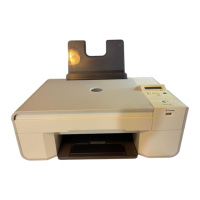
You can view more options when you click Sending Settings or Received Settings. Click on each tab, and change the
settings as necessary.
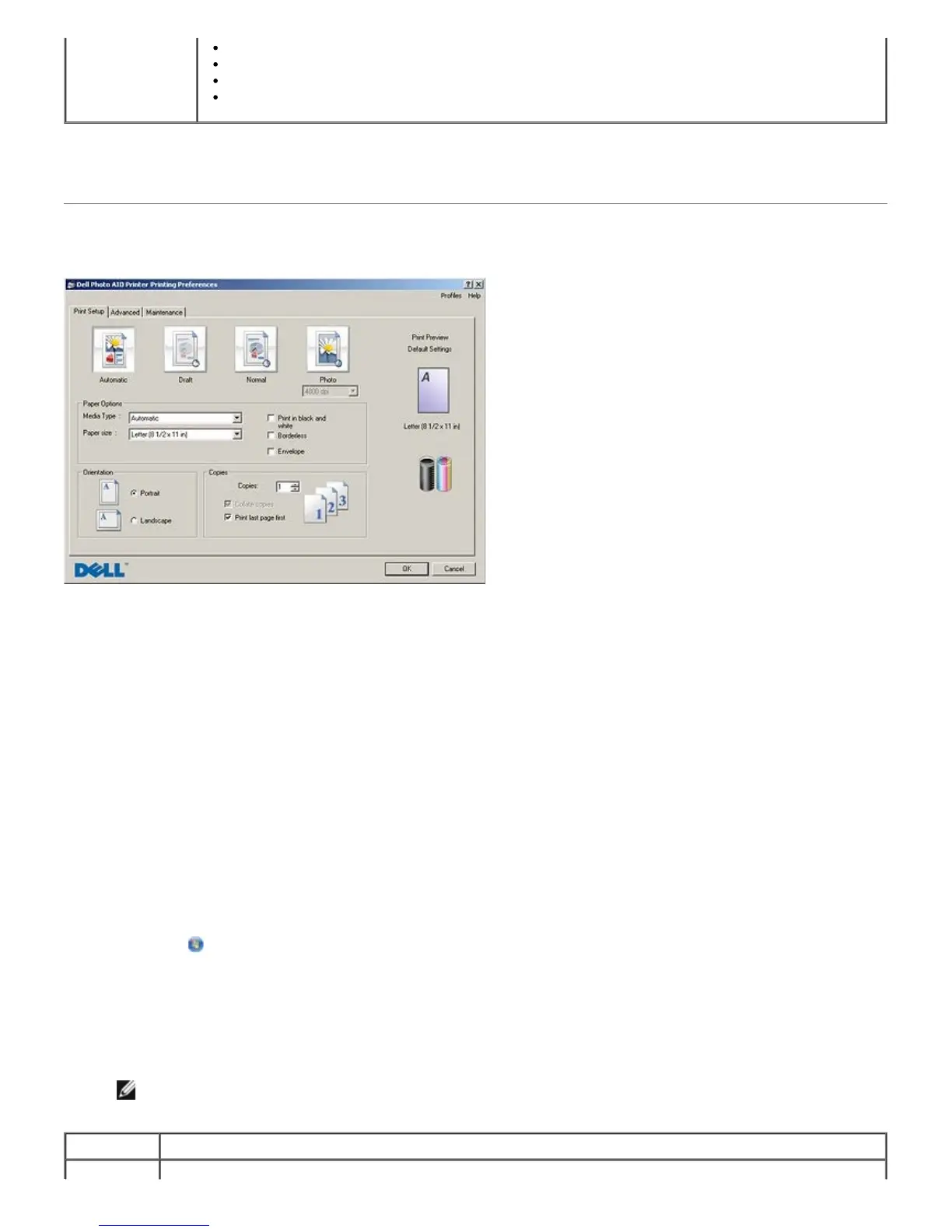
Using Printing Preferences
You can change your printer settings in Printing Preferences depending on the type of project you want to create.
To access Printing Preferences when a document is open:
1. Click File® Print.
The Print dialog box opens.
2. Click Preferences, Properties, Options, or Setup (depending on the program or operating system).
The Printing Preferences dialog box opens.
To access Printing Preferences when a document is not open:
1. In Windows XP, click Start® Settings® Control Panel® Printers and Other Hardware® Printers and Faxes.
In Windows 2000, click Start® Settings® Printers.
In Windows Vista:
a. Click
® Control Panel.
b. Click Hardware and Sound.
c. Click Printers.
2. Right-click the printer icon, and then select Printing Preferences.
NOTE: Changes made to the printer settings from the Printers folder become the default settings for most
programs.
Print Setup Quality/Speed — Select Automatic, Draft, Normal, or Photo depending on your desired output quality.


 To Next Page