12. Click No when asked for another page.
The program opens with the multiple photos scanned.
Scanning Multiple-page Documents
NOTE: Some programs do not support multiple-page scanning.
1. Turn on your computer and printer, and make sure they are connected.
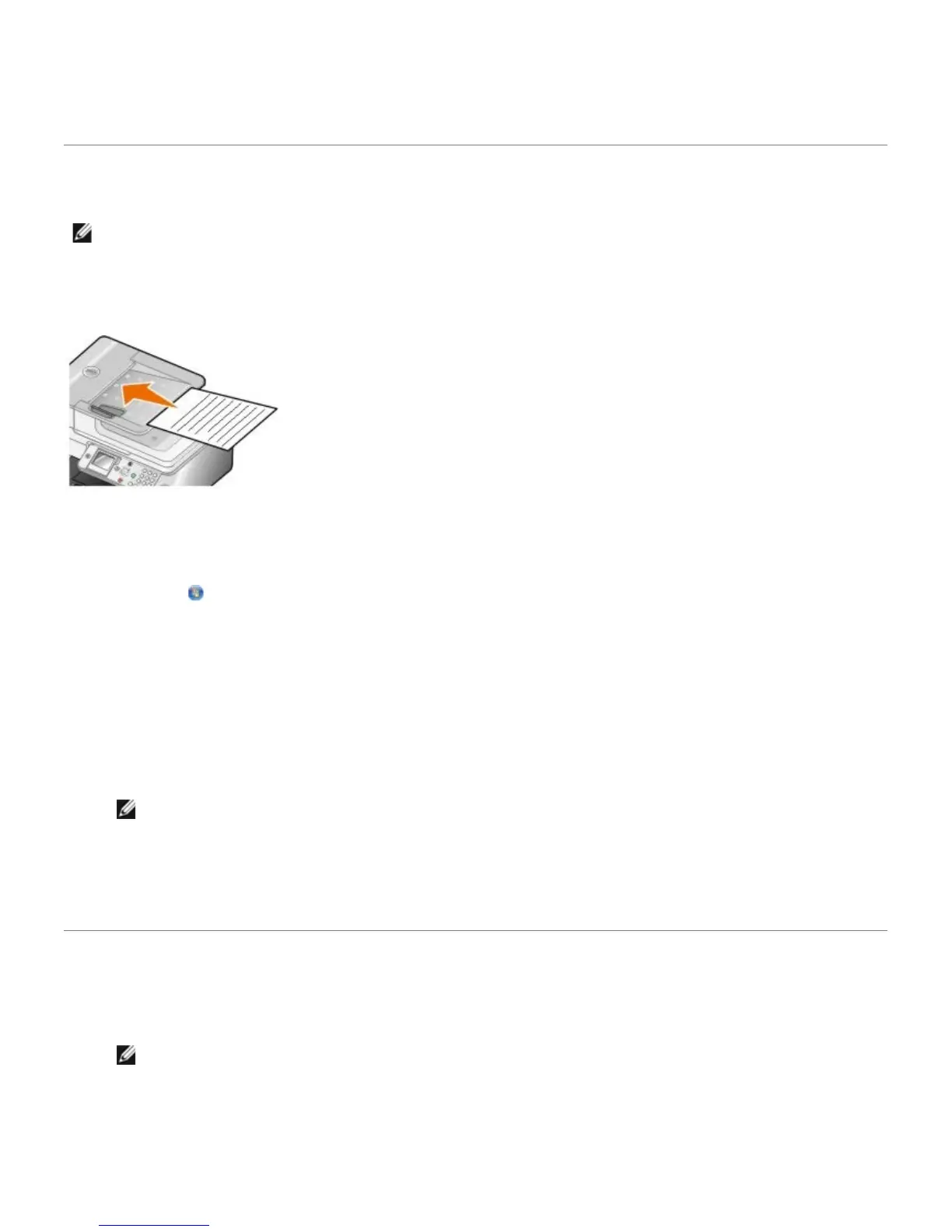
2. Load your original document.
3. Click Start® Programs or All Programs® Dell Printers® Dell Photo AIO Printer 966.
For Windows Vista:
a. Click
® Programs.
b. Click Dell Printers.
c. Click Dell Photo AIO Printer 966.
4. Select Dell All-In-One Center.
The Dell All-In-One Center opens.
5. From the Send scanned image to: drop-down menu, select the program you want to use.
NOTE: If the program you want to use is not listed, select Search for more... in the drop-down menu. On
the next screen, click Add to locate and add your program to the list.
6. Click See More Scan Settings to customize your scan.
7. When you finish customizing your settings, click Scan Now.
Scanning Across a Network
1. Make sure your computer is attached to the network.
NOTE: Dell™ printers can only be attached to a network using a Dell Network Adapter (sold separately).
2. Turn on your computer and printer, and make sure they are connected.
3. Load your original document.


 To Next Page