Operating the monitor | 47
AlienVision
AlienVision enables enhanced visual experience for gamers. Based on different
gaming scenarios you can choose between: Night, Clear, Chroma, or Crosshair
engine. Enable AlienVision using the OSD, Dell Display Manager, or using a
shortcut key.
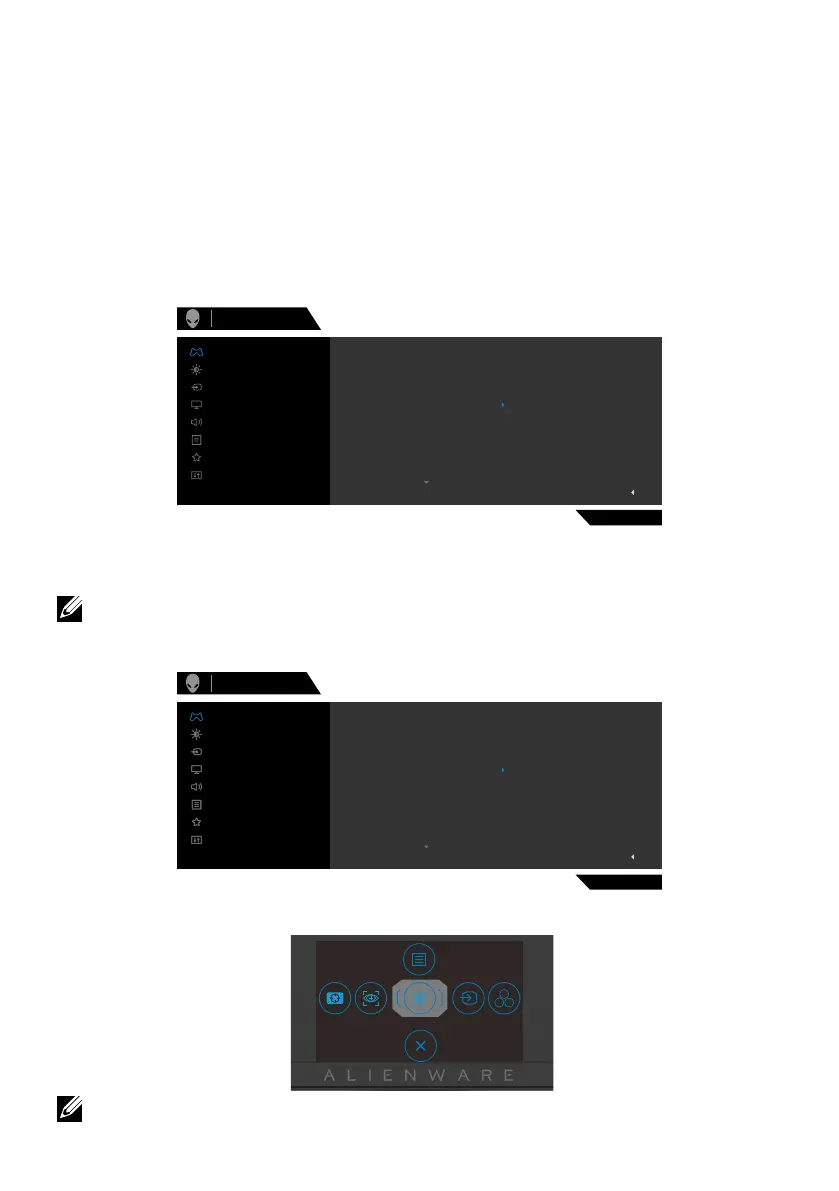
Use the OSD menu and Shortcut key to launch AlienVision:
1. Press the joystick button to launch the OSD Main Menu.
2. Use the joystick, select Game > AlienVision.
3. Select On or Off to enable or disable AlienVision.
Preset Modes
AlienVision
Hue
Saturation
Dark Stabilizer
Console Mode
AW2523HF
Alienware 25 Monitor
Game
Exit
Game Enhance Mode
Response Time
Display
Menu
Personalize
Others
Input Source
Audio
Brightness/Contrast
Night
Chroma
Clear
Crosshair
O
The following message appears when you select “On”, and you can preview the
effect of each vision by moving joystick button.
NOTE: Press the joystick button to select or clear the AlienVision. By
default, all AlienVision are selected. You can select the desired AlienVision
according to your preference.
Chroma
Clear
Crosshair
O
Night
Alienware 25 Monitor
Game
Display
Menu
Personalize
Others
Input Source
Audio
Brightness/Contrast
Display
Menu
Personalize
Others
Input Source
Audio
Brightness/Contrast
Preset Modes
AlienVision
Hue
Saturation
Dark Stabilizer
Console Mode
Game Enhance Mode
Response Time
AW2523HF
Exit
4. Use the Shortcut Key of AlienVision to toggle different AlienVision.
Brightness/Contrast
NOTE: Adjust the preset Shortcut keys in Personalize settings.



 To Next Page