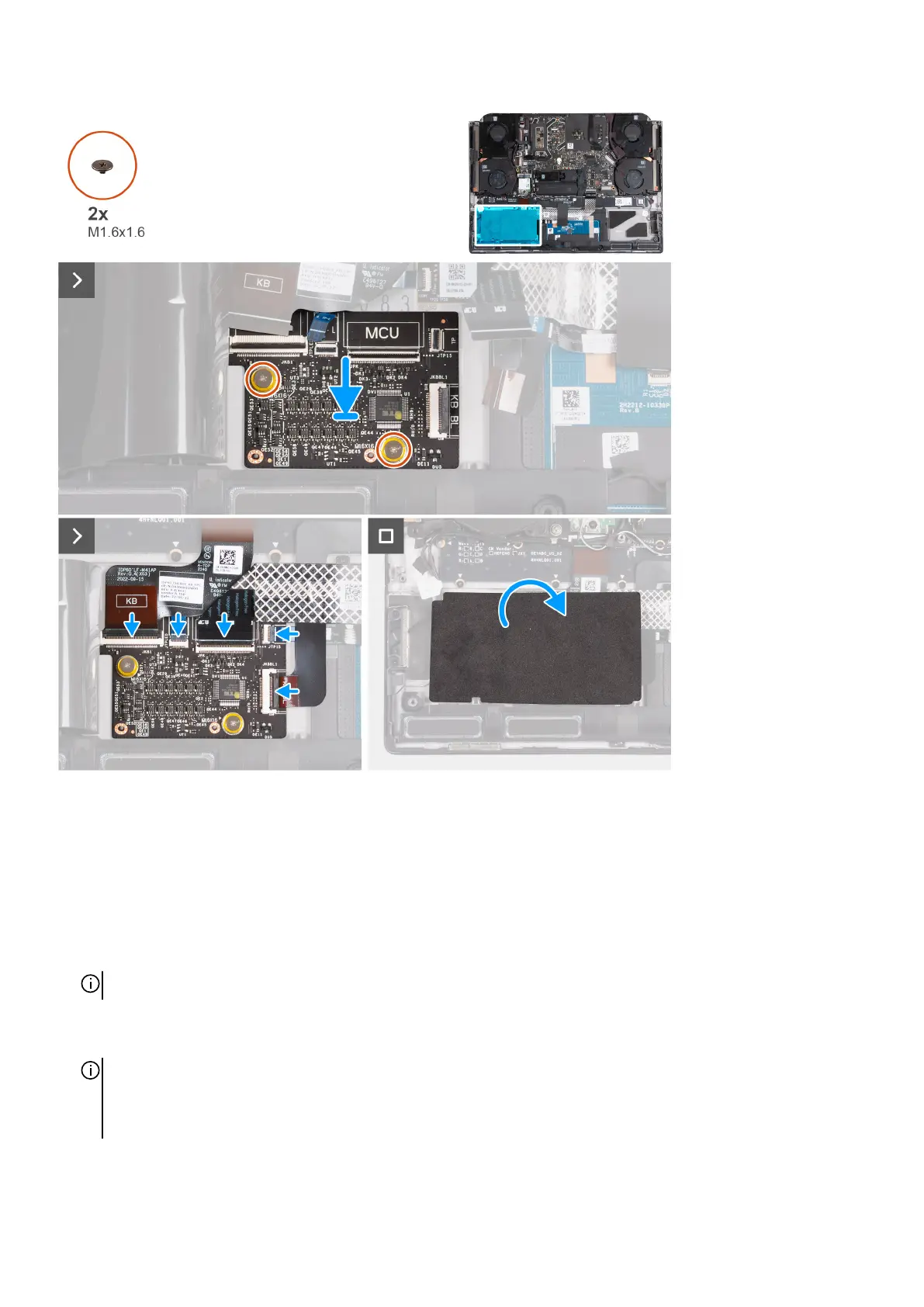
Steps
1. Using the alignment posts, place the keyboard-controller board into the slot on the palm-rest and keyboard assembly.
2. Replace the two screws (M1.6x1.6) that secure the keyboard-controller board to the palm-rest and keyboard assembly.
3. Slide the keyboard cable into the connector on the keyboard-controller board and close the latch to secure the cable.
4. Slide the touchpad cable into the connector on the keyboard-controller board and close the latch to secure the cable.
5. Slide the keyboard-controller board cable into the connector on the keyboard-controller board and close the latch to secure the
cable.
6. Slide the touchpad-light cable into the connector on the keyboard-controller board and close the latch to secure the cable.
NOTE: Your computer may be shipped with an touchpad-light cable depending on the configuration you have ordered.
7. Slide the keyboard-backlight cable into the connector on the keyboard-controller board and close the latch to secure the cable.
8. Place the Mylar that secures the keyboard-controller board to the palm-rest and keyboard assembly.
NOTE: For models shipped with a per-key or mechanical keyboard, the computer will require a keyboard language and
keyboard color setup after keyboard-controller board is replaced. When the computer is reassembled and powered on, an
error message will be displayed. Press F2 to go to the Keyboard section of the BIOS Setup Utility to set up the keyboard
language and keyboard color.
43







 To Next Page