42 Troubleshooting
Touchscreen Problems
Specific
Symptoms
Touch report
error
What You
Experience
Touch function
miss alignment
or no touch
function
Possible Solutions
• Use the Dell provided USB cable to connect
your computer.
• Make sure the power cable has a ground pin.
• Unplug and replug the power cable from the
power adapter to allow auto-recalibration of
the touch module.
• Make sure computer support USB 2.0 or later.
• If the display cannot be detected by the
computer, power o/on the monitor or
unplug and replug the USB cable.
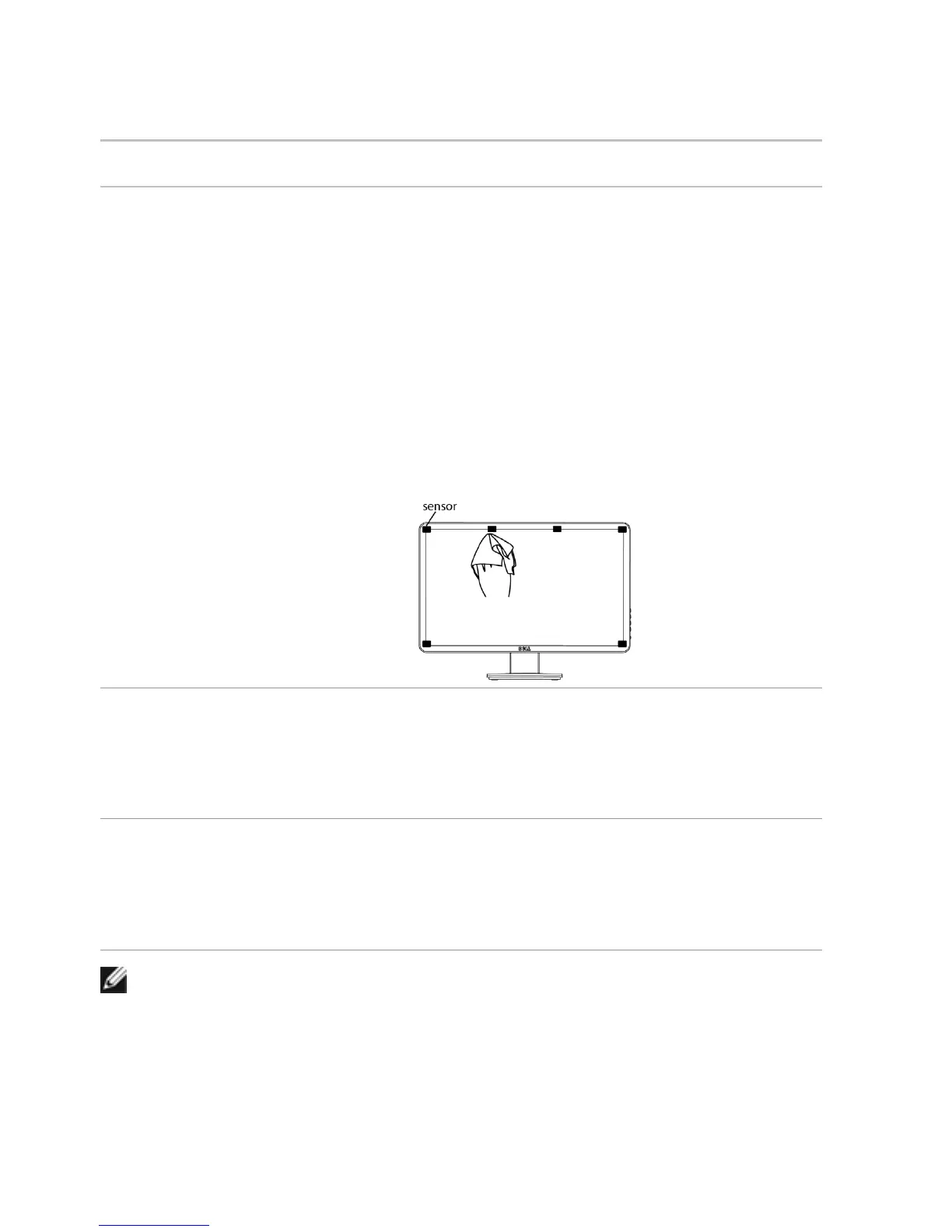
• Wipe softly to clean the dust on the six sensor
lens with soft and clean cloth when touch
function miss alignment or no touch function.
Touch screen
non-responsive
in power-save
mode
Cannot wake
up monitor
and computer
by using touch
in power-save
mode
1. Access Device Manager, expand HID
Interface Device under Human Device.
2. Right click HID- compliant device, click
Properties and select the check-box to allow
the device to wake the computer.
Cursor does
1. Open Control Panel, open Hardware and
Windows 7 and
Sound, and then open Tablet PC Settings.
not accurately
follow your
Windows 8
2. Select Calibration.
finger when
Calibration
you touch the
3. Follow the instructions to recalibrate your
screen
screen
NOTE: When the monitor is in Sleep mode, move the mouse, press any key on
the keyboard, or double-tap firmly on the screen to wake up the monitor.


 To Next Page