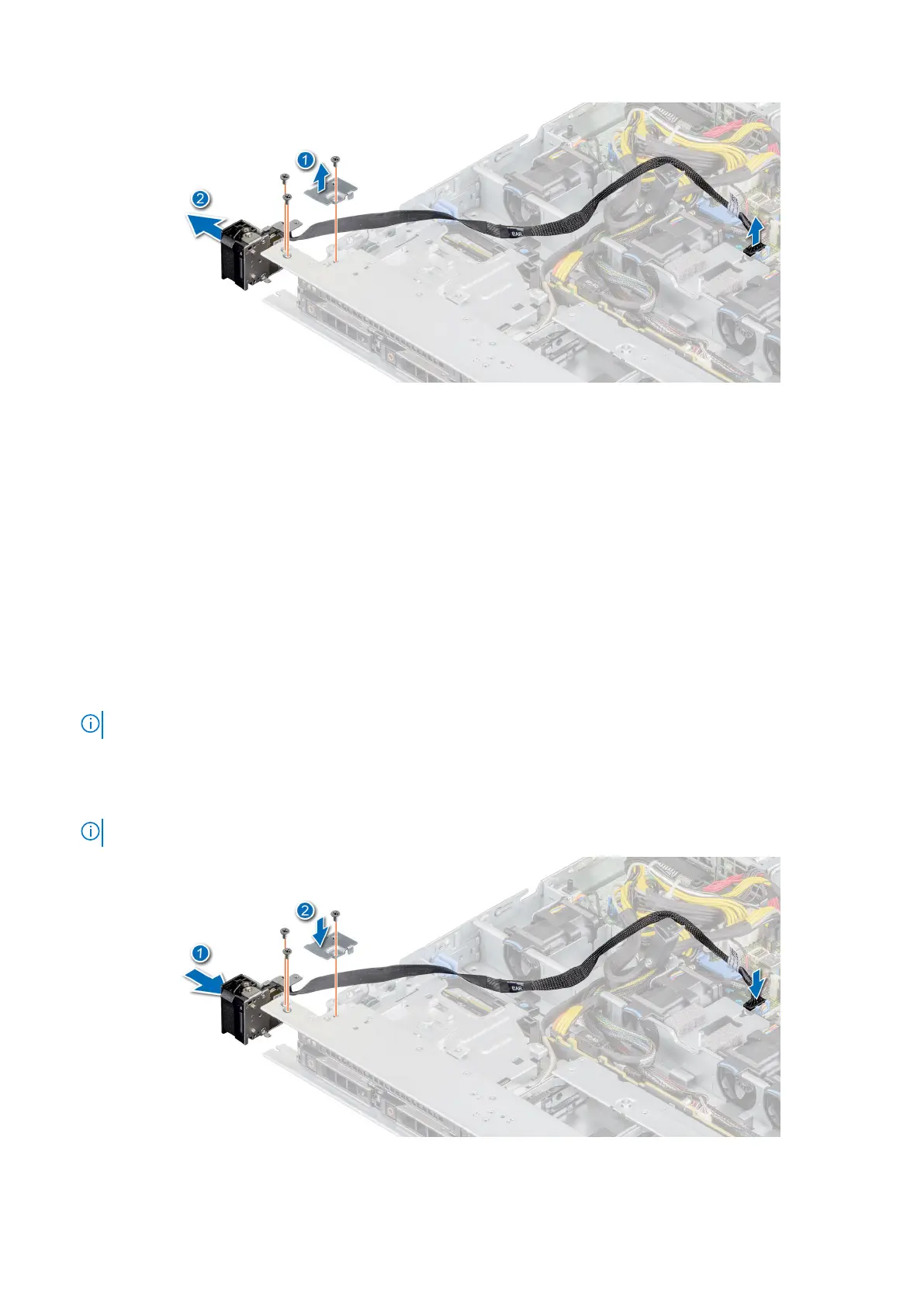
Figure 99. Removing the left control panel
Next steps
Replace the left control panel.
Installing the left control panel
Prerequisites
1. Follow the safety guidelines listed in the Safety instructions.
2. Follow the procedure listed in the Before working inside your system.
Steps
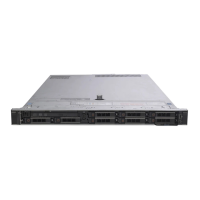
1. Route the control panel cable through the side wall and the guide slots in the system and connector on system board.
NOTE: Route the cable properly to prevent the cable from being pinched or crimped.
2. Align and insert the left control panel assembly in the slot on the system.
3. Using the Phillips #1 screwdriver, tighten the screws that secure the left control panel assembly.
4. Using the Phillips #1 screwdriver, tighten the screws to secure the cable cover to the system.
NOTE: The numbers on the image do not depict the exact steps. The numbers are for representation of sequence.
Figure 100. Installing the left control panel
Installing and removing system components
99



 To Next Page