31
Operating your monitor
Operating your monitor
Turning on the monitor
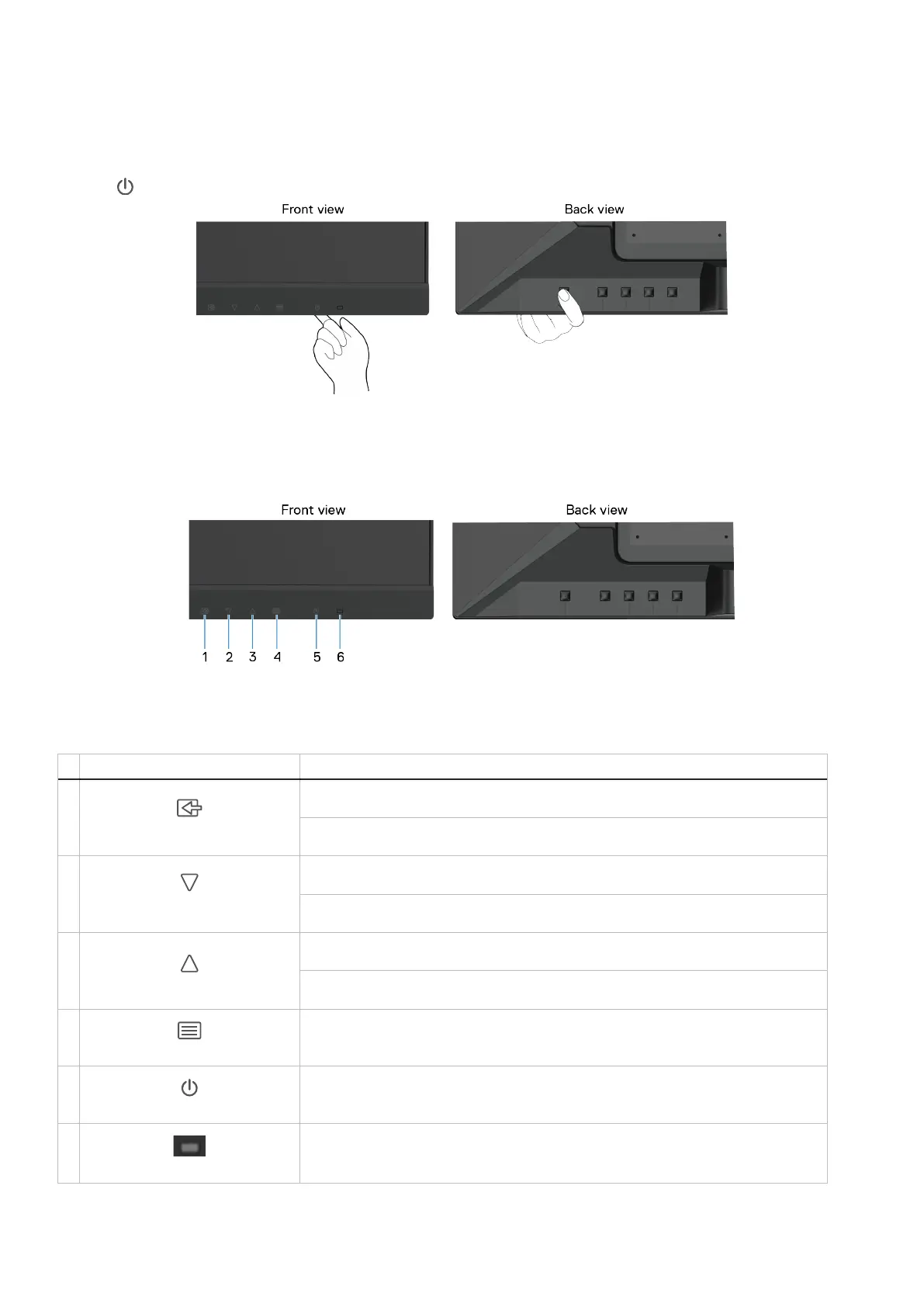
Press the button to turn on the monitor.
Figure 24. Turn on the monitor
Using the back panel controls
Use the control buttons at the back of the monitor to adjust the image being displayed.
Figure 25. Back panel controls
The following table describes the control buttons:
Table 17. Control buttons description.
Control buttons Description
1
Use this button to go back to the main menu or exit the OSD main menu.
When not in the OSD menu, directly enters Input Select.
2
Use the Down button to decrease values or move down in a menu.
When not in the OSD menu, directly enters Contrast/Brightness.
3
Use the Up button to increase values or move up in a menu.
When not in the OSD menu, directly enters Preset Mode.
4
To launch the On-Screen Display (OSD) menu. For more information, see Accessing the
OSD menu.
5
To turn the monitor On or Off.
6
A solid blue light indicates that the monitor is turned on and functioning normally.
A solid orange light indicates that the monitor is in Standby Mode.


 To Next Page