39
Operating your monitor
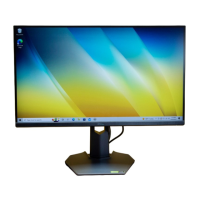
Setting the maximum resolution
NOTE: The steps may vary slightly depending on the version of Windows you have.
To set the maximum resolution for the monitor:
In Windows 10 and Windows 11:
1. Right-click the desktop and click Display settings.
2. If you have more than one monitor connected, ensure that you select G2725D.
3. Click the Display settings drop-down list and select 2560 x 1440.
4. Click Keep changes.
If you do not see 2560 x 1440 as an option, you must update your graphics driver to the latest version. Depending on your computer,
complete one of the following procedures:
If you have a Dell desktop or laptop:
• Go to www.dell.com/support, enter your service tag, and download the latest driver for your graphics card.
If you are using a non-Dell computer (laptop or desktop):
• Go to the support site for your non-Dell computer and download the latest graphic card drivers.
• Go to the graphics card’s website and download the latest graphic card drivers.


 To Next Page