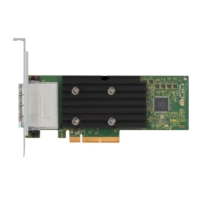
Install Dell HBA355i Adapter, Dell HBA355i Front, Dell HBA355e
Adapter, Dell HBA350i MX, and Dell HBA350i Adapter driver on
which the Windows Server 2016 is already installed or later
About this task
Perform the following steps to configure the driver for the controller on which the Windows Server 2016 is already installed:
Steps
1. Turn off the system.
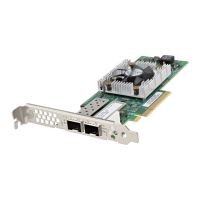
2. Install the new SAS controller in the system.
For detailed instructions on installing the controller in the system, see ,Installation and removal of cards .
3. Turn on the system.
The Found New Hardware Wizard screen displays the detected hardware device.
4. Click Next.
5. On the Locate device driver screen, select Search for a suitable driver for my device and click Next.
6. Browse and select the drivers from the Locate Driver Files screen.
7. Click Next.
8. Click Finish to complete the installation.
9. Reboot the system when prompted.
Update Dell HBA355i Adapter, Dell HBA355i Front, Dell HBA355e
Adapter, Dell HBA350i MX, and Dell HBA350i Adapter driver that
runs on Windows Server 2016 or later
Prerequisites
NOTE: Close all applications on your system before you update the driver.
Steps
1. Insert the media containing the driver.
2. Select Start > Settings > Control Panel > System.
The System Properties screen is displayed.
NOTE: The path to System might vary depending on the operating system family.
3. Click the Hardware tab.
4. Click Device Manager.
The Device Manager screen is displayed.
NOTE: The path to Device Manager might vary depending on the operating system family.
5. Expand Storage Controllers by double-clicking the entry or by clicking on the plus (+) symbol next to Storage
Controllers.
6. Double-click the controller for which you want to update the driver.
7. Click the Driver tab and click Update Driver.
The screen to update the device driver wizard is displayed.
8. Select Install from a list or specific location.
9. Click Next.
10. Follow the steps in the wizard and browse to the location of the driver files.
11. Select the INF file from the drive media.
12. Click Next and continue the installation steps in the wizard.
13. Click Finish to exit the wizard and reboot the system for the changes to take place.
Driver support for Dell HBA355i Adapter, Dell HBA355i Front, Dell HBA355e Adapter, Dell HBA350i MX, and Dell
HBA350i Adapter
35


 To Next Page