Table 7. View Controller Properties options (continued)
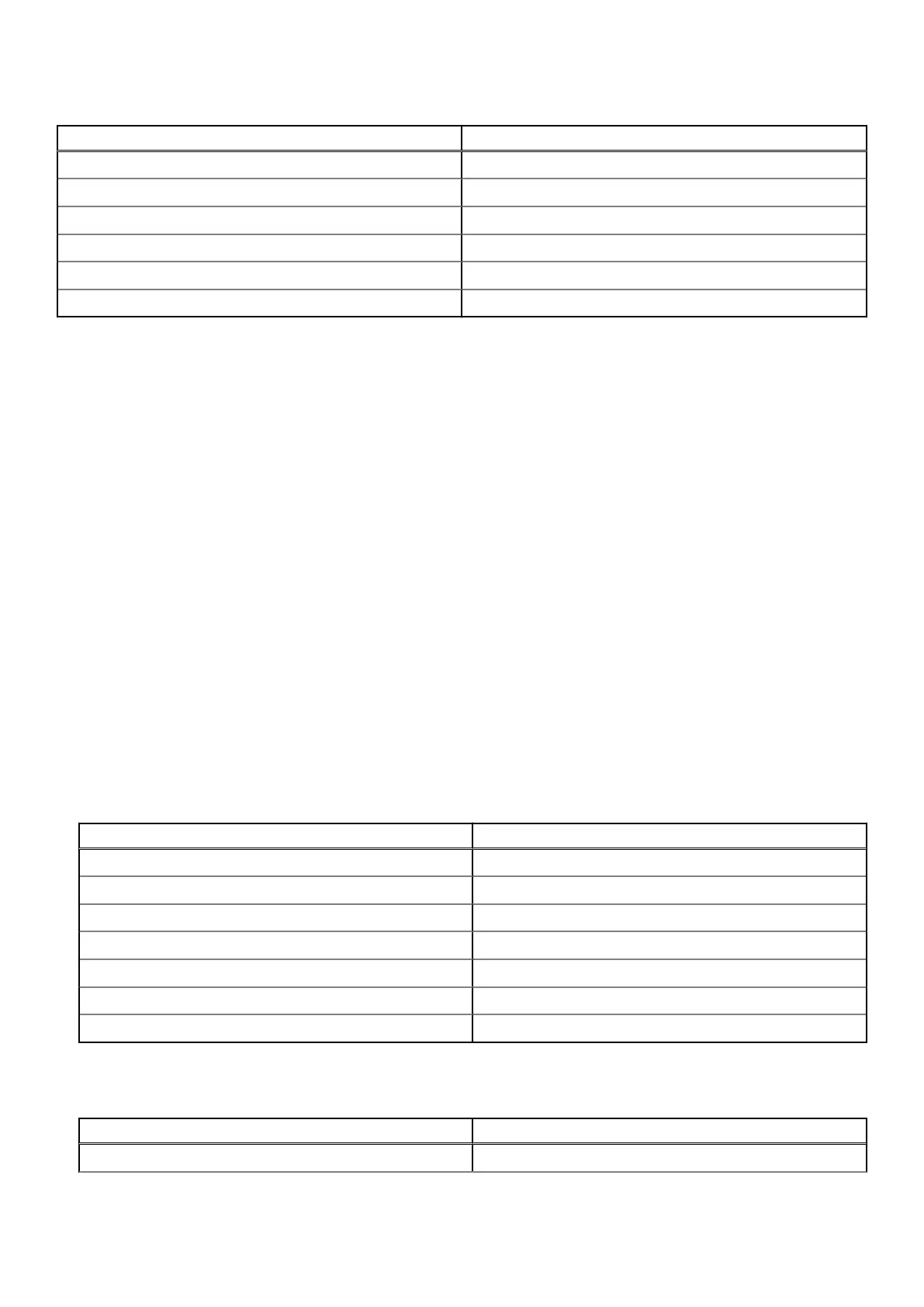
Option Description
PCI Ven: Dev Controller PCI Vendor ID and Device ID
PCI SSVen:SSDev Controller PCI Sub Vendor ID and Sub Device ID
SAS address Controller SAS Address
Package version Controller package version
Number of SAS and SATA Devices* Number of SAS and SATA devices supported
Number of enclosures* Number of controller enclosures
*This option is displayed only after you refresh the topology.
Refresh the topology
Refresh topology allows you to rediscover the devices. It also helps you detect changes in the devices that are connected to the
controller.
Steps
1. In the System Setup Main Menu, click Device Settings > Dell HBA355i Front Configuration Utility > Controller
Management > Refresh Topology.
2. Click Ok to refresh the topology.
A screen is displayed topology refresh process is completed successfully.
3. Click Ok to continue.
Device Properties
Device properties allows you to view the properties of the device.
Steps
1. To view the Device Properties screen, power on the system, press F2, and click System Setup Main Menu > Device
Settings > Dell HBA355i Front Configuration Utility > Device Properties > Logical Enclosure (Bay ID=1, Enclosure
Level=1).
Table 8. Logical Enclosure (Bay ID=1, Enclosure Level=1) properties
Option Description
Enclosure logical ID Logical ID of the enclosure
Enclosure level Level of the enclosure
Bay ID Bay ID of the enclosure
Vendor name Vendor name of the enclosure
Product name Product name of the enclosure
Product revision Product revision of the enclosure
Number of slots Number of slots that the enclosure supports
2. Click <Slot 0> SAS SSD drive model to view the properties on this device.
If the physical disk ID has the letter M next to it, the disk has multiple paths that are connected to the system.
Table 9. Device at Slot 0 Logical Enclosure 1 properties
Option Description
Device type Type of the drive
40 Manage Dell HBA355i Adapter, Dell HBA355i Front, Dell HBA355e Adapter, Dell HBA350i MX, and Dell HBA350i
Adapter using HII configuration utility


 To Next Page