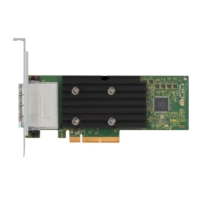
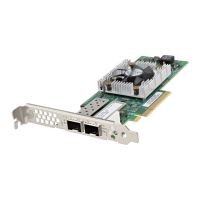
Manage Dell HBA355i Adapter, Dell HBA355i
Front, Dell HBA355e Adapter, Dell HBA350i
MX, and Dell HBA350i Adapter using HII
configuration utility
The Human Interface Infrastructure (HII) configuration utility is a storage management application integrated into the System
BIOS <F2>. It is used to manage physical disks. This utility is independent of the operating system. The HII configuration utility
is a standardized way of viewing and setting device configuration. The HII configuration utility provides pre-operating system
functionality and management for the following:
● Viewing physical device properties.
● Running physical device operations.
●
Retrieving debug information.
Topics:
• Enter the HII configuration utility
• Exit the HII configuration utility
• Navigate to the configuration utility
• Controller management
Enter the HII configuration utility
About this task
Perform the following steps to boot to the HII configuration utility:
Steps
1. To view System Setup, power on the system, press F2, and click System Setup Main Menu.
The System Setup Main Menu screen details are described as follows:
Table 6. System setup menu
Option Description
System BIOS Configure BIOS settings.
iDRAC Settings Configure iDRAC settings. The iDRAC settings utility is an
interface that is used to set up and configure the iDRAC
parameters by using Unified Extensible Firmware Interface
(UEFI). You can enable or disable various iDRAC parameters
by using the iDRAC settings utility. For more information
about this utility, see the iDRAC user's guide at https://
www.dell.com/poweredgemanuals
Device Settings Configure device settings for devices such as storage
controllers and network cards.
2.
Click Device Settings.
To access the management menu for the controller, use the arrow keys or the mouse.
NOTE: For more information these options, click Help on the upper-right corner of the browser screen.
7
38 Manage Dell HBA355i Adapter, Dell HBA355i Front, Dell HBA355e Adapter, Dell HBA350i MX, and Dell HBA350i
Adapter using HII configuration utility


 To Next Page