EasyManua.ls Logo

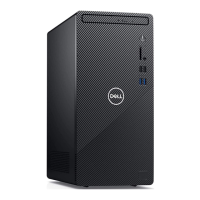
Dell Inspiron 3891 - User Manual

Dell Inspiron 3891
77 pages
Print Icon
To Next Page IconTo Next Page
Loading...
Inspiron 3891
Service Manual
Regulatory Model: D29M
Regulatory Type: D29M004
August 2021
Rev. A02

Table of Contents

Other manuals for Dell Inspiron 3891

Questions and Answers

  • E
    Edward PettySep 17, 2025
    What to do if my Dell Inspiron 3891 displays 'Hard-disk drive read failure'?
    • E
      Edwin PhillipsSep 18, 2025
      If your Dell Desktop displays a 'Hard-disk drive read failure', shut down the computer, remove the hard drive, and boot the computer from an optical. Then, shut down the computer, reinstall the hard drive, and restart the computer. If the problem persists, try another drive. Run the Hard Disk Drive tests in Dell Diagnostics.
  • D
    Donna AliAug 25, 2025
    What does 'Not enough memory or resources' mean on my Dell Inspiron 3891 and how to fix it?
    • C
      Christina PerezAug 25, 2025
      This message on your Dell Desktop indicates that too many programs are open. To resolve this, close all windows and then reopen the specific program you wish to use.
  • E
    Erica CharlesAug 25, 2025
    What to do if my Dell Inspiron 3891 Desktop says 'Insert bootable media'?
    • R
      Robert NelsonAug 26, 2025
      If your Dell Desktop displays the message 'Insert bootable media', the suggested solution is to insert bootable media into your computer.
  • S
    Savannah RiversAug 26, 2025
    What to do if my Dell Desktop says 'Bad command or file name'?
    • C
      cooperaliciaAug 27, 2025
      If you receive a 'Bad command or file name' error on your Dell Desktop, ensure that you have spelled the command correctly, have put spaces in the proper place, and have used the correct path name.
  • F
    fmillsSep 18, 2025
    What to do if my Dell Inspiron 3891 Desktop displays 'Hard-disk drive failure'?
    • M
      Melissa WilliamsSep 18, 2025
      If your Dell Desktop displays a 'Hard-disk drive failure', shut down the computer, remove the hard drive, and boot the computer from an optical drive. Then, shut down the computer, reinstall the hard drive, and restart the computer. If the problem persists, try another drive. Run the Hard Disk Drive tests in Dell Diagnostics.
  • D
    danielandersonSep 23, 2025
    Why does my Dell Inspiron 3891 Desktop say 'Licensed content is not accessible in MediaDirect'?
    • T
      Tammy PenaSep 23, 2025
      If your Dell Desktop displays 'Licensed content is not accessible in MediaDirect', Dell MediaDirect cannot verify the Digital Rights Management (DRM) restrictions on the file, so the file cannot be played.
  • M
    Margaret NolanSep 9, 2025
    What does 'Auxiliary device failure' mean on my Dell Inspiron 3891 Desktop, and how can I fix it?
    • C
      Corey GatesSep 9, 2025
      If your Dell Desktop shows an 'Auxiliary device failure', the touchpad or external mouse may be faulty. For an external mouse, check the cable connection. Enable the Pointing Device option in the System Setup program.
  • D
    Dennis MartinezSep 10, 2025
    What to do if my Dell Inspiron 3891 Desktop displays 'Invalid configuration information'?
    • B
      Brandon GutierrezSep 10, 2025
      If your Dell Desktop displays 'Invalid configuration information', correct the appropriate options in the system setup program.
  • J
    Jacqueline Diaz MDSep 3, 2025
    What does 'Memory write/read failure' mean on my Dell Inspiron 3891 Desktop, and how can I fix it?
    • G
      Gregory RuizSep 3, 2025
      If your Dell Desktop shows a 'Memory write/read failure', a memory module may be faulty or improperly seated. Reinstall the memory module or, if necessary, replace it.
  • R
    Robert LongSep 1, 2025
    What to do if my Dell Inspiron 3891 Desktop displays 'X:\ IS NOT ACCESSIBLE. THE DEVICE IS NOT READY'?
    • D
      David BeltranSep 1, 2025
      If your Dell Desktop displays the error 'X:\ IS NOT ACCESSIBLE. THE DEVICE IS NOT READY', insert a disk into the drive and try again.

Dell Inspiron 3891 Specifications

General IconGeneral
Chassis typeDesktop
Product colorBlack
Cable lock slotYes
Placement supportedVertical
Cable lock slot typeKensington
Processor cache12 MB
Processor cores6
Processor modeli5-11400
Processor familyIntel® Core™ i5
Processor frequency2.6 GHz
Processor manufacturerIntel
Processor boost frequency4.4 GHz
Number of processors installed1
Memory slots2x DIMM
Internal memory8 GB
Memory channelsDual-channel
Memory clock speed2933 MHz
Internal memory typeDDR4-SDRAM
Maximum internal memory64 GB
Memory layout (slots x size)1 x 8 GB
Product typePC
Motherboard chipsetIntel B560
Power supply- W
Power supply input voltage90 - 264 V
Power supply input frequency47 - 63 Hz
Bluetooth version5.1
Cabling technology10/100/1000Base-T(X)
Top Wi-Fi standardWi-Fi 5 (802.11ac)
Ethernet LAN data rates10, 100, 1000 Mbit/s
Operating shock110 G
Operating altitude-15.2 - 3048 m
Non-operating shock160 G
Operating vibration0.66 G
Non-operating altitude-15.2 - 10668 m
Non-operating vibration1.3 G
Storage temperature (T-T)-40 - 65 °C
Operating temperature (T-T)10 - 35 °C
Storage relative humidity (H-H)0 - 95 %
Operating relative humidity (H-H)20 - 90 %
HDMI version1.4b
USB 2.0 ports quantity4
USB 3.2 Gen 1 (3.1 Gen 1) Type-A ports quantity3
USB 3.2 Gen 2 (3.1 Gen 2) Type-A ports quantity-
Cables includedAC
Display includedNo
Discrete graphics card modelNot available
On-board graphics card modelIntel UHD Graphics 730
HDD speed7200 RPM
SSD capacityThe Solid State Drive's storage capacity in Gigabytes.
HDD interfaceSATA
SSD interfaceNVMe, PCI Express
Storage mediaHDD+SSD
SSD form factorM.2
Optical drive typeDVD±RW
Total HDDs capacity1000 GB
Total SSDs capacity256 GB
Total storage capacity1256 GB
Number of storage drives installed2
Operating system architecture64-bit
Weight and Dimensions IconWeight and Dimensions
Depth293 mm
Width154 mm
Height324.3 mm
Weight7020 g

Related product manuals