EasyManua.ls Logo

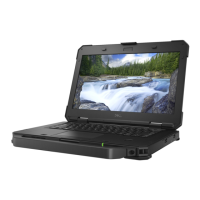
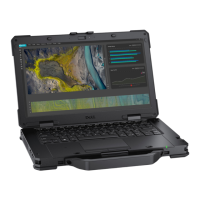
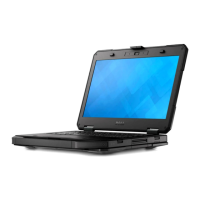
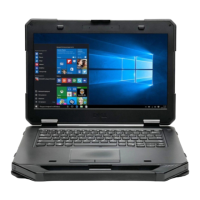
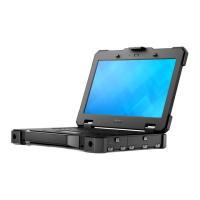
Dell Latitude 5424 Rugged - User Manual

Dell Latitude 5424 Rugged
210 pages
Print Icon
To Next Page IconTo Next Page
Loading...
Dell Latitude 5424 Rugged
Owner's Manual
Regulatory Model: P85G
Regulatory Type: P85G001

Table of Contents

Other manuals for Dell Latitude 5424 Rugged

Questions and Answers

  • B
    bernardlewisJul 27, 2025
    Why is my Dell Latitude 5424 Rugged touchpad pointer moving erratically?
    • M
      Michael BowmanJul 27, 2025
      Erratic pointer movement on your Dell Laptop's touchpad can occur if a finger or part of your hand is too close to the touchpad surface. Try to pay attention to the placement of your hands and fingers during normal use. If this does not solve the problem, get the latest driver from Dell support site, as most problems can be corrected with a simple driver download. Also, the problem could be mechanical.
  • D
    dcisnerosAug 2, 2025
    What to do if there is no pointer movement from the Dell Laptop touch pad?
    • K
      Kelly RobinsonAug 2, 2025
      If there is no pointer movement from the touch pad on your Dell Laptop, it may have been disabled in the driver interface. Using an external mouse (or key strokes if no mouse is available), go into the Dell Touchpad Properties. Go to the Device Select section and enable the touch pad. Also, the touch pad cable could be damaged or disconnected. Press down on the palm rest where the touch pad connector is located on the system board. If the pointer reacts in some way, then the cable may just need to be reseated.
  • B
    Brian WatsonAug 9, 2025
    What to do if the touchscreen on my Dell Laptop doesn't respond along the edges?
    • R
      Rebecca MooneyAug 9, 2025
      If your Dell Laptop touchscreen is not responsive along the edges, calibrate the touchscreen: Start > Control Panel > Tablet PC Settings > choose Calibrate. You can choose to calibrate Pen input or Touch input. Perform the point calibrations that appear on the screen to correct the linearity problems.
  • L
    lreedAug 14, 2025
    Why does the touch screen on my Dell Latitude 5424 Rugged lose sensitivity?
    • S
      Stephen HillAug 15, 2025
      The touch screen on your Dell Laptop may lose sensitivity due to foreign particles (such as sticky notes) blocking the touch sensors. Turn off the computer. Disconnect the AC adapter cable from the wall outlet. Use a clean, lint-free cloth to wipe the surface and sides of the touch screen to remove any dirt or fingerprints.
  • D
    Deborah FullerAug 20, 2025
    How to troubleshoot audio issues on a Dell Laptop?
    • O
      oporterAug 20, 2025
      To troubleshoot audio issues on your Dell Laptop: * If the problem is external only, try reseating the speakers or headphones. Also try another set of speakers or headphones if available. * If the problem is internal only, try shaking the unit and see if the sound returns or plays intermittently. * Check Device Manager and ensure the audio driver is installed correctly.

Summary

Welcome - Getting Started

Technical Specifications

Graphics and Camera

Details graphics controller, memory, display support, and camera specifications.

Battery and Power Adapter

Covers battery options, specifications, and power adapter details.

Technology and Components

AC-DC Adapters and Status

Describes AC adapter types and how to check their status in BIOS.

Intel Graphics Options

Details Intel HD, UHD, and AMD Radeon graphics specifications.

Removing and Installing Components

Safety Instructions and ESD Protection

Outlines essential safety guidelines and Electrostatic Discharge (ESD) protection methods.

Battery Removal and Installation

Details the procedure for removing and installing the laptop battery.

Keyboard Removal and Installation

Details the procedure for removing and installing the laptop keyboard.

System Board Removal and Installation

Explains how to remove and install the system board.

System Setup

Security Settings

Covers Admin, System, and Strong Passwords, plus UEFI Secure Boot.

System and Setup Password Management

Details how to assign, change, or delete system and setup passwords.

Diagnostics

ePSA Diagnostics Overview

Introduces ePSA diagnostics for hardware checks and troubleshooting.

Self-Heal Troubleshooting

Explains the Self-Heal option for recovering from system failures.

Dell Latitude 5424 Rugged Specifications

General IconGeneral
MemoryUp to 32GB DDR4 2400MHz
GraphicsIntel UHD Graphics 620
Operating SystemWindows 10 Pro
ProcessorIntel Core i5-8350U, i7-8650U
Display14.0" FHD (1920x1080)
StorageUp to 1TB PCIe NVMe SSD
PortsHDMI, RJ-45, SD card reader
DurabilityMIL-STD-810G
WirelessIntel Dual Band Wireless-AC 8265, Bluetooth 4.2
WeightStarting at 5.5 lbs (2.5 kg)

Related product manuals