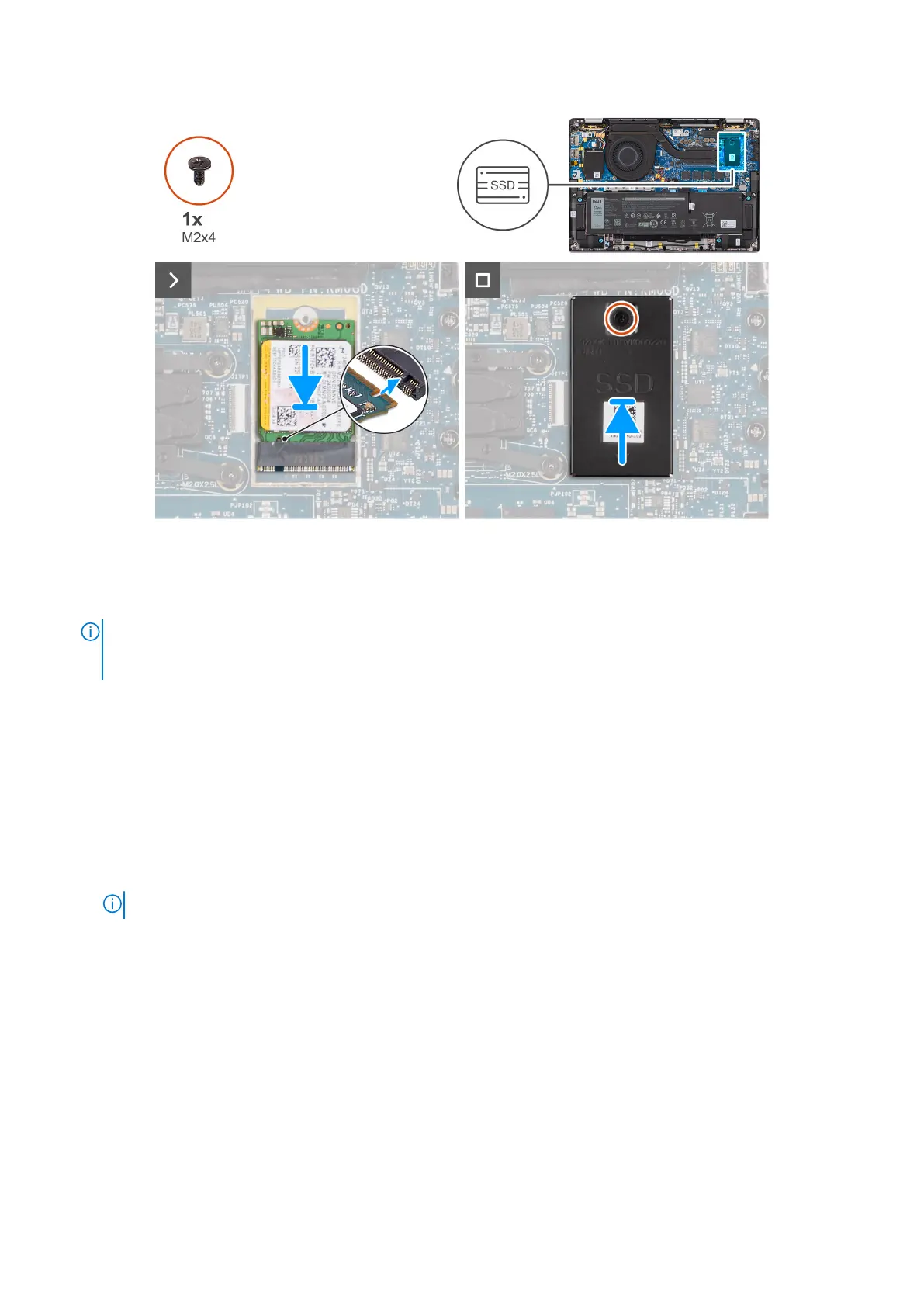
Figure 23. Installing the M.2 2230 Solid State Drive
Steps
1. Align the notch on the M.2 2230 SSD with the tab on the M.2 card slot on the system board.
NOTE:
For computers shipped without an SSD thermal plate, a thermal pad sticker is adhered to the system board
underneath the SSD. If in the process of replacing the SSD, the thermal pad is separated from the plate or gets adhered
to the SSD, adhere the thermal pad to the system board before reinstalling the SSD to the computer.
2. Align the screw holes on the M.2 2230 SSD extension thermal plate with the screw holes on the system board.
3. Replace the single screw (M2x4) to secure the M.2 2230 SSD extension thermal plate to the palm-rest and keyboard
assembly.
Next steps
1. Install the base cover.
2. Follow the procedure in After working inside your computer.
3. Verify if the storage device is installed correctly:
a. Turn on or restart your computer.
b. Press F2 when the Dell logo is displayed on the screen to enter the computer setup (BIOS) program.
NOTE: A list of storage devices are displayed under the System Information in the General group.
c. If you have replaced the primary storage device that had the operating system that is installed, search in the Knowledge
Base Resource at www.dell.com/support.
Wireless Wide Area Network (WWAN) card
Removing the 4G WWAN card
Prerequisites
1. Follow the procedure in Before working inside your computer.
2. Remove the base cover.
54
Removing and installing Customer Replaceable Units (CRUs)



 To Next Page