2. Install the:
a. keyboard
b. hard disk
c. battery
d. base cover
e. SD card
3. Follow the procedure in After working inside your computer.
Touchpad button
Removing the Touchpad buttons
1. Follow the procedure in Before working inside your computer.
2. Remove the:
a. SD card
b. base cover
c. battery
d. keyboard
e. hard drive
f. palmrest
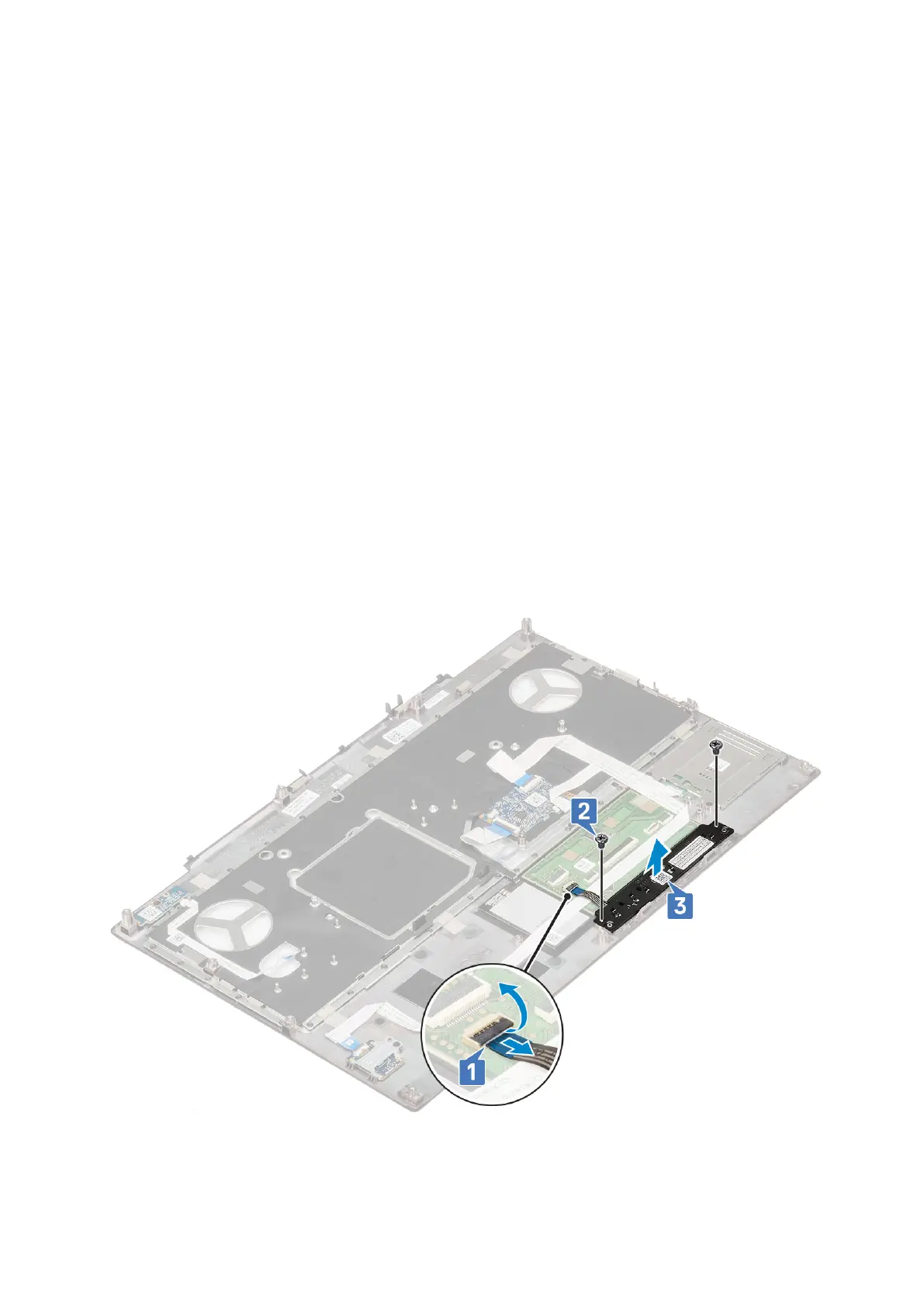
3. To remove touchpad buttons:
a. Disconnect the touchpad cable from the touchpad [1].
b. Remove the 2 (M2.0x3.0) screws that secure the touchpad buttons to the palmrest [2].
c. Remove the touchpad button from the palmrest [3].
Removing and installing components
61



 To Next Page