58 Installing System Components
5
If you do not replace the hard drive, insert a drive blank in the vacated drive bay. See "Installing a Drive
Blank" on page 57.
NOTICE: To maintain proper system cooling, all empty hard-drive bays must have drive blanks installed.
Installing a Hot-Plug Hard Drive
NOTICE: When installing a hard drive, ensure that the adjacent drives are fully installed. Inserting a hard-drive
carrier and attempting to lock its handle next to a partially installed carrier can damage the partially installed
carrier's shield spring and make it unusable.
NOTICE: Not all operating systems support hot-plug drive installation. See the documentation supplied with your
operating system.
1 Remove the front bezel, if attached. See
"Removing the Front Bezel" on page 54
.
2
If a drive blank is present in the bay, remove it. See "Removing a Drive Blank" on page 57.
3
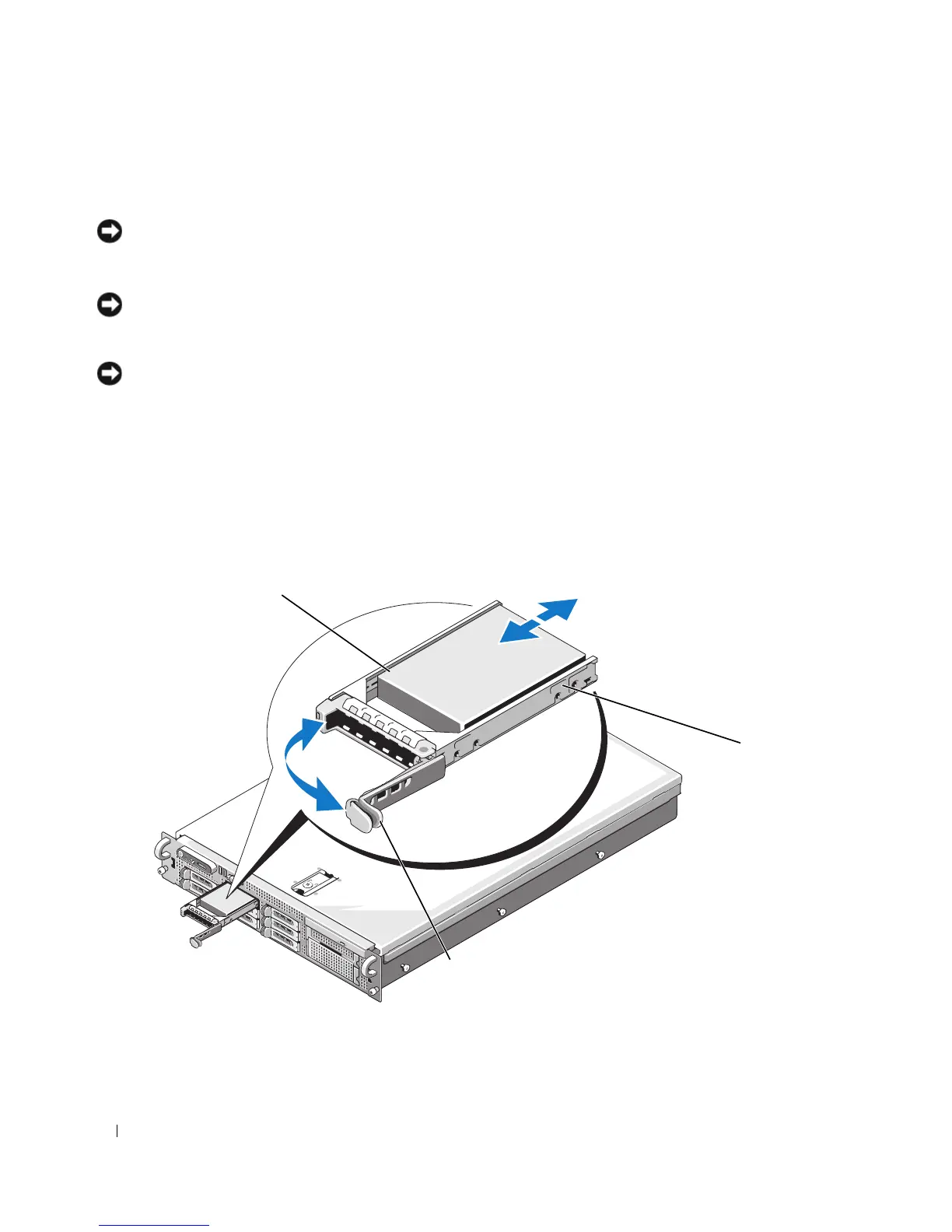
Install the hot-plug hard drive.
a
Open the handle on the hard-drive carrier.
Figure 3-5. Installing a Hot-Plug Hard Drive
1 hard drive 2 drive carrier 3 drive carrier release handle
3
1
2







 To Next Page