Dell SonicWALL Directory Services Connector 3.7
Administration Guide
30
Using the Diagnostic Tool
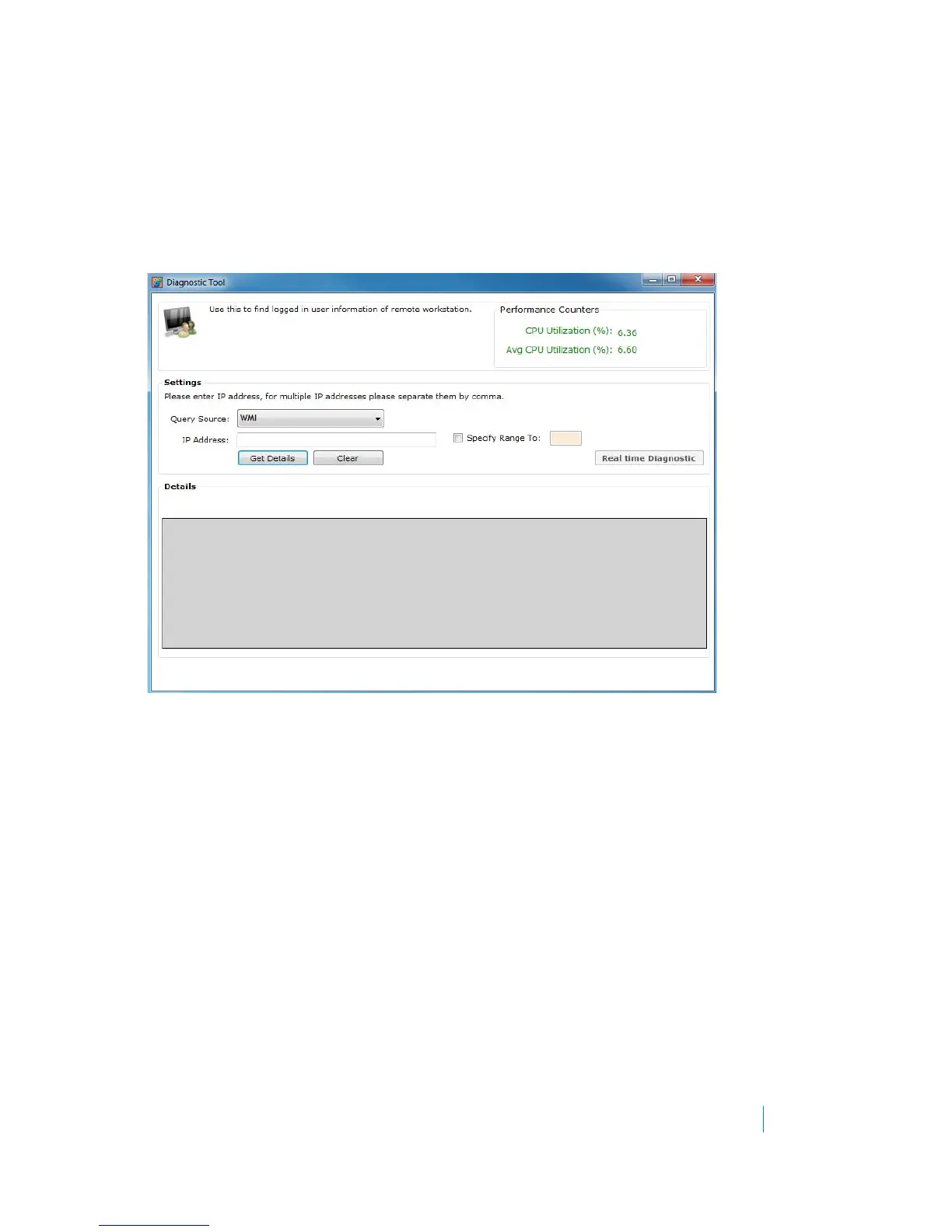
The Action > Diagnostics Tool page of the DSC Configuration Tool provides a way to find logged in user
information for remote workstations. You can manually identify IP addresses by entering multiple IP addresses
separated by commas or an IP address range. The results can be exported to a CSV file.
The Diagnostic Tool indicates current and average CPU utilization by the SSO Agent. You can also get real-time
diagnostic information on this page.
Figure 4. Actions > Diagnostic Tool page
To display and use the Diagnostic Tool:
1 In the DSC Configuration Tool, select SonicWALL SSO Agent in the left pane and then navigate to the
Actions > Diagnostic Tool page.
The Diagnostic Tool page is displayed.
2 Select one of the following from the Query Source drop-down list.
•WMI
• NETAPI
• NETAPI - Workstation Info
• DC Security Logs - All Users
3 In the IP Address field, type in the IP address of the SSO Agent.
4 Optionally select the Specify Range To checkbox and fill in the field.
5Click Real time Diagnostic to get real-time diagnostic messages.
6Click Get Details. The information is displayed in the Details field.
7Click Clear to clear the Details field.
8Click Export to CSV to save the details to a CSV file on your computer.




 To Next Page