Dell SonicWALL Directory Services Connector 3.7
Administration Guide
21
Installing DSC with Novell eDirectory
To use Single Sign-On with Novell eDirectory, install Directory Services Connector and the SSO Agent on a host on
your network that has access to the Novell eDirectory server and all client workstations. It does not need to run
on a machine with a Novell client installed.
To install Directory Services Connector for use with Novell eDirectory Support:
1 Download one of the following installation programs, depending on your computer:
• SonicWALL Directory Connector (32-bit) 3.7.xx.exe
• SonicWALL Directory Connector (64-bit) 3.7.xx.exe
You can find these installers on http://www.mysonicwall.com under Directory Services Connector.
2 Double-click the installer to begin installation.
3 If prompted, install the Microsoft .NET framework.
4 In the Welcome screen, click Next to continue the installation.
5 In the License Agreement screen, accept the terms of the license agreement, and then click Next.
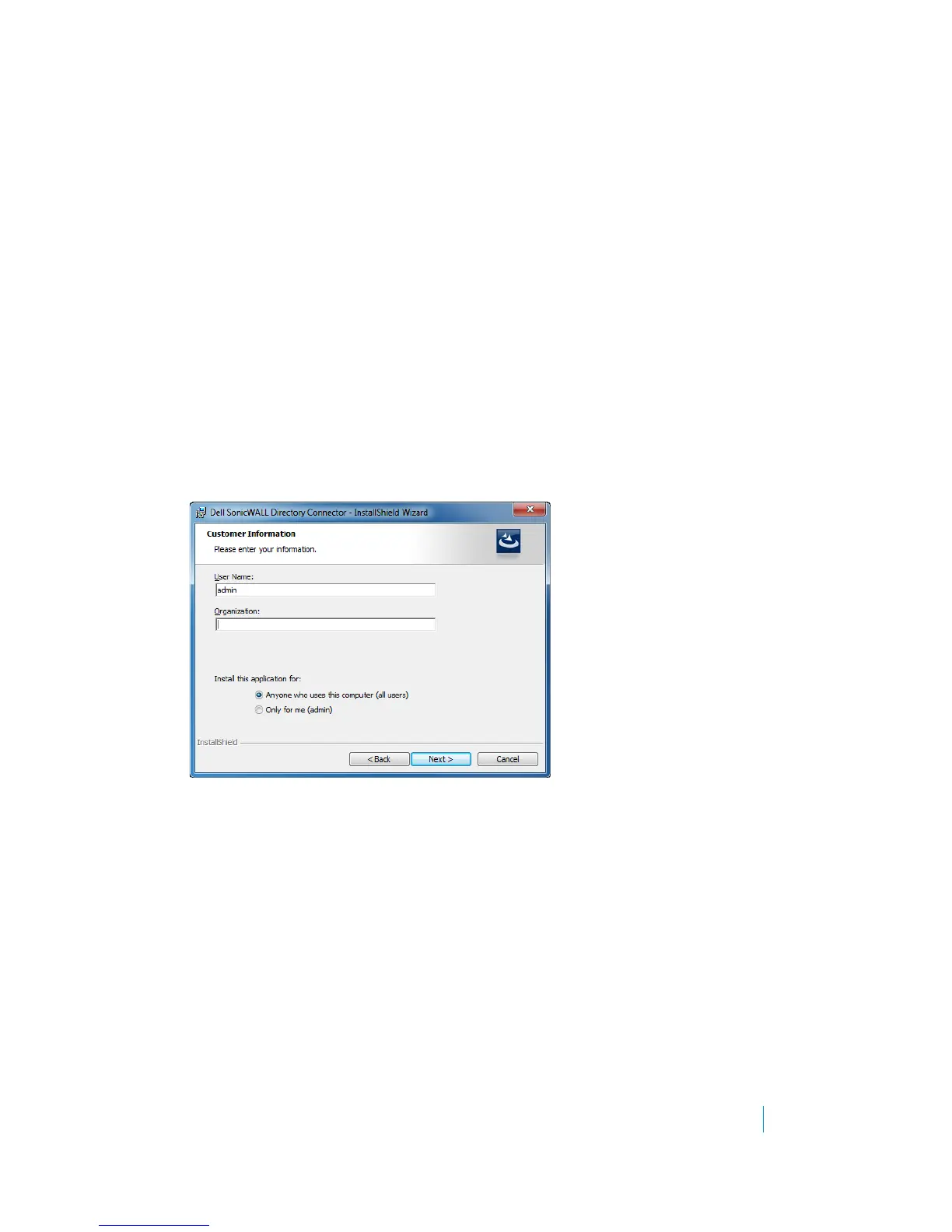
6 In the Customer Information screen, enter your username and the name of the company that owns the
workstation where you are installing the SSO Agent, select the application use privileges, and then click
Next.




 To Next Page