Back to Contents Page
Keyboard
Dell™Studio1535/1536ServiceManual
Removing the Keyboard
1. Follow the procedures in Before You Begin.
2. Remove the center control cover (see Removing the Center Control Cover).
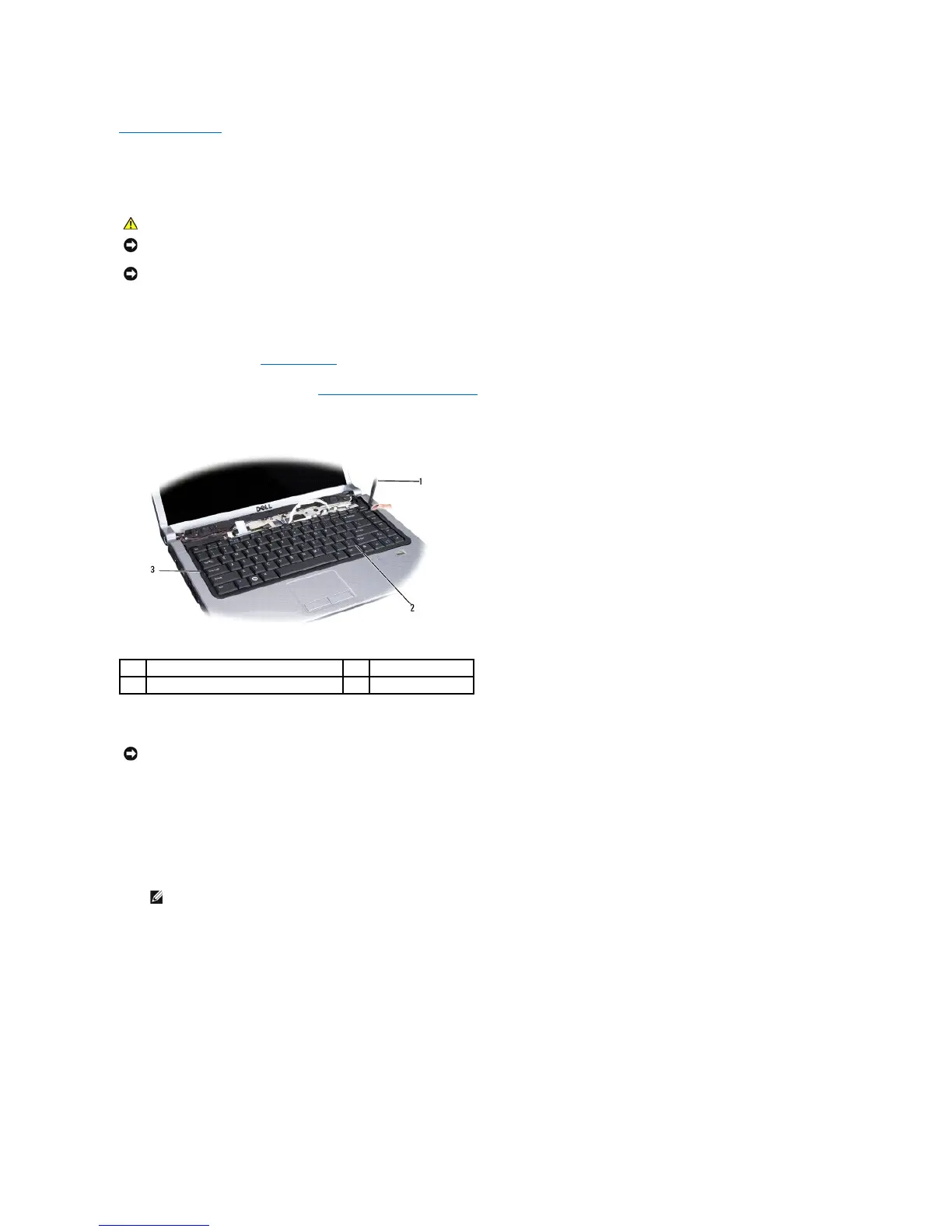
3. Remove the keyboard surround by easing it out using a plastic scribe.
4. Remove the two screws at the top of the keyboard.
5. Lift the keyboard and hold it to access the keyboard connector.
6. Disconnect the keyboard cable from the keyboard connector on the system board by rotating the keyboard connector latch towards the front of the
computer.
7. Slide the keyboard cable out of the keyboard connector.
CAUTION: Before you begin any of the procedures in this section, follow the safety instructions that shipped with your computer.
NOTICE: To avoid electrostatic discharge, ground yourself by using a wrist grounding strap or by periodically touching an unpainted metal surface (such
as a connector on the back of the computer).
NOTICE: To help prevent damage to the system board, you must remove the battery from the battery bay before you begin working inside the
computer.
NOTICE: The key caps on the keyboard are fragile, easily dislodged, and time-consuming to replace. Be careful when removing and handling the
keyboard.
NOTE: If you have the backlit keyboard (optional), there would be an additional cable that needs to be disconnected.




 To Next Page