Using the Wi-Fi Protected Setup Push Button on the Router's Web
Page
1. If you are using your printer with a new Dell computer: Connect the USB cable between the port on the back of the
printer and the port on the back of the computer. Go to
step 6.
If you are using your printer with an existing computer: Go to the next step.
2. Ensure that your computer is on, and then insert the Drivers and Utilities CD.
3. From the Welcome screen, click Next.
4. Select I Agree to the terms of this license agreement, and then click Next.
5. From the Install Additional Software or Software Already Installed screen, click Next.
6. From the Select Connection Type screen, select Wireless Connection, and then click Next.
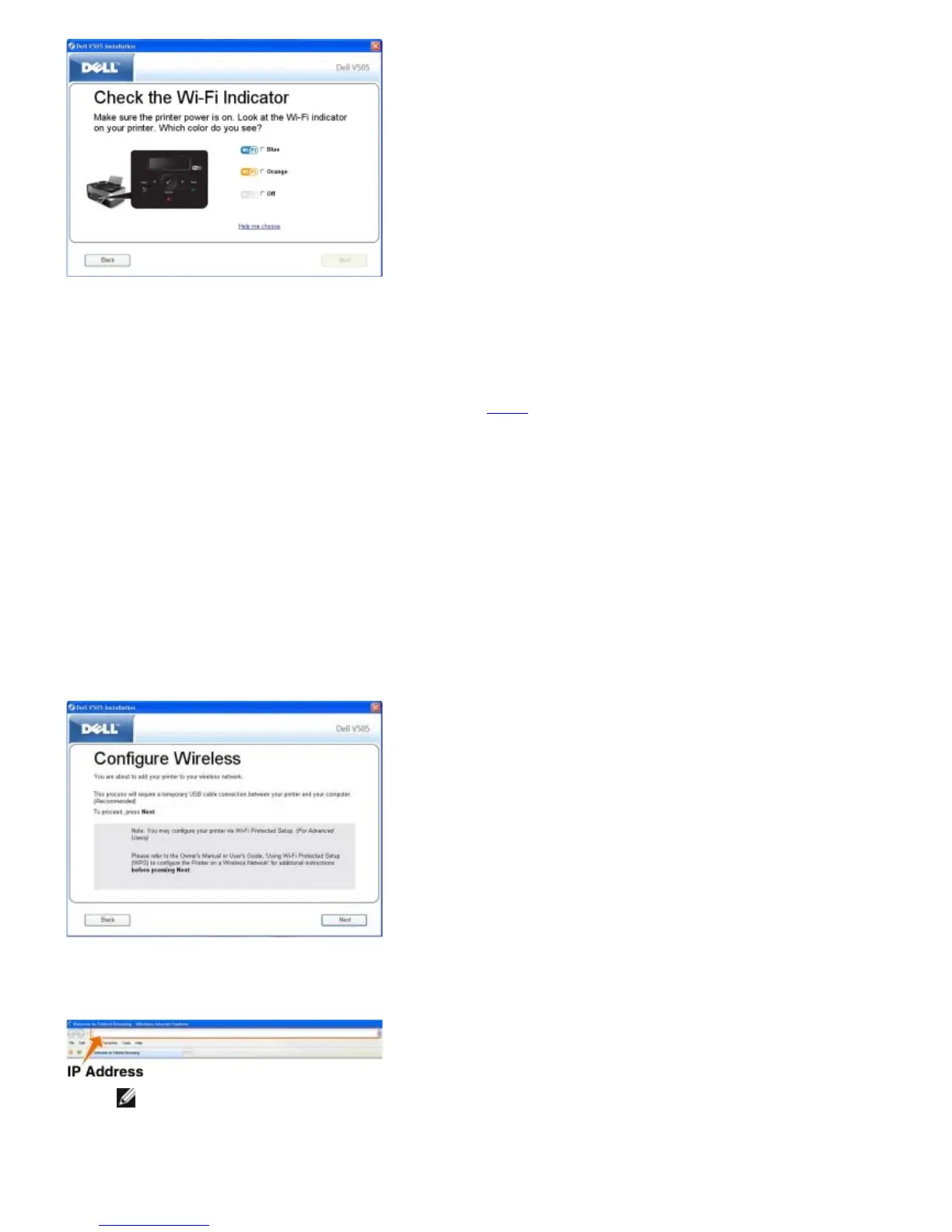
7. Wait until the Configure Wireless screen appears.
8. Using an Internet browser, type in your router IP address, and press Enter.
Your router's web page opens. Navigate to the WPS section.
NOTE: You may be prompted to enter your username and password. If you are not sure of the username and
password, contact your router manufacturer’s helpline or your Internet service provider.














 To Next Page