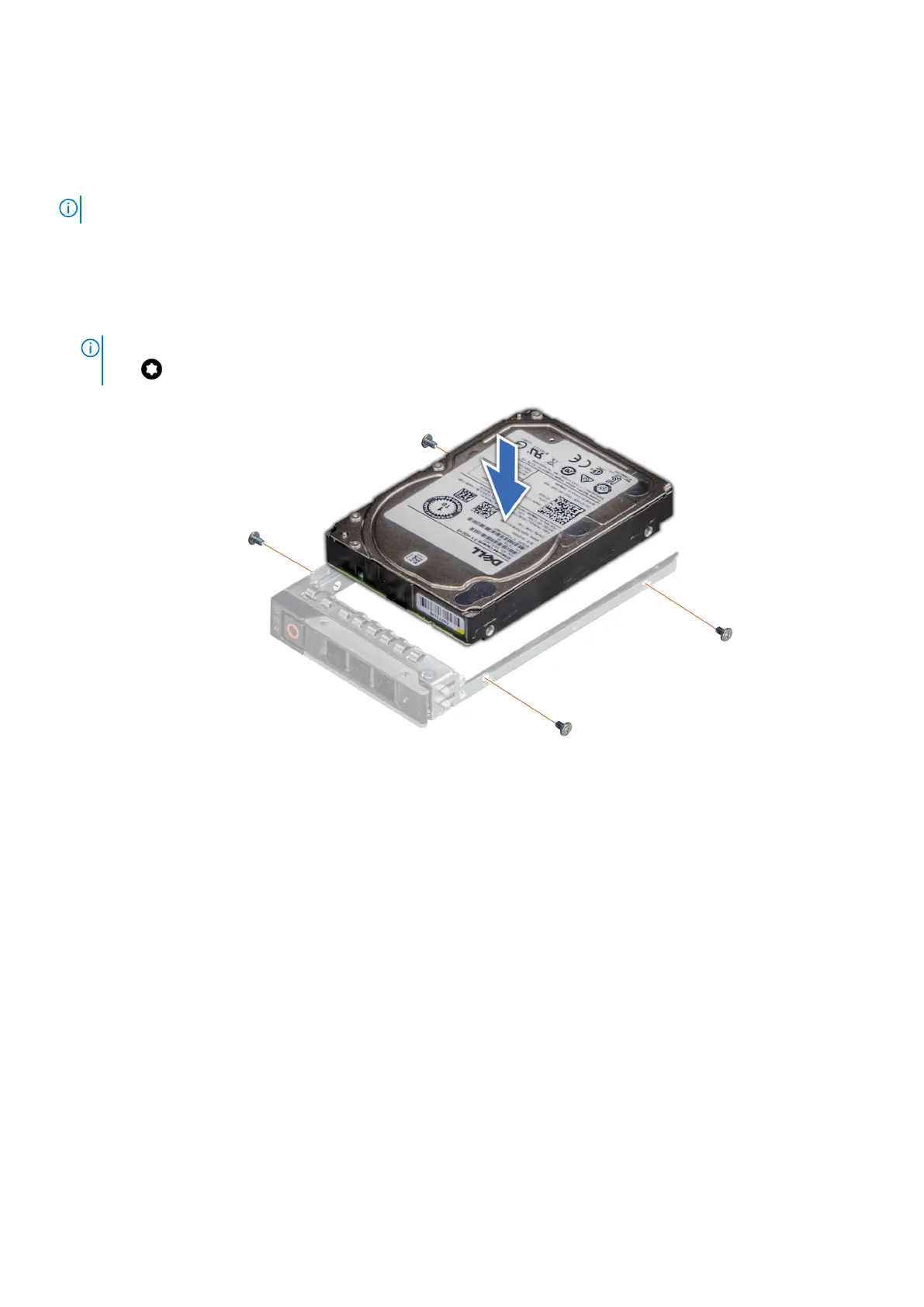
Installing the drive into the drive carrier
Prerequisites
Follow the safety guidelines listed in the Safety instructions
NOTE: When installing a drive into the drive carrier, ensure that the screws are torqued to 4 in-lbs.
Steps
1. Insert the drive into the drive carrier with the drive connector facing towards the rear of the carrier.
2. Align the screw holes on the drive with the screws holes on the drive carrier.
3. Using a Phillips #1 screwdriver, secure the drive to the drive carrier with the screws.
NOTE: If the hard drive or SSD carrier has Torx screw, use Torx 6 (for 2.5-inch drive) screwdriver to install the
drive.
Figure 38. Installing a drive into the drive carrier
Identify a fault drive
Due to the replacement of sg_ses with PERCCLI on the CVM, the drive failure indicator will now blink in green instead of amber
on HBAs, such as the HBA 355. There is no other functional change.
Drive backplane
This is a service technician replaceable part only.
Drive backplane connectors
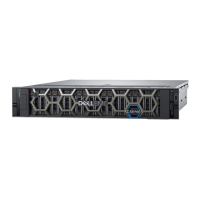
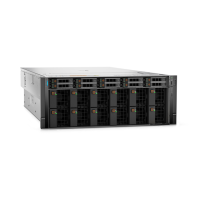
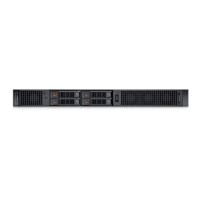
Depending on your system configuration, the drive backplanes supported are listed here:
Installing and removing system components
63



 To Next Page