23
ENGLISH
3
w
When “TV TYPE” is selected:
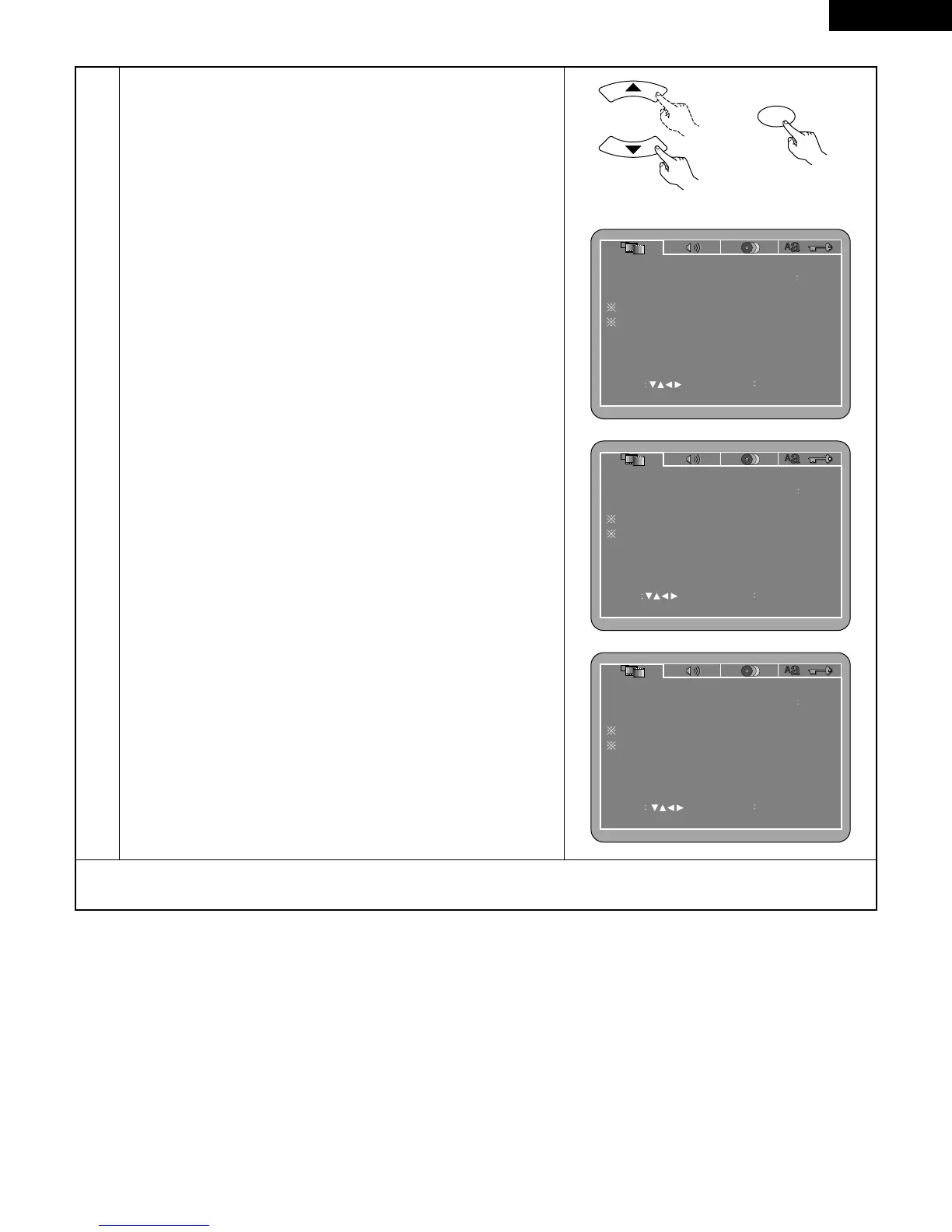
Press the ENTER button several times and select the type.
NTSC (Factory default)
Select this when your TV’s video format is NTSC.
If NTSC is selected, output format is fixed to NTSC.
PAL
Select this when your TV’s video format is PAL.
If PAL is selected, output format is fixed to PAL.
MULTI
Select this when your TV is compatible with both the NTSC and PAL
formats.
If you play the disc recorded NTSC format, signal from video output
terminal will be switched to NTSC is selected, output format is fixed
to NTSC.
e
When “VIDEO MODE” is selected:
Press the ENTER button several times and select the video mode.
AUTO (Factory default)
The set identifies the type of material on the disc being played (film
or video) and selects the mode automatically. This mode is suited for
playing discs containing both film and video material.
FILM
This mode is best suited for playing discs containing film material or
video material recorded with the progressive scan method.
VIDEO
This mode is best suited for playing discs containing video material.
r
When “SLIDE SHOW” is selected:
Press the ENTER button several times and select the slide switching
interval.
The time interval can be set within 5 and 15 seconds. (The factory
default setting is 5 seconds.)
NOTE:
• If stripes of noise appear on the picture or the picture is unclear when
playing a specific DVD video disc, try changing the video mode.



 To Next Page