www.dfi .com
17
Chapter 2 Hardware Installation
Chapter 2
USB Ports
The USB device allows data exchange between your computer and a wide range of simultane-
ously accessible external Plug and Play peripherals.
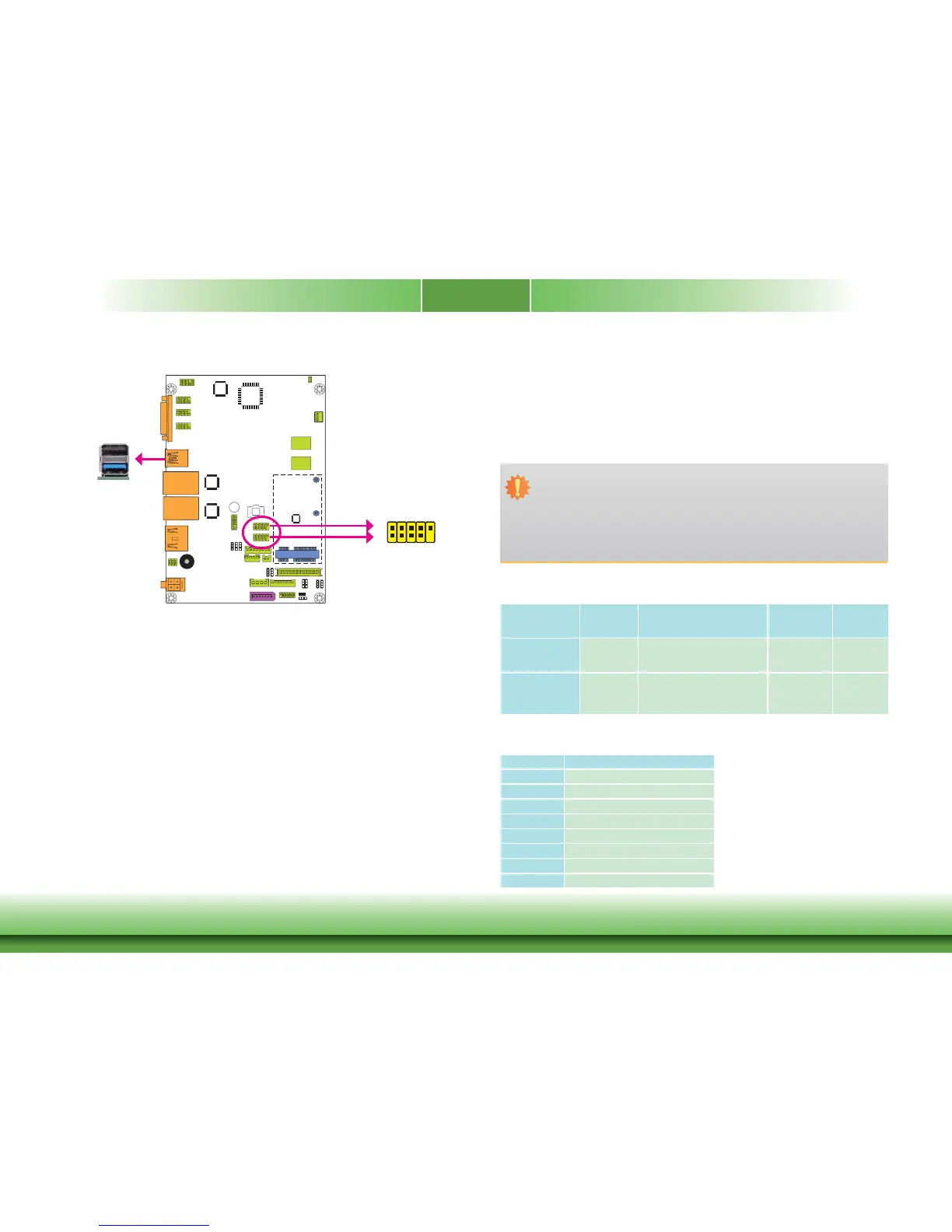
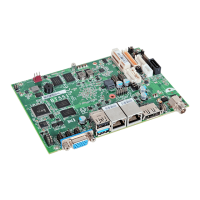
The system board is equipped with one onboard USB 3.0 port (USB 0) and one USB 2.0 port
(USB 1). The 10-pin connectors allow you to connect 4 additional USB 2.0 ports (USB 2-3/4-
5). The additional USB ports may be mounted on a card-edge bracket. Install the card-edge
bracket to an available slot at the rear of the system chassis and then insert the USB port
cables to a connector.
BIOS Setting
Configure the onboard USB in the Advanced menu (“USB Configuration” submenu) of the
BIOS. Refer to chapter 3 for more information.
USB 2.0
Important:
1. If you are using the Wake-On-USB Keyboard/Mouse function for 2 USB ports, the
+5V_standby power source of your power supply must support ≥1.5A. For 3 or
more USB ports, the +5V_standby power source of your power supply must support
≥2A.
2. When installing Windows 7, only native USB 2.0 devices (USB port 0 to USB port 3)
can operate under DOS mode. Please refer to the following tables for more infoma-
tion on the type of USB ports.
Driver Installation
You may need to install the proper drivers in your operating system to use the USB device.
Refer to chapter 4 for more information.
Wake-On-USB Keyboard/Mouse
The Wake-On-USB Keyboard/Mouse function allows you to use a USB keyboard or USB mouse
to wake up a system from the S3 (STR - Suspend To RAM) state.
USB 1
USB 3.0
USB 0
1
2
10
9
VCC
-Data
+Data
GND
Key
VCC
-Data
+Data
GND
N.C.
USB 4-5
USB 2-3
Operation
Environment
for Customers
DOS Windows 7 Windows 8.x Linux
OS Selection
in the BIOS
Advanced Menu
Windows 8.x Windows 7 Windows 8.x Windows 8.x
Available USB
ports
All
When installing Windows 7 fi rst
time, only native USB 2.0 ports
can work. Please refer to the
USB type in table 2 below.
All All
Table 1. OS Selection
Model Name BT551/BT553
USB 3.0
Native
USB 0
Native (share with USB 3.0 port)
USB 1
Native
USB 2
Native
USB 3
Native
USB 4
HSIC port 0
USB 5
HSIC port 1
USB 6
HSIC port 2
Table 2. The Type of USB Ports
USB 2.0


 To Next Page