Celeris User Manual
14770-A || ECN # 844 || ECN Date: 28 July 2017 Page 13 of 23
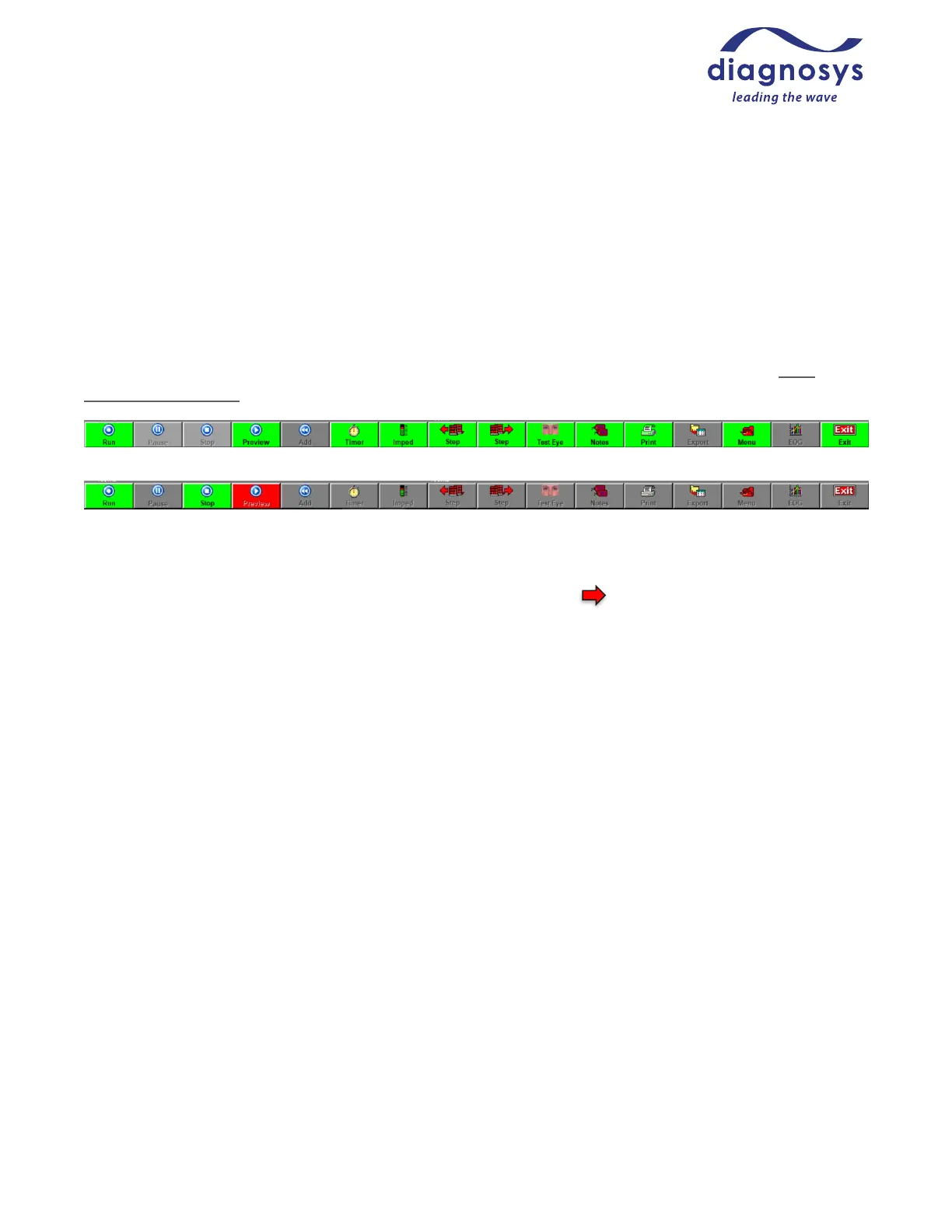
The Control Bar at the bottom of the page controls the test. Most of these buttons have their functions
duplicated by the control buttons on the Celeris. By default, buttons that can be pressed are green; buttons that
are active are red; buttons that cannot be used at the moment are greyed out. Figure 12 below shows a Control
Bar in the ready state; since the software is not doing anything (and there are no results recorded), the test
cannot be paused or stopped, and there is no data to export or add to. The EOG button is also greyed out; the
EOG is a test of the RPE layer of the human eye and is not relevant for animal applications. Figure 14 below
shows a control bar in the Preview State – note that the array of available commands has changed now that the
amplifiers are actively sampling data. The color of the control bar buttons can be customized in the Local
Configuration Settings.
Figure 16 - Control Bar; Ready state
Figure 17 - Control Bar; Preview state
The Run button will start the test. Most Diagnosys-provided protocols are automatically sequenced, which
means that when the test it started, it will automatically advance through the protocol until completion.
Manually sequenced protocols will require the operator to use the Step button to advance through the
protocol. The Pause button will pause a running test, and Stop will stop the recording. Preview will begin
sampling baseline data. The Add button will add a full complement of sweeps to the selected result.
The Timer button will allow you to see or control the timer in a protocol that has adaptation timers defined.
Imped will allow you to check the impedance (resistance; essentially a measure of electrode connection) of the
setup. Ideal impedances are between 5 and 12K. Most Diagnosys-supplied protocols will automatically launch
the impedance checker when you start the test.
The Step forward and Step Back buttons allow the operator in a manually-sequenced protocol to advance
through a test. The Step you are on (and how many steps there are in the test) are updated in the Step and
Stimulus button in the navigation bar.
Test Eye is not used in animal applications.
Notes allows you to write free-form notes (for example, “animal woke up partway through exam”) that will
appear on printouts of the test.
The Print and Export buttons allow you to print results, either to hard copy or a PDF printer, and to Export
graphic or ASCII data to third party software.
The Menu button launches the popout menu.
The Celeris is not capable of performing the human-only EOG test, so the EOG button will remain greyed out.



 To Next Page