Celeris User Manual
14770-A || ECN # 844 || ECN Date: 28 July 2017 Page 17 of 23
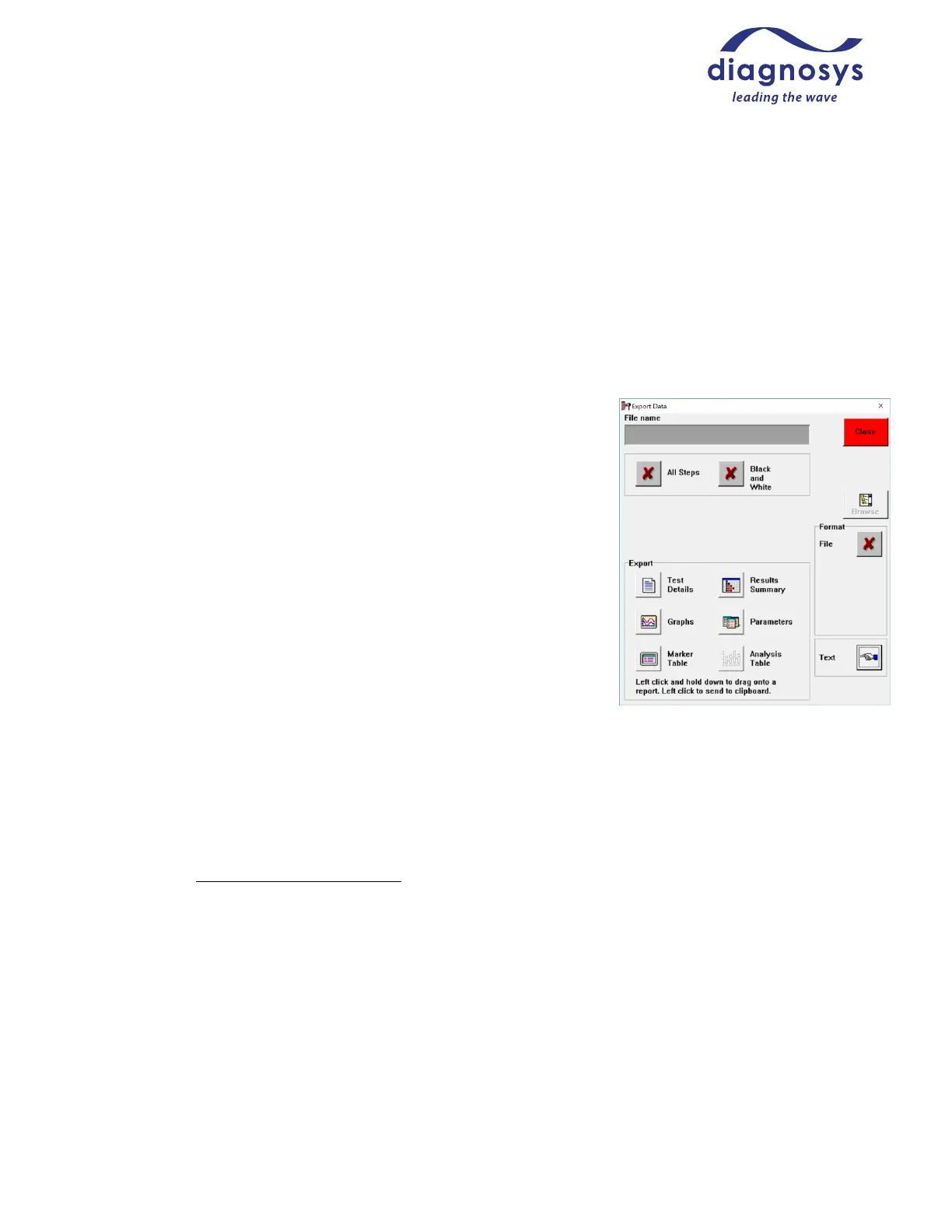
Stimulus Table: Provides information about stimulus parameters for the test.
Data Table: Provides X and Y axis values for each data point on the waveform.
Separator: When exporting to a file, data delimiter can be Tab, comma, colon, semicolon, or space.
Titles: Useful when exporting multiple tables at once; will title each section of the spreadsheet.
Vertical: Transposes columns and cells; was added as a workaround for Excel 2003 and earlier which would not
permit more than 256 columns.
Include All: If selected, will include all Steps/Channels/Results. If
unselected, will only export the current step/channel/result.
Data Columns: Requires the Data Table be enabled. Contents includes
information such as which Channels, Results, and Trials columns are
included. Results includes averaged responses. Sweeps includes the
individual responses that make up each average.
File/Clipboard Format: Allows the user to determine whether the data is
copied to clipboard or exported to a file for later import into 3
rd
party data
processing software. Note: when exporting to a file, the user must use the
Browse button to manually set a filename and directory.
Exporting Graphics: Clicking each button will place the associated graph
on the clipboard for pasting into 3
rd
party imaging or presentation
software.
Loading Saved Tests
Previously saved tests can be accessed from the subject/patient selection page by pressing the Old Tests button.
This will display a list of all tests recorded under that patient record. Saved tests can also be accessed by
selecting a subject, pressing Protocols, and pressing the Old Tests button. This will display a list of tests
associated with that subject and that protocol. Filters for Patient and Protocol can be unchecked at this window,
allowing a list of all tests recorded associated with any subject/any protocol or any subject/specific test
protocol.



 To Next Page