Celeris User Manual
14770-A || ECN # 844 || ECN Date: 28 July 2017 Page 14 of 23
The Exit button allows the operator to exit the test. When exiting the test, the operator will be prompted to save.
A ‘no’ response will require confirmation. If a test is discarded in error, contact Diagnosys for help in retrieving
the test data.
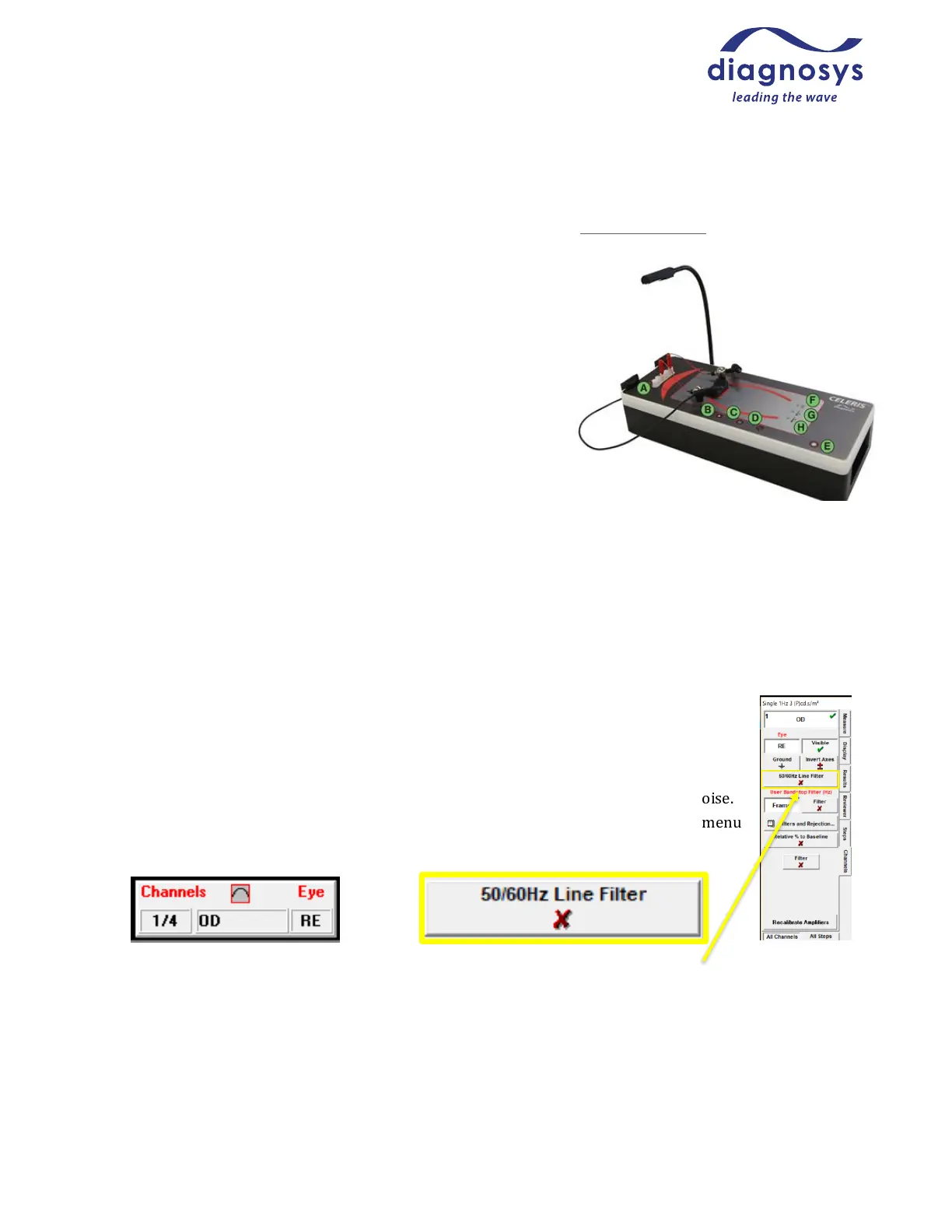
The system can also be controlled by the buttons on the Celeris itself.
A: Amplifier inputs
B: Run button – starts the test.
C: Pauses a running test/Starts preview when in ready state
D: Stops a running test or previews/Check Impedances in ready state
E: Toggles safety light/ press and hold to adjust safety light intensity
F: Warming pad power indicator
G: Warming pad below target temperature indicator (still warming)
H: Warming pad above target temperature indicator (error state)
Running a Test
Press Run to begin the test. Automatically sequenced protocols (such as the ones Diagnosys provides), will
automatically advance through the test protocol until the test is complete. Manually sequenced protocols will
require the operator to use the Step forward button to advance through the test, and to press Run at the
beginning of each step.
In-test Troubleshooting
Problem: Mains interference
Solutions: Try to ensure all power cables are physically kept away from the Celeris. Ensure that
the outlet the Celeris is plugged into is grounded. If using a laptop, tablet, or other battery-
powered computer to
drive the Celeris, try unplugging the computer from the wall to see if it is producing the noise.
To enable the mains/line filter, press the Channels/Eye button at the top of the runtime menu
and toggle the 50/60 Hz Line Filter from the popout menu that appears.
Figure 20 – Channels Eye button in navigation bar Figure 21 – Line Filter button



 To Next Page