DA16600 FreeRTOS Getting Started with EVK
© 2021 Dialog Semiconductor
5 Wi-Fi Provisioning Setup
5.1 DA16600 Connecting the Board
This section describes the installation procedure for the drivers, the configuration of the serial port,
and the steps needed to verify the connection with the PC as well as solutions to problems that may
occur.
On the first connection to a host PC running Microsoft Windows, the system detects several devices
and automatically installs all necessary drivers. If the drivers are not automatically installed, you can
get them from the following URL: http://www.ftdichip.com/Drivers/CDM/CDM21224_Setup.zip.
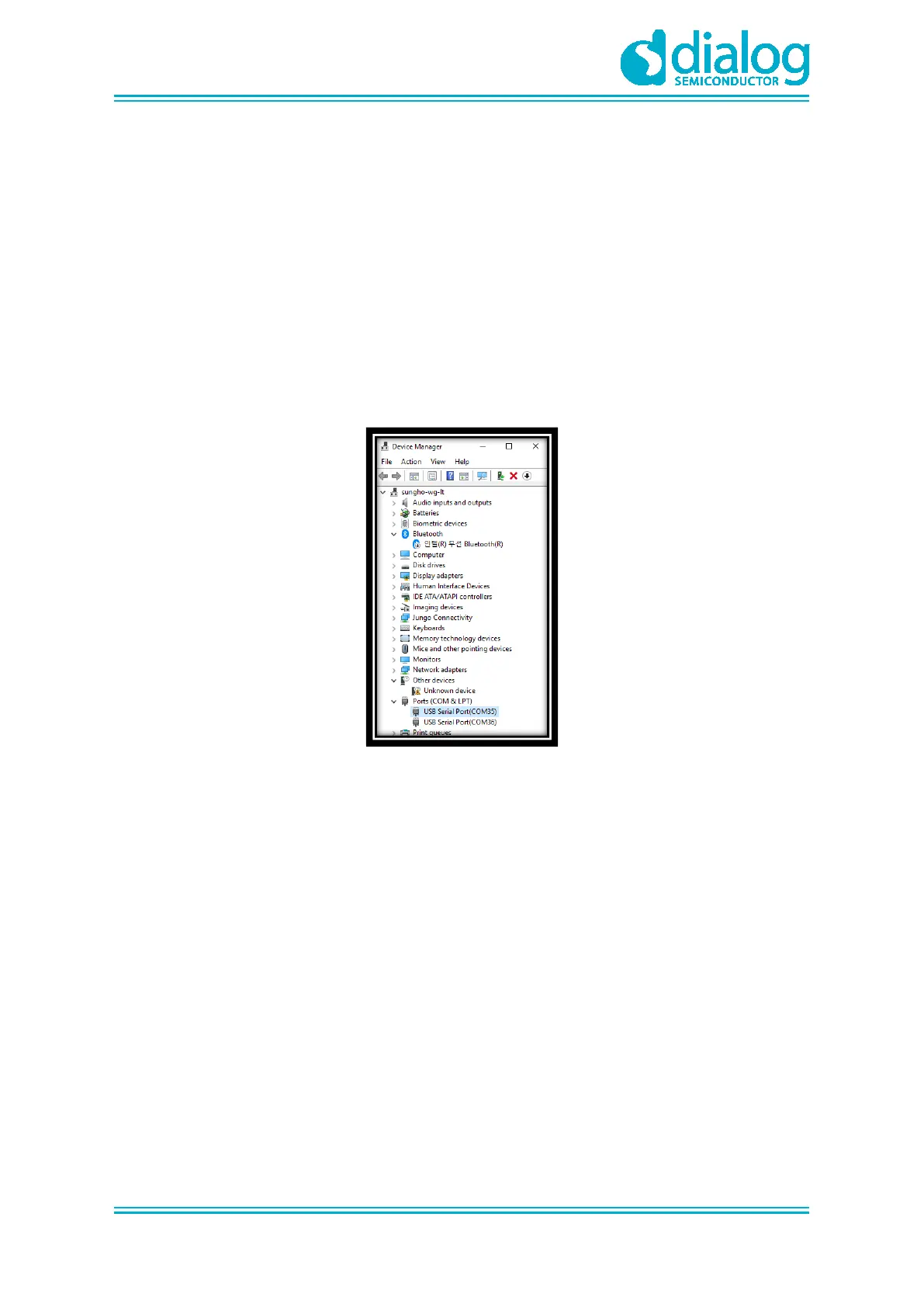
The Windows driver creates two virtual COM ports. The first COM port (lower number, COM35 in this
example) provides a UART interface for debugging or firmware download between the PC and the
DA16600. See Figure 7.
Figure 7: Check COM Ports on Device Manager
5.2 Configure the Serial Port for UART
For a Windows Host, the Tera Term utility is used to fully validate the connection to the DA16600
EVK.
Tera Term is a free software terminal emulator (communication program) which supports multiple
communication including Serial port connections. Download Tera Term from https://ttssh2.osdn.jp.
Run the teraterm-x.yy.exe and follow the installation wizard.
To make sure that the communication between the DA16600 EVK and host PC is properly
established, you need to verify the UART connection between the two nodes. Do the following:
1. Connect the DA16600 EVK to the PC USB port via USB cable.
2. Verify that the host identifies two serial ports as shown in Figure 7 – the second is connected to
UART (see Section 5.1).
3. In the Windows Start menu, open Tera Term.
4. In the Tera Term: New connection dialog, do the following:
a. Select Serial.
b. Select the COM Port to use.
c. Click OK.



 To Next Page