7 HOW USE YOUR ARIA SERVER (ADVANCED FEATURES)
This section explains an advanced usage of the aria server: How to add music from external devices,
changing the metadata, creating playlists, etc.
Import music
You can use digital music stored in any other device like a NAS or a USB HDD* with your aria server.
To import music you must use iaria app as we will explain later, but it is important to mention that there
are two ways to do this: copying the music or linking it.
Copy music: This means the music from your external device will be copied into the hard disk of your aria
server and will be included in the music library.
Link music: aria server “saves” the path to the music in your device but the music is not copied from the
device into the internal hard disk. It is important to remark that your device (NAS or USB HDD) needs to
be connected each time you play the linked music. If not, the music won’t be played as it is not stored in
the aria.
Once a device is linked, if you add or delete music in the linked device it will be automatically updated in
your aria server after a reboot. It is not necessary to link your device every time you change the music
stored in it.
If you are copying or linking music from a USB device, please bear in mind:
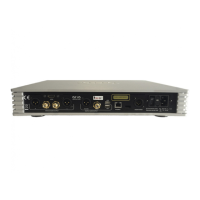
- The USB device must be connected to the USB input labeled as HDD in the rear panel
- The USB host port is rated to provide a maximum of 5V, 500mA power to the USB drive. This is
sufficient for all USB thumb drives and flash memory card readers but may not be sufficient for
USB hard drives. It is recommended that you use a USB hard drive with an external power
supply to avoid damaging the USB host ports.
*Unpowered USB HDD may cause the app to crash and the server to reboot.


 To Next Page