Mbox 2 Pro Setup Guide32
Mbox 2 Pro Back Panel Features
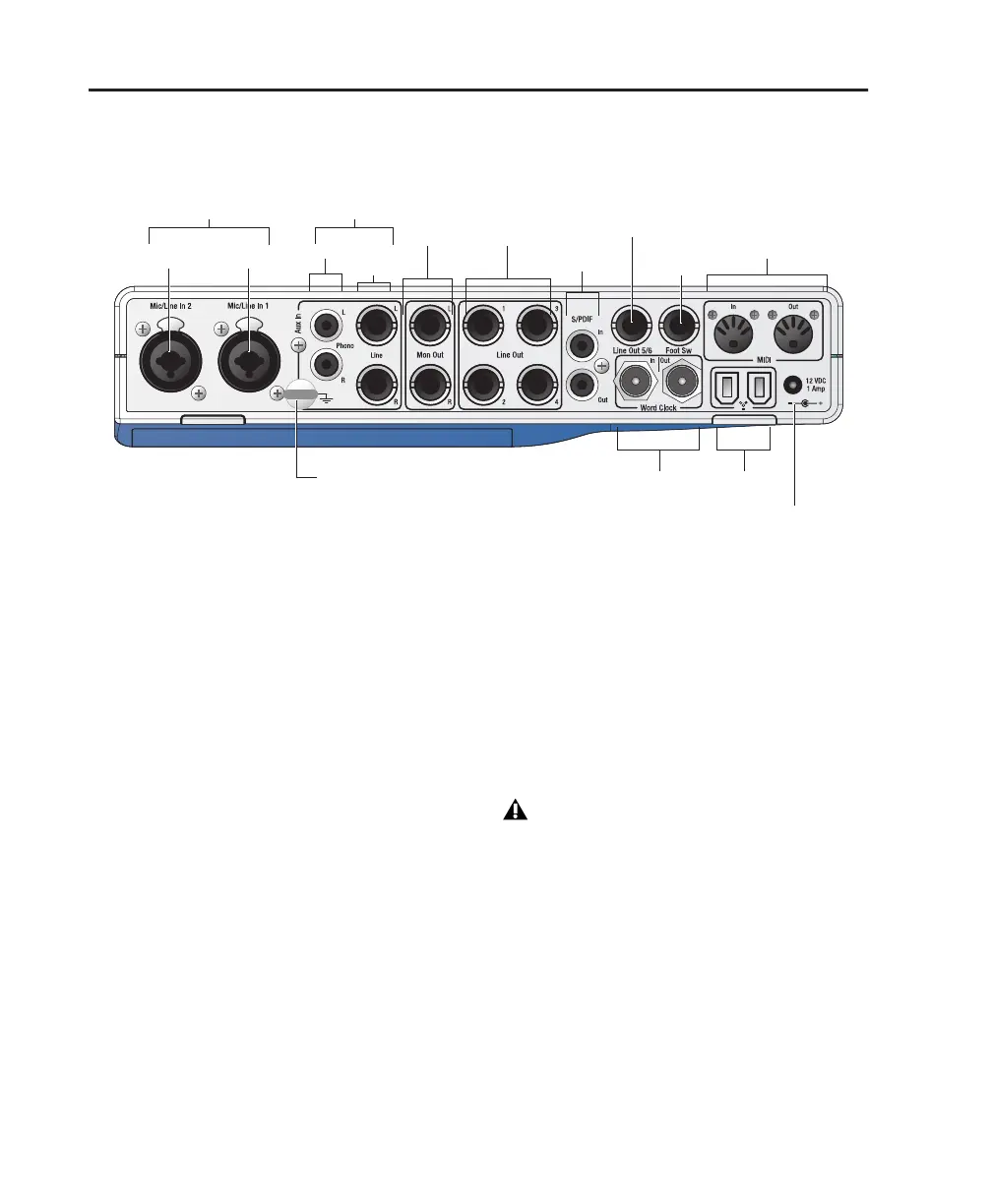
Figure 2 identifies the inputs and outputs on the back panel of the Mbox 2 Pro.
The Mbox 2 Pro back panel provides the follow-
ing:
DC Power
This port supplies power to Mbox 2 Pro using
the included power supply. Though external
power is not always required, you should use ex-
ternal power if your 1394 bus is unable to pro-
vide enough power, or if you need to conserve
battery power in a portable computer.
FireWire (1394) Port
This standard FireWire 1394 connector is used
to connect your computer to Mbox 2 Pro. One
6-pin FireWire cable is included with
Mbox 2 Pro. The Mbox 2 Pro can be powered
solely through its 1394 connection to your com-
puter, or using an external power supply (in-
cluded with your system).
4-Pin FireWire Cable
Mbox 2 Pro includes a 6-pin to 6-pin FireWire
cable. Some Windows laptops include a 4-pin
FireWire port. To use Mbox 2 Pro with these
computers, a 4-pin to 6-pin cable is required.
You can purchase this cable (model #CS625)
through your authorized Digidesign dealer or
online at the DigiStore (www.digidesign.com).
MIDI I/O
The MIDI In and MIDI Out ports are standard 5-
pin MIDI ports, each providing 16 channels of
MIDI input and output.
Figure 2. Mbox 2 Pro back panel
Line Out
S/PDIF
Monitor
Inputs 1 and 2
digital I/O
outputs
MIDI I/O
Mic/Line 2
Phono In L/R
Line In L/R
Aux In (3–4)
Mic/Line 1
(5–6)
Footswitch
Ground post
Line
outputs
(1–2) (1–4)
Word clock
In/Out
Firewire
Power
This cable can also be purchased at com-
puter supply stores. Maximum supported
cable length for FireWire (IEEE-1394) is
14 feet (4.3 meters).


 To Next Page